Microsoft Authenticator & Account FAQs
How do I sign in to Microsoft Authenticator with only a mobile device or tablet?
- Download the free Microsoft Authenticator app by either scanning the QR code below or through the App Store (iPhone/iOS) or the Play Store (Android)
Please make sure you are downloading the app named "Microsoft Authenticator", this application is free and does not require any purchase


https://aka.ms/mobileauthenticator
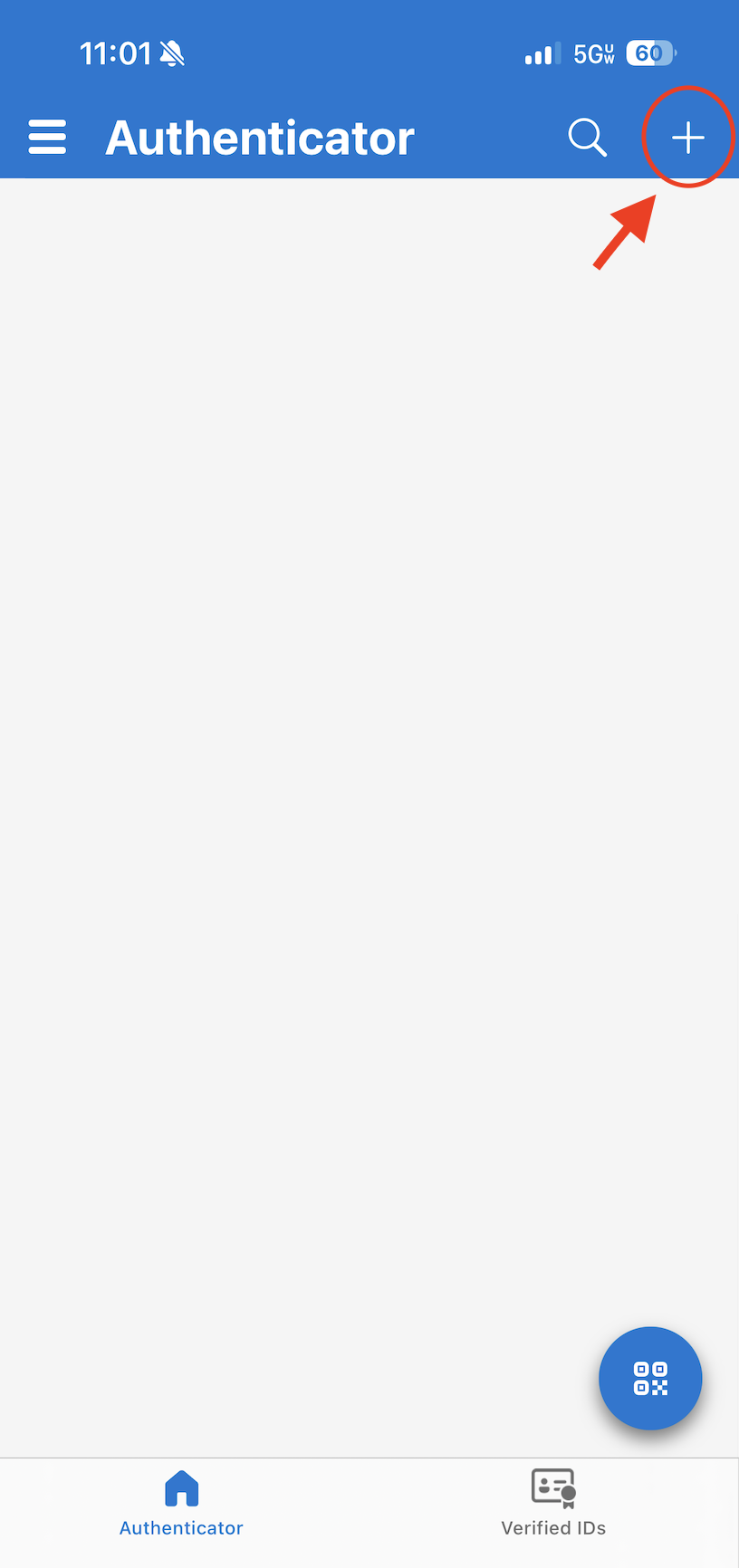
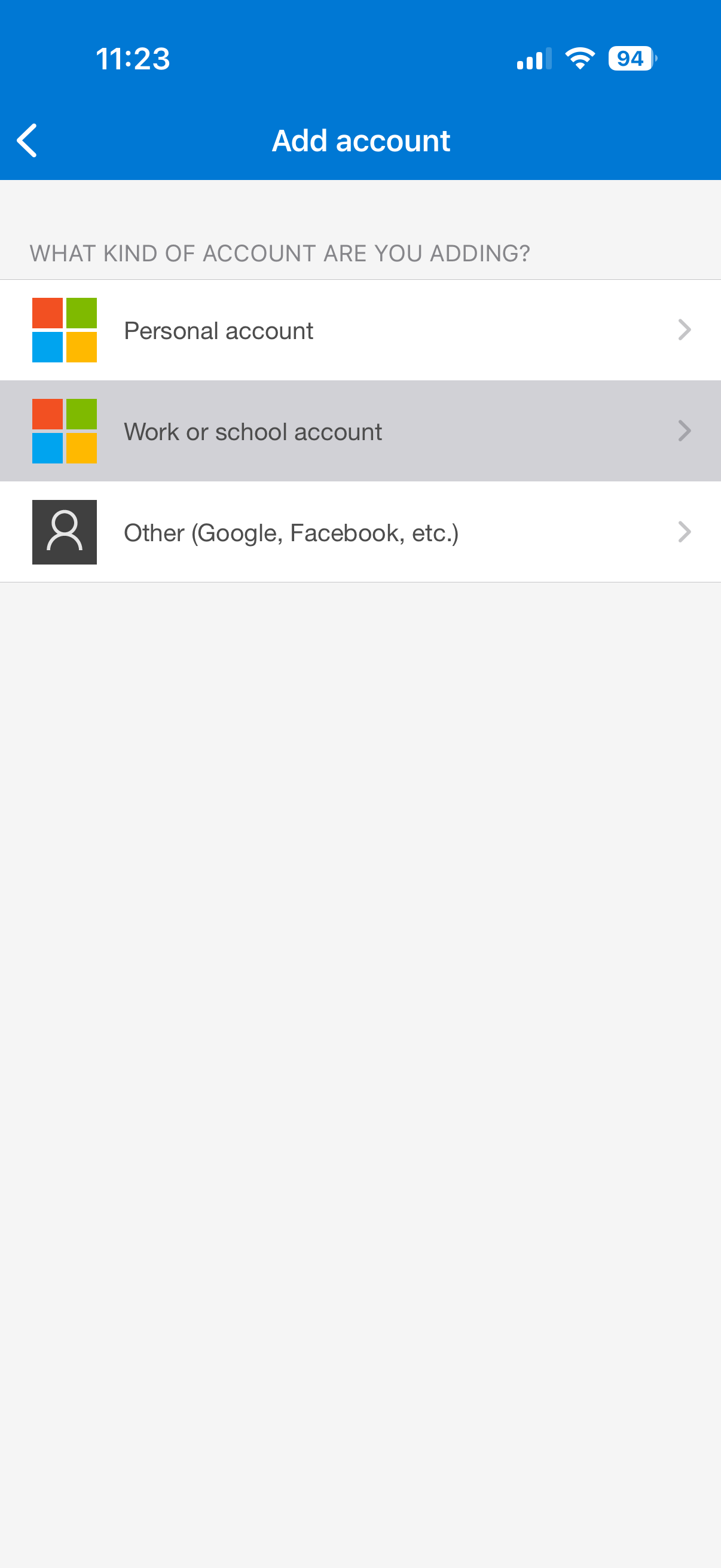
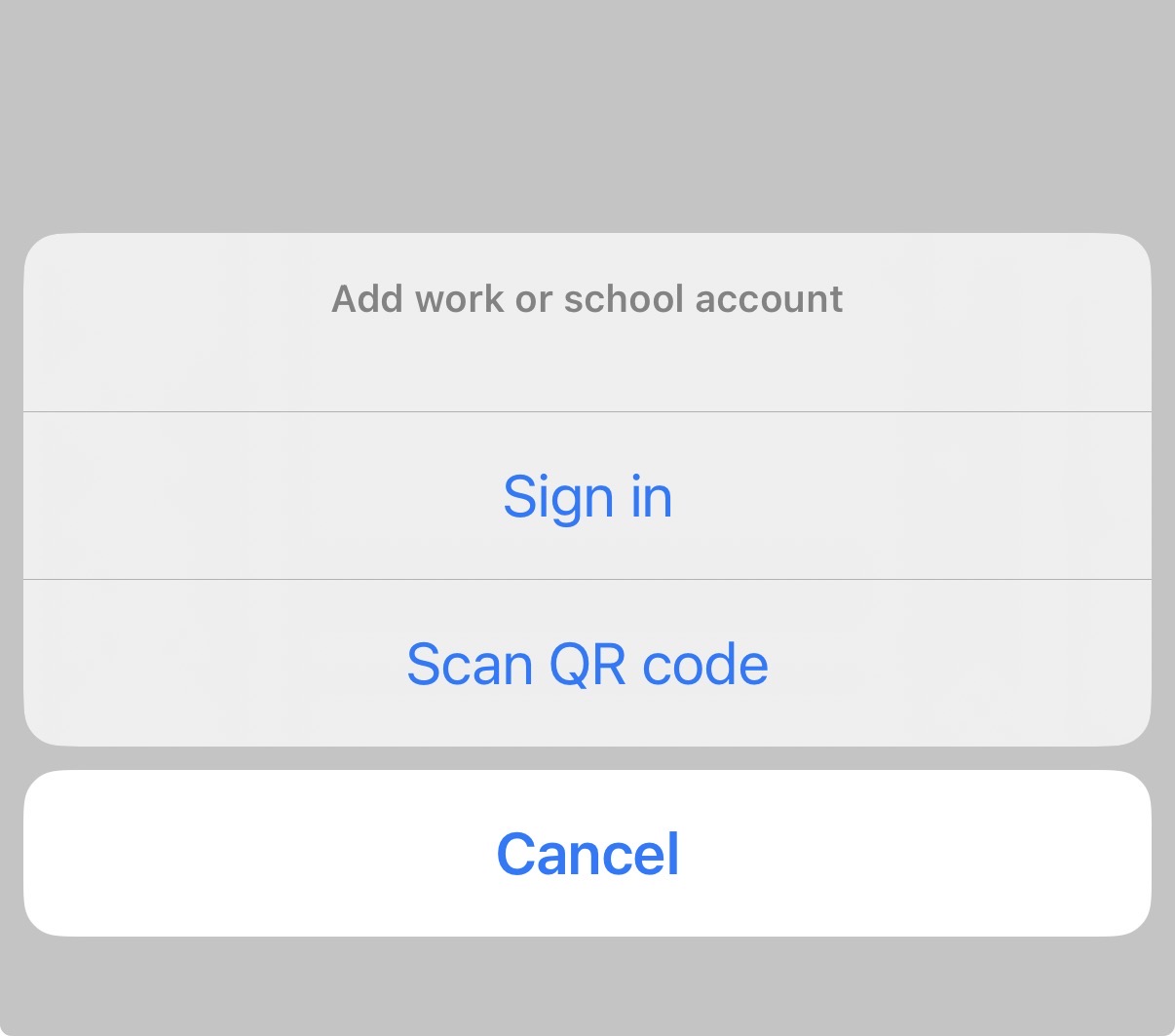
- Open the Microsoft Authenticator on your mobile device and select the + icon in the top right corner and select Work or school account and then Sign in with your A-State credentials
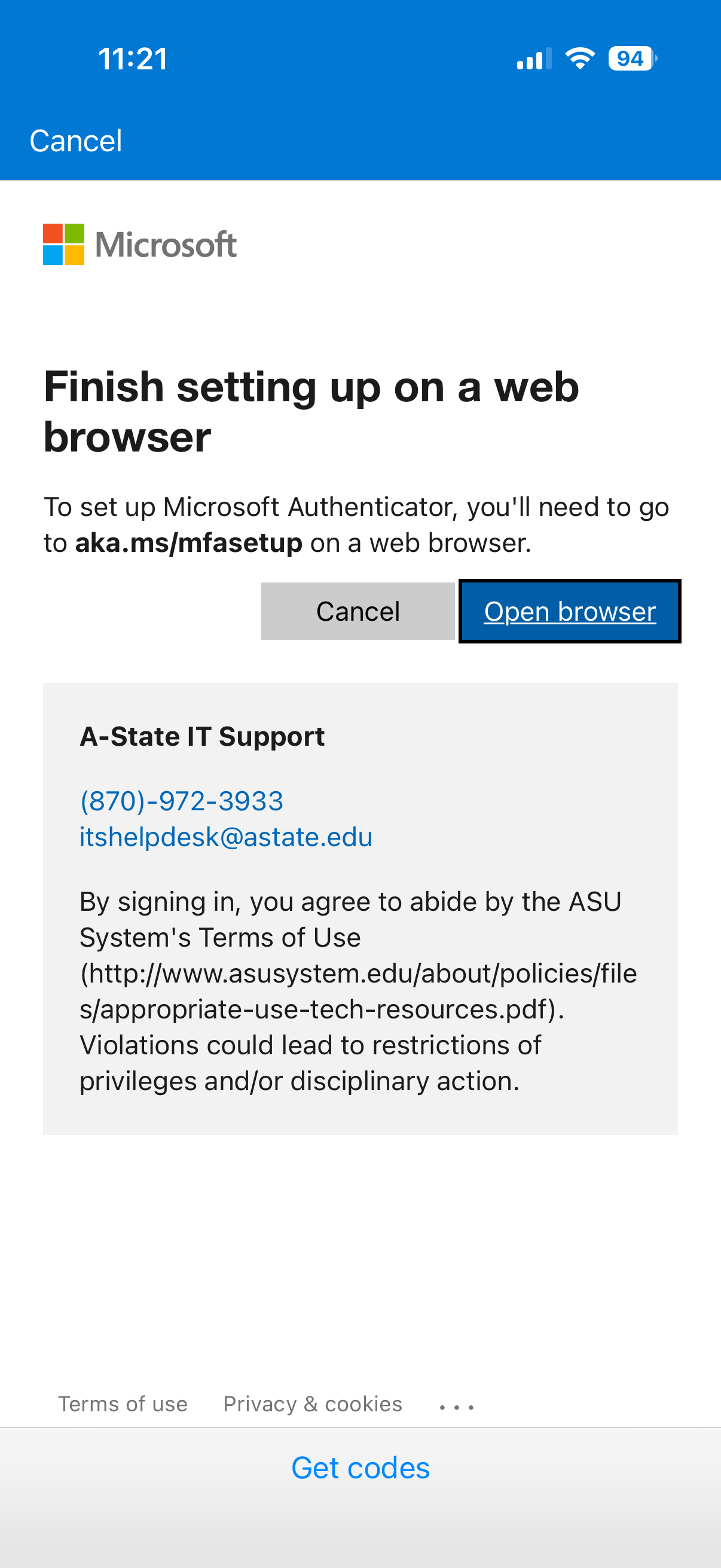
- Select Open browser, then select Next on following screen:
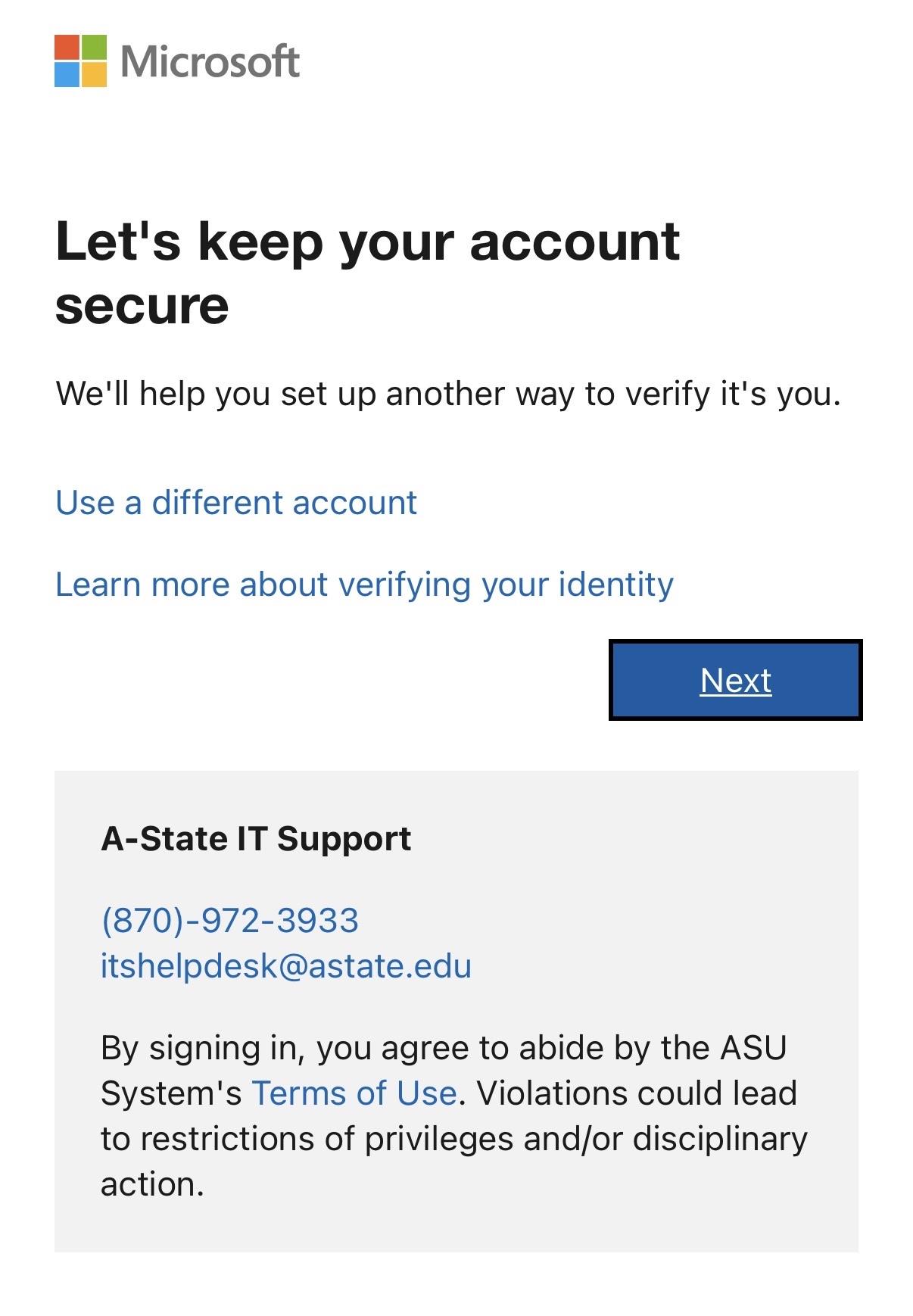
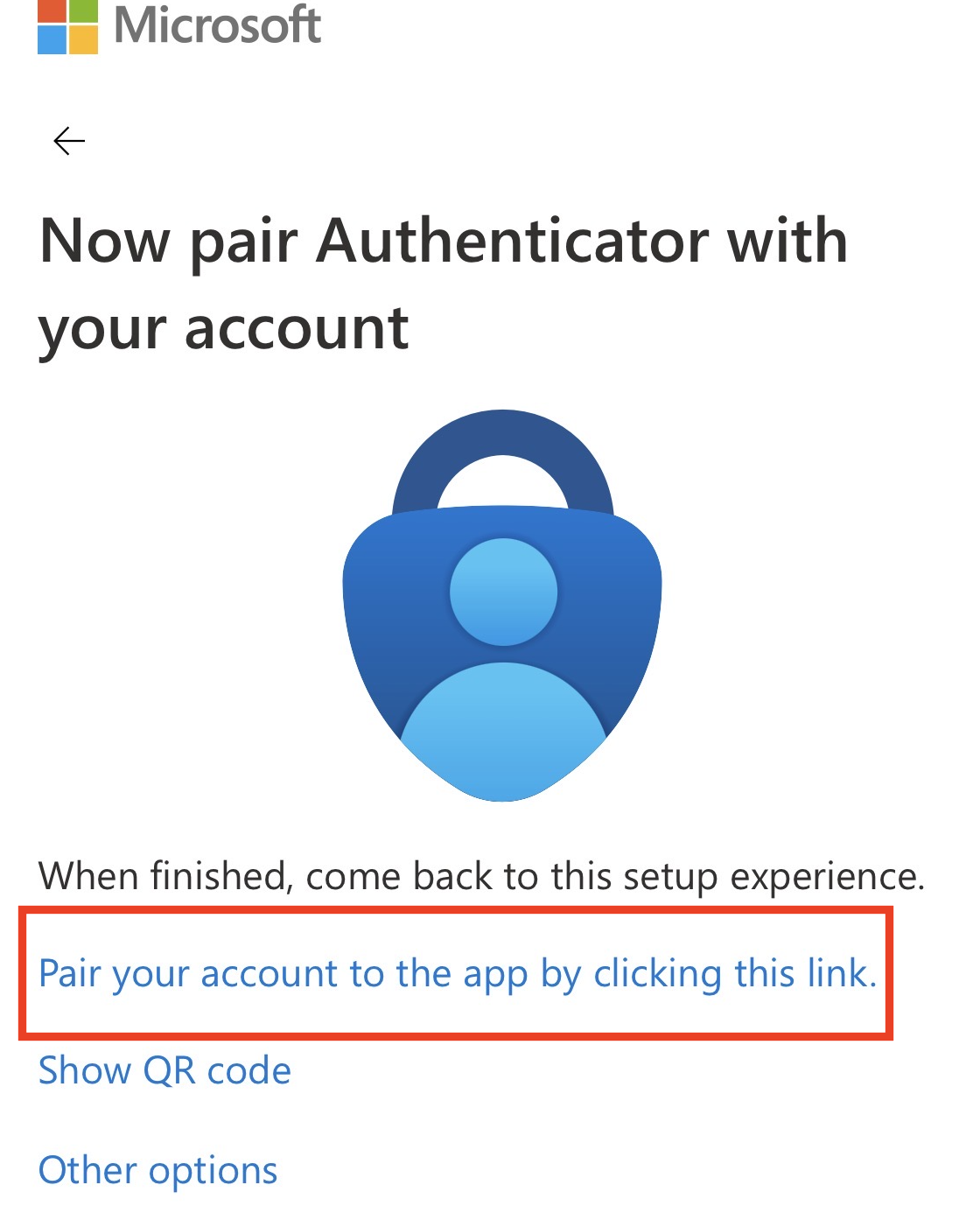
- Select Next, you may need to select Pair your account to the app by clicking this link. if it does not redirect at first.
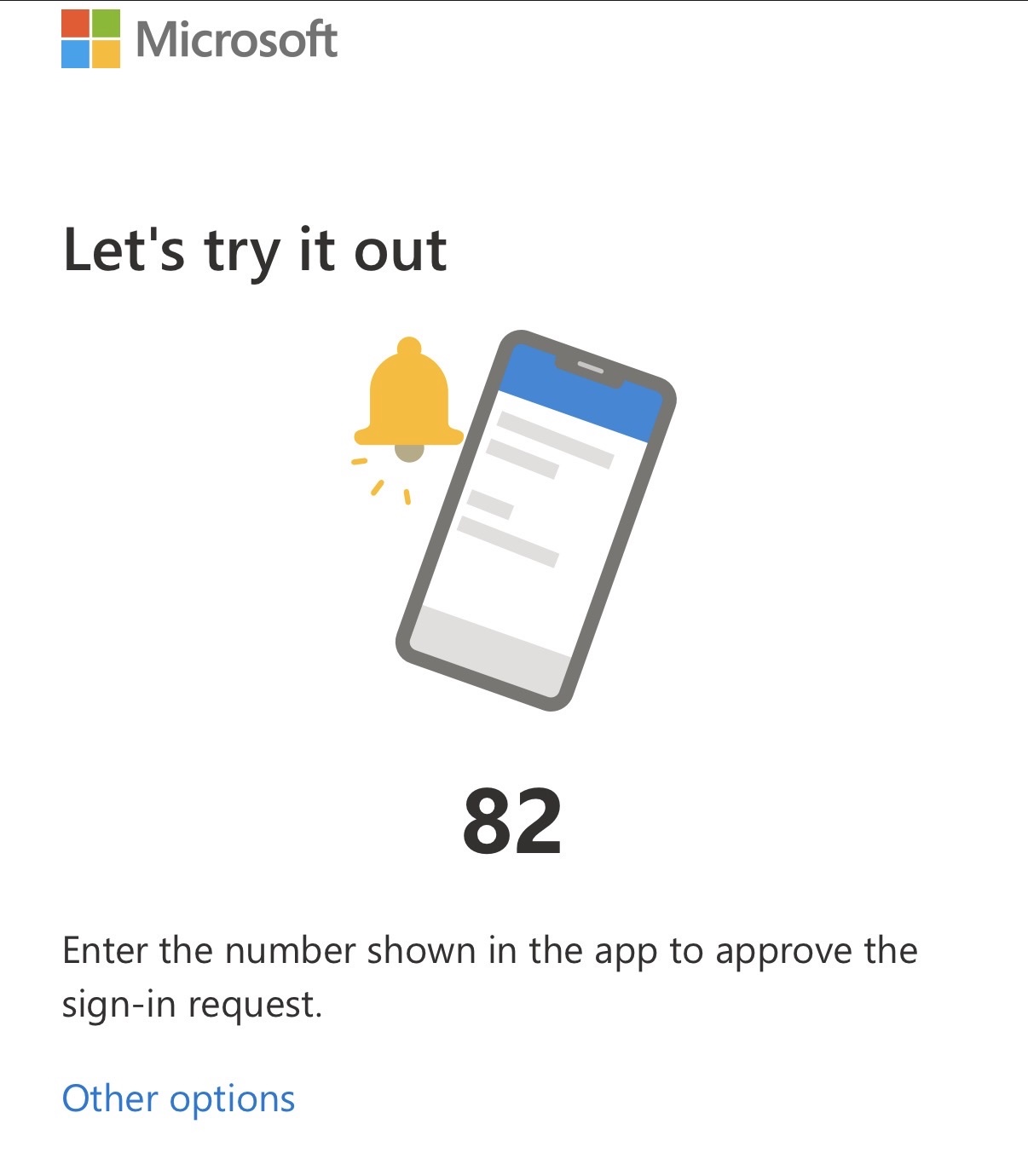
- You will be redirected back to the Microsoft Authenticator app and it will ask for a 2 digit code
- To find the code, go back to your web browser and then type the code in the box in the Authenticator app. (You can refresh the page in your browser to get a new code, if needed.)
- You will be redirected back to the Microsoft Authenticator app and it will ask for a 2 digit code