
Microsoft Authenticator & Account FAQs
How do I sign in to Microsoft Authenticator with only a mobile device or tablet?
- Download the free Microsoft Authenticator app by either scanning the QR code below or through the App Store (iPhone/iOS) or the Play Store (Android)
Please make sure you are downloading the app named "Microsoft Authenticator", this application is free and does not require any purchase


https://aka.ms/mobileauthenticator
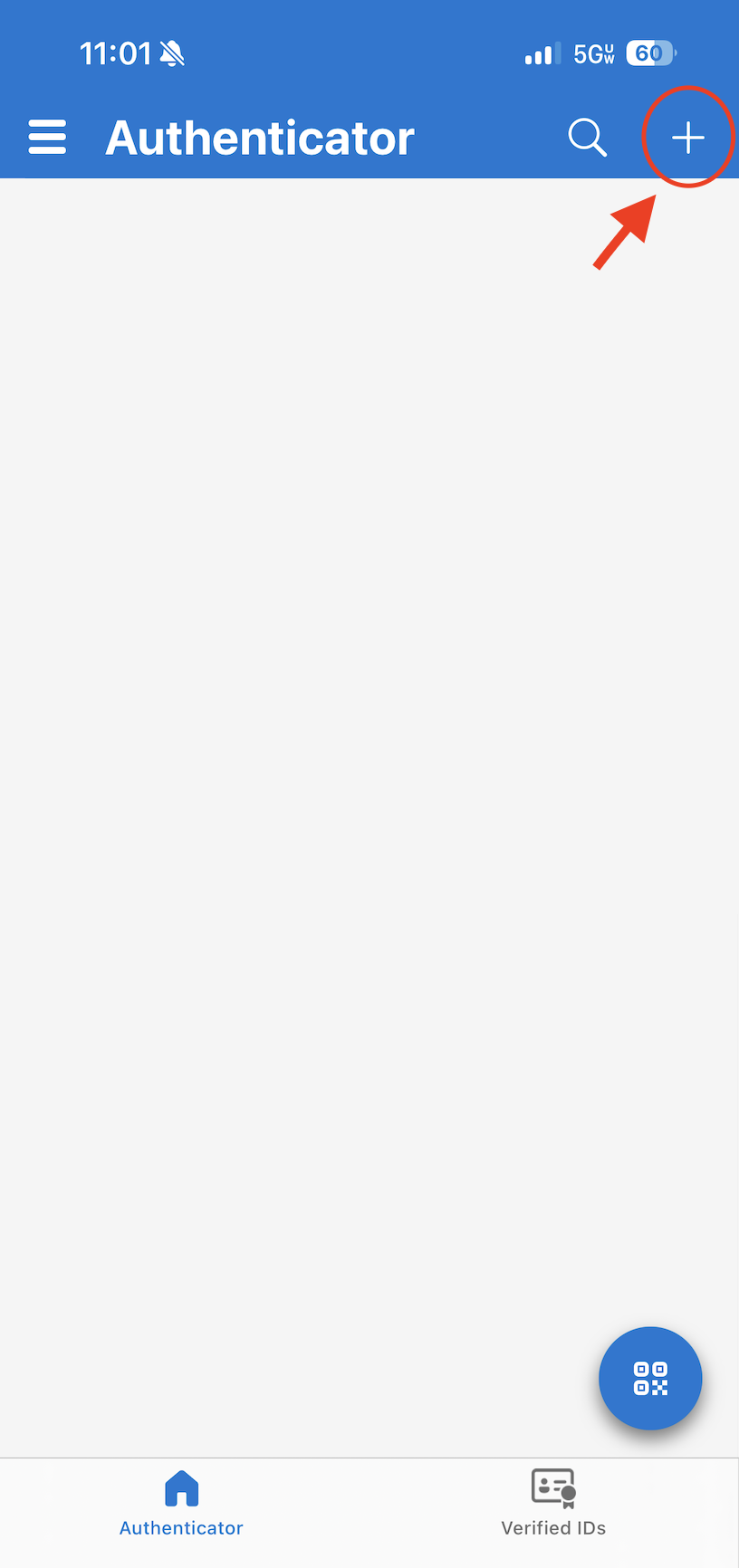
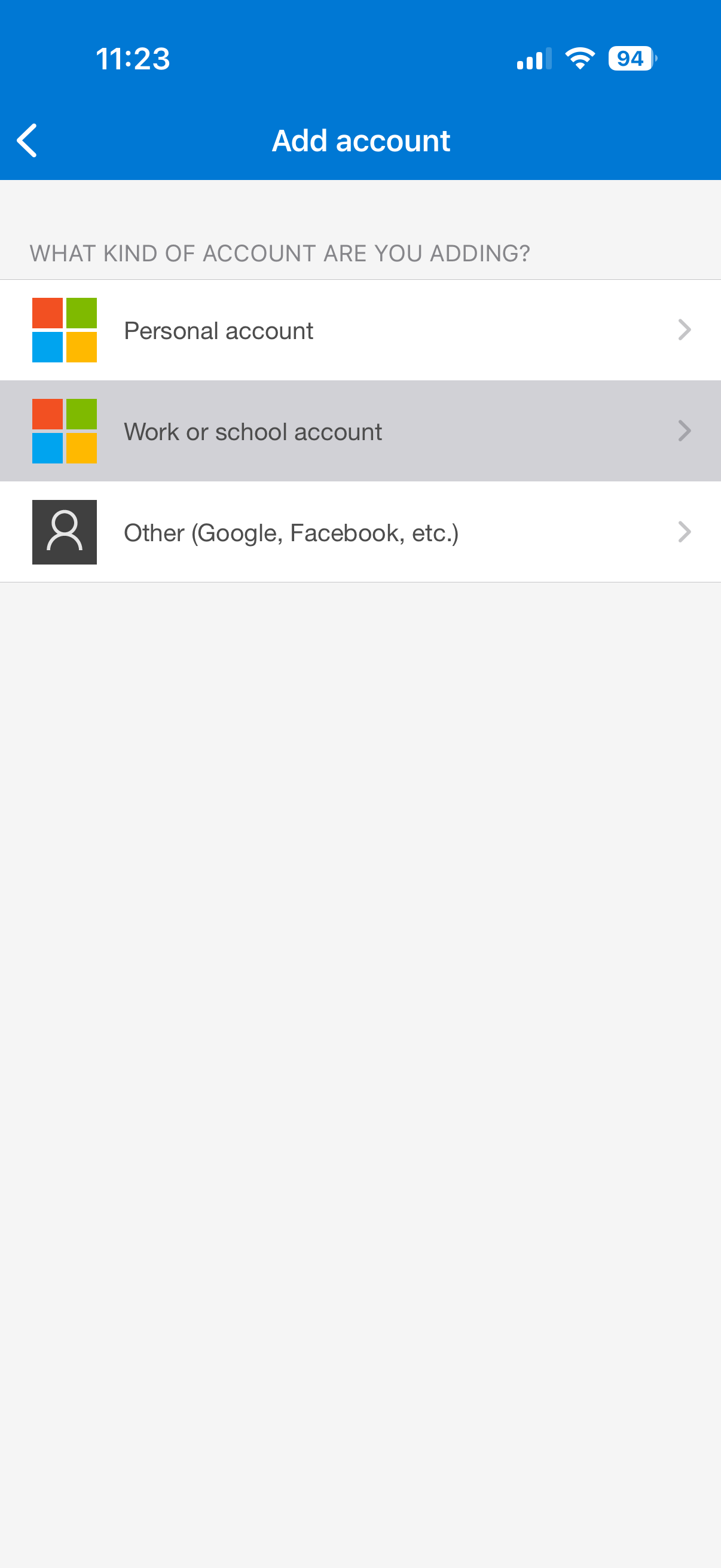
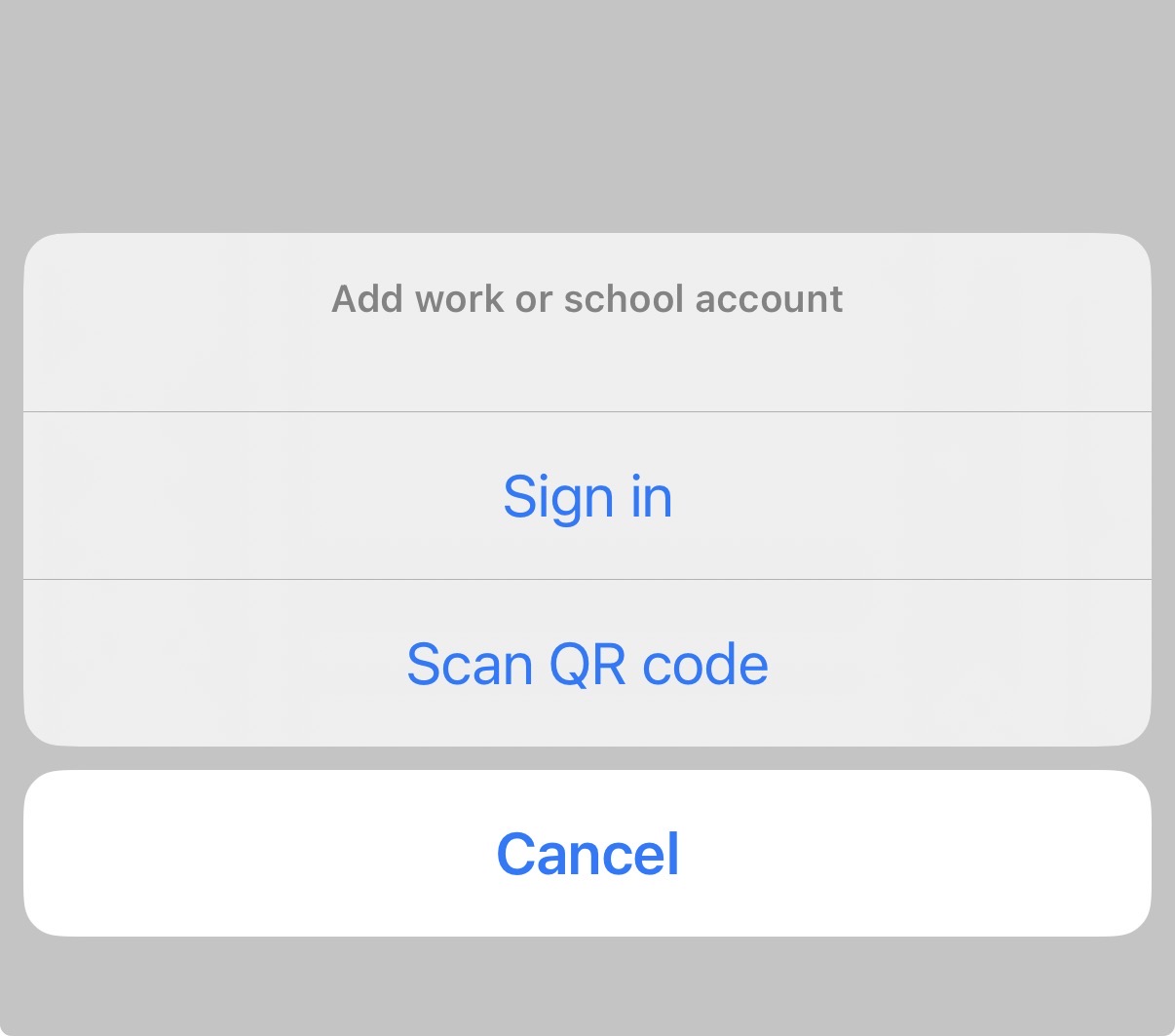
- Open the Microsoft Authenticator on your mobile device and select the + icon in the top right corner and select Work or school account and then Sign in with your A-State credentials
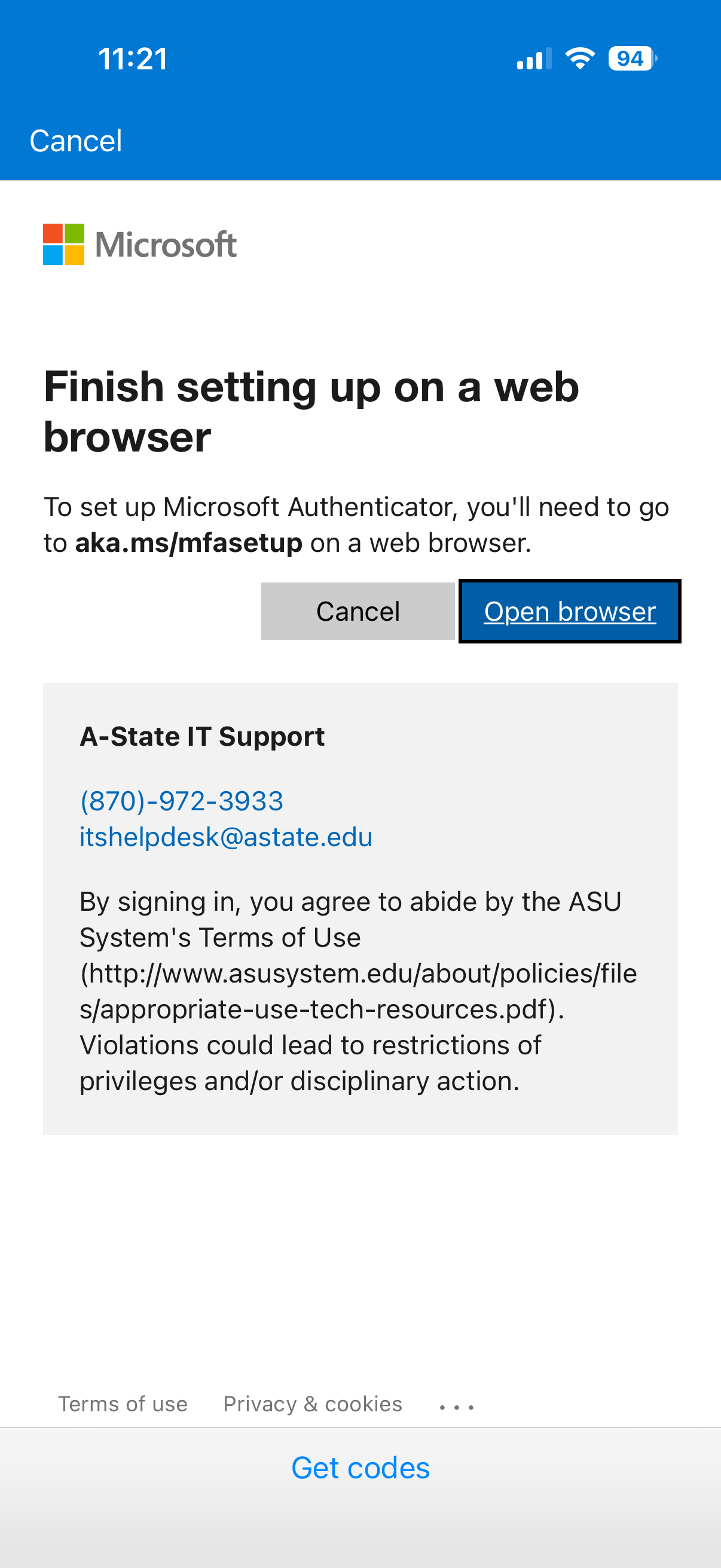
- Select Open browser, then select Next on following screen:
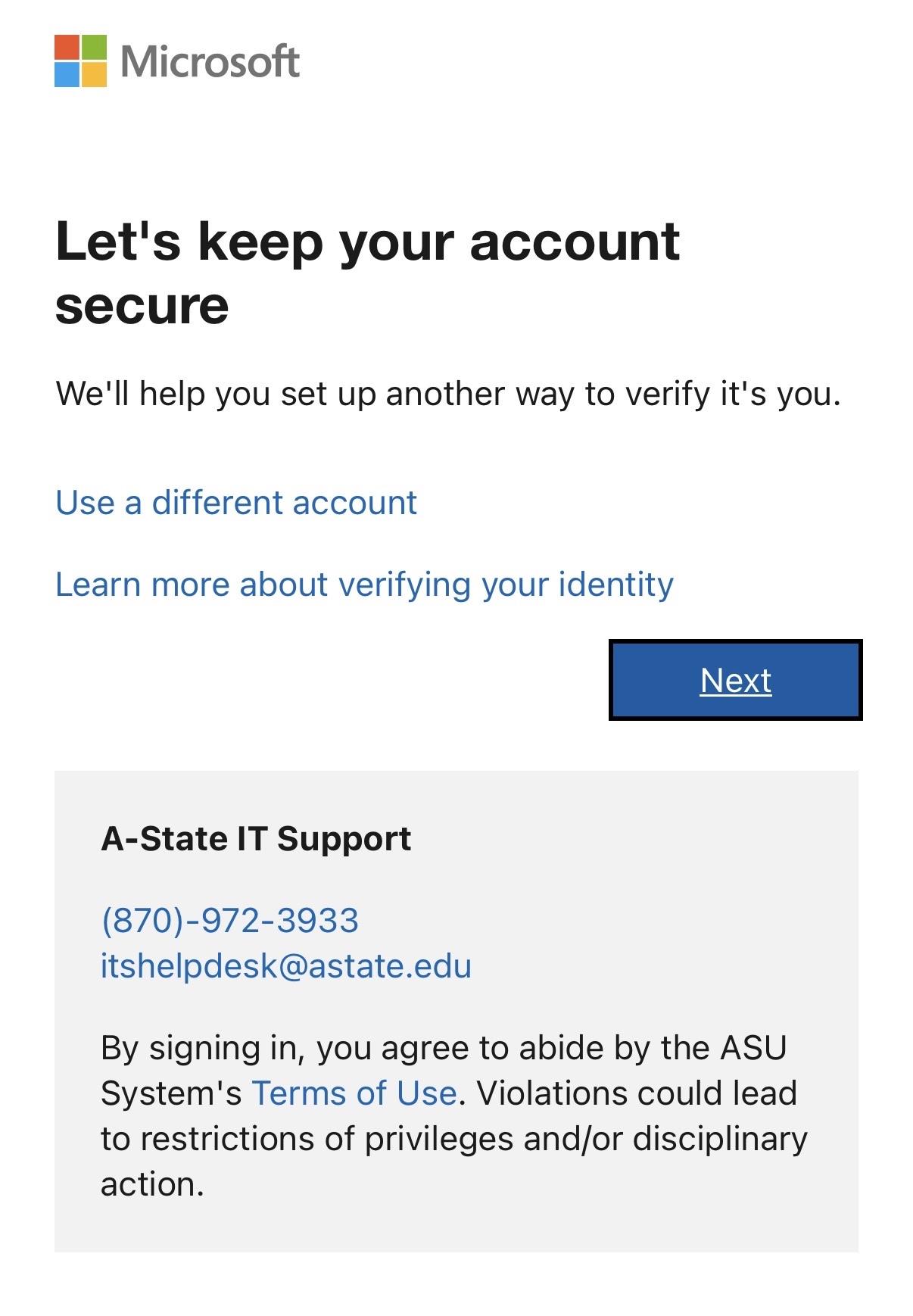
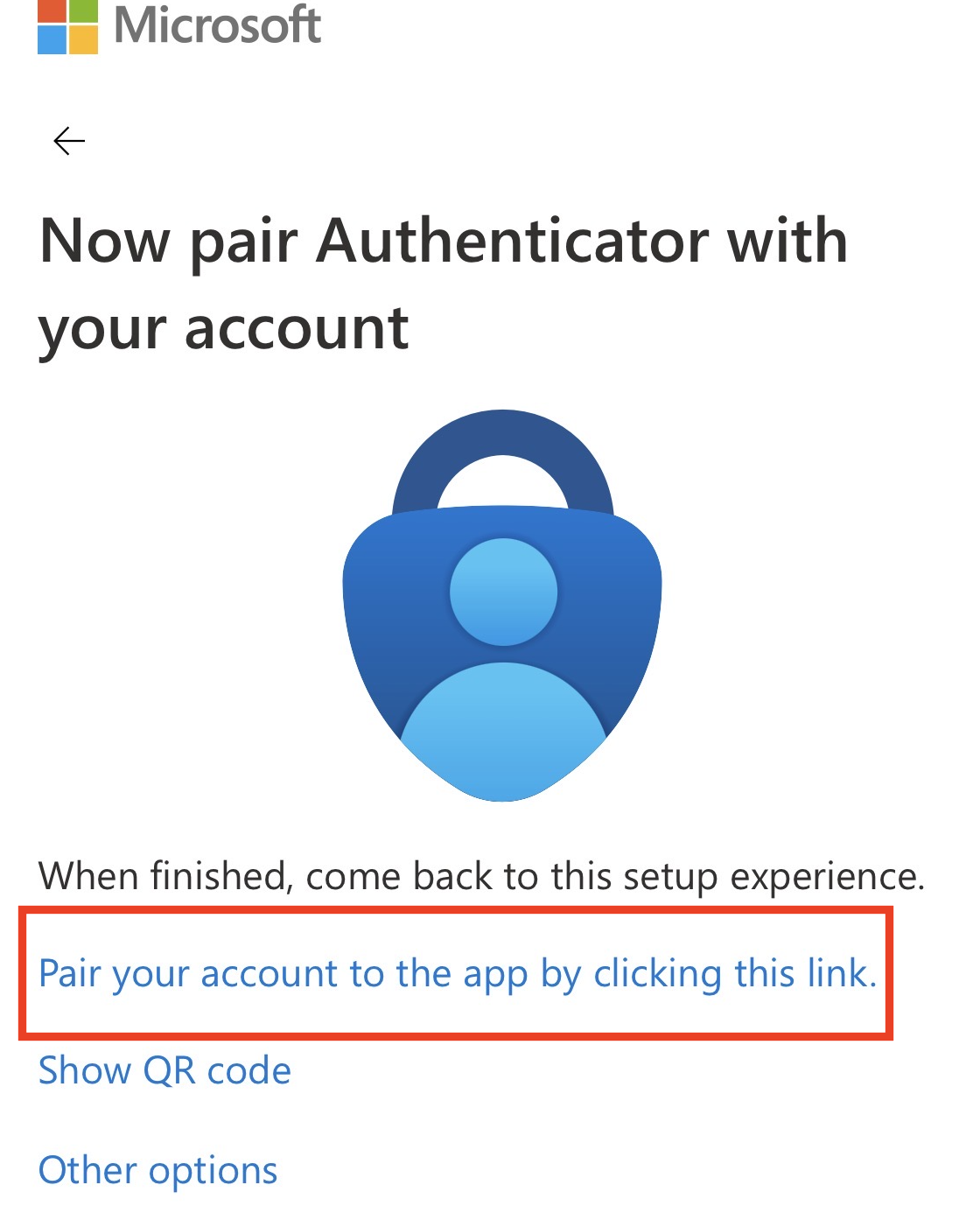
- Select Next, you may need to select Pair your account to the app by clicking this link. if it does not redirect at first.
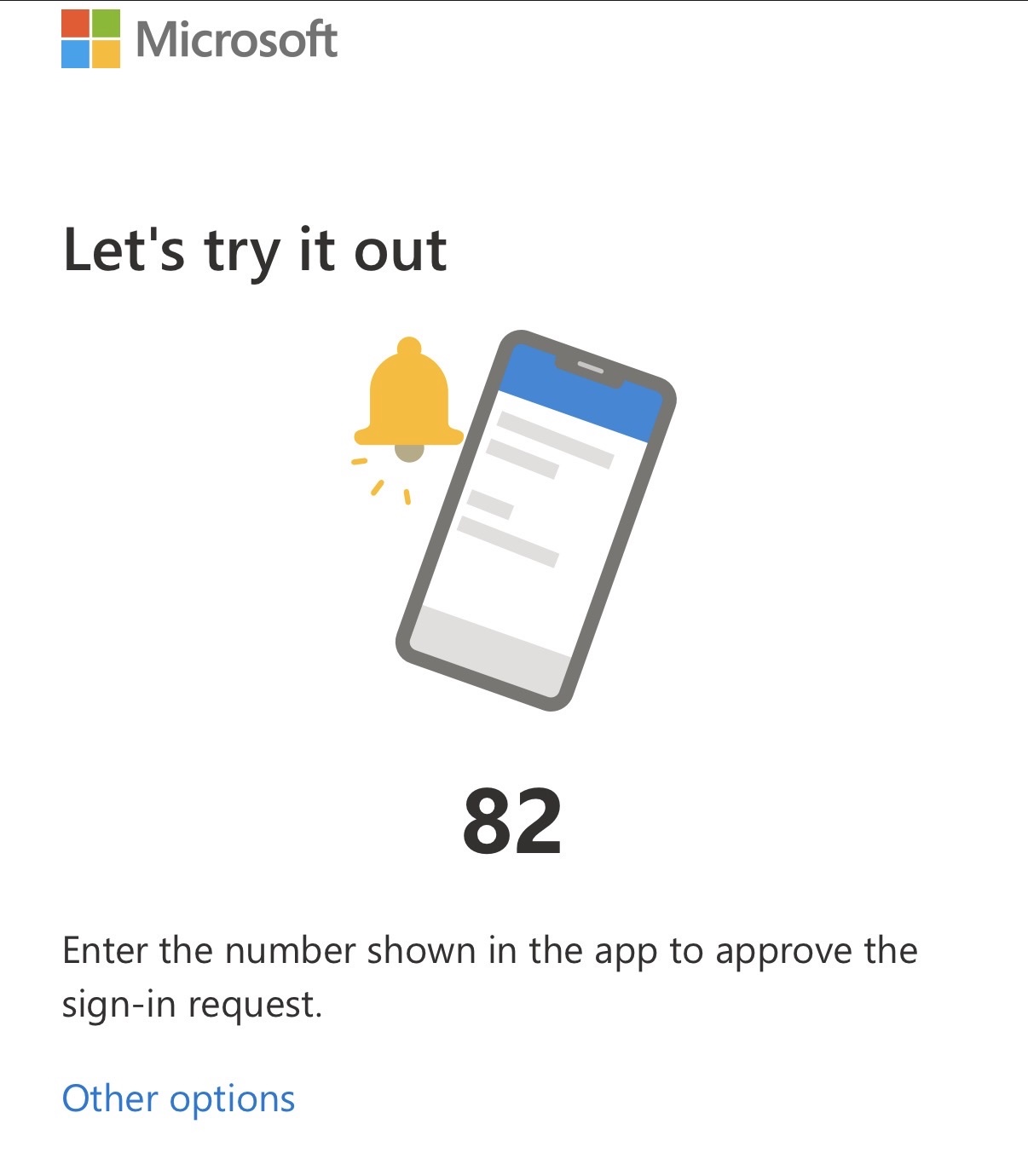
- You will be redirected back to the Microsoft Authenticator app and it will ask for a 2 digit code
- To find the code, go back to your web browser and then type the code in the box in the Authenticator app. (You can refresh the page in your browser to get a new code, if needed.)
- You will be redirected back to the Microsoft Authenticator app and it will ask for a 2 digit code

How do I change the default authentication method?
1. Go to myaccount.microsoft.com and sign in with your A-State credentials
2. Select Security info under My Account on the left side of the screen
3. On the Security info page, click Change at the top next to Default sign-in method:
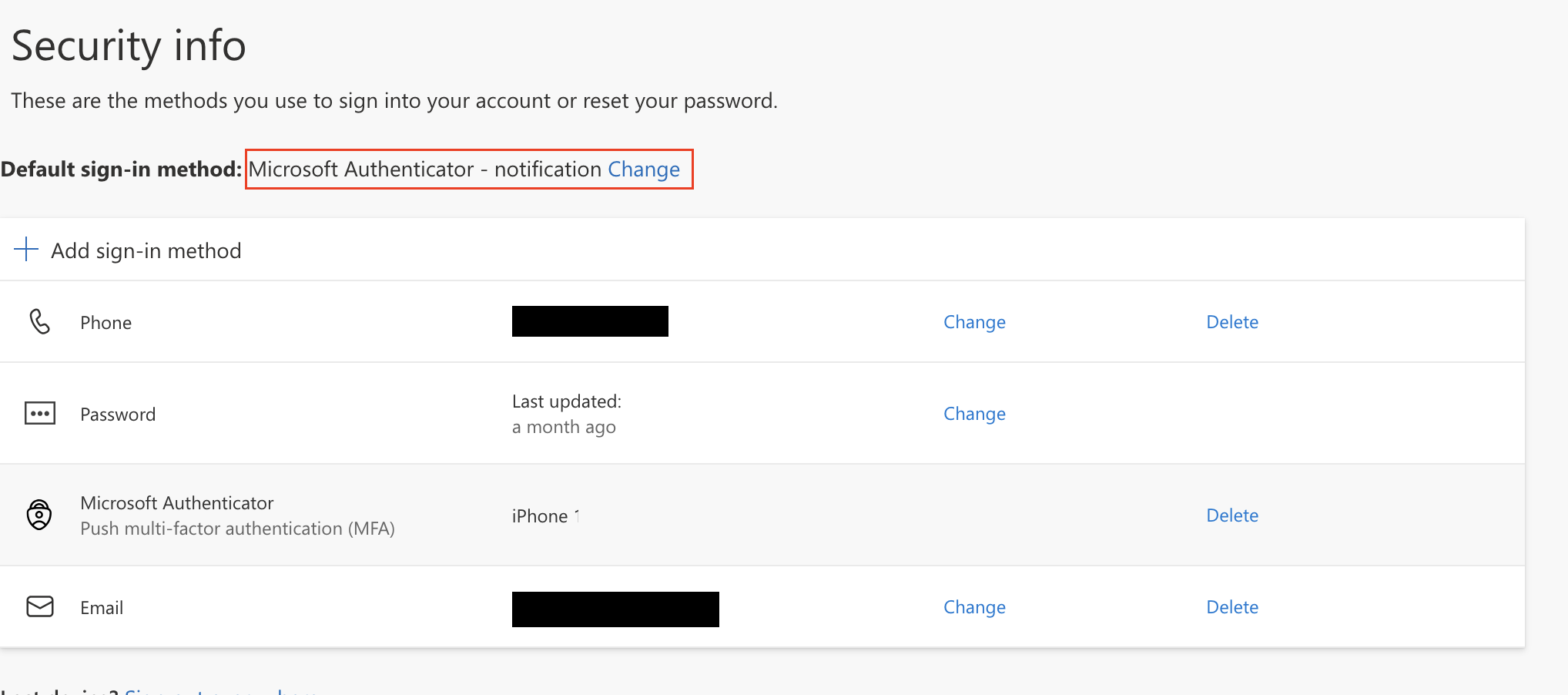
4. A box will pop-up asking which method you would like to use:
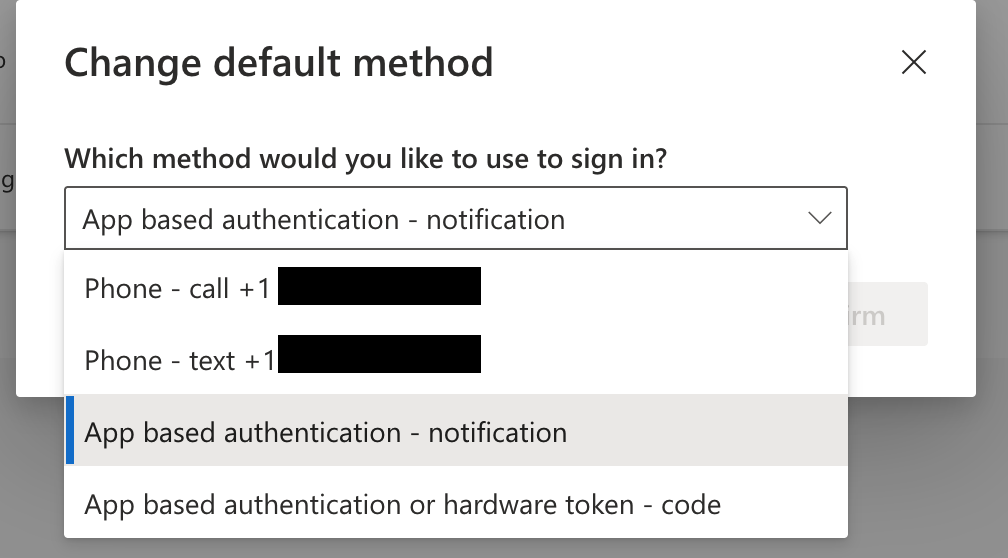
Options:
- App based authentication - notification: Input a code into the Microsoft Authenticator app
- App based authentication or *hardware token - code: Use the current bypass code displayed in the
Microsoft Authenticator app
(the code refreshes every 30 seconds)
-Other Options (By exception only):
- Phone: Text/Call - Receive a code via text message to your mobile number or receive a phone call to approve
*Hardware token - exception only (provided by Security)
5. Once you have made your selection, click Confirm
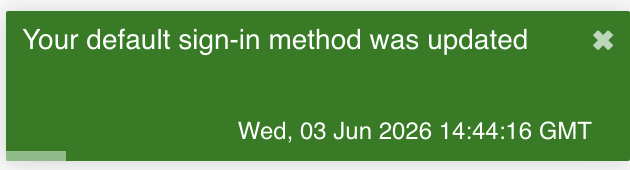
6. You will receive a notification in the top right of the screen, letting you know it has been confirmed
How do I add/change/remove my phone number?
Adding your phone number:
1. Go to myaccount.microsoft.com and sign in with your A-State credentials
2. Select Security info under My Account on the left side of the screen
3. Select + Add sign-in method and select Phone
4. Input the correct Country code and Phone number (no dashes) and choose which method you want to use to verify (text or call) and hit Next
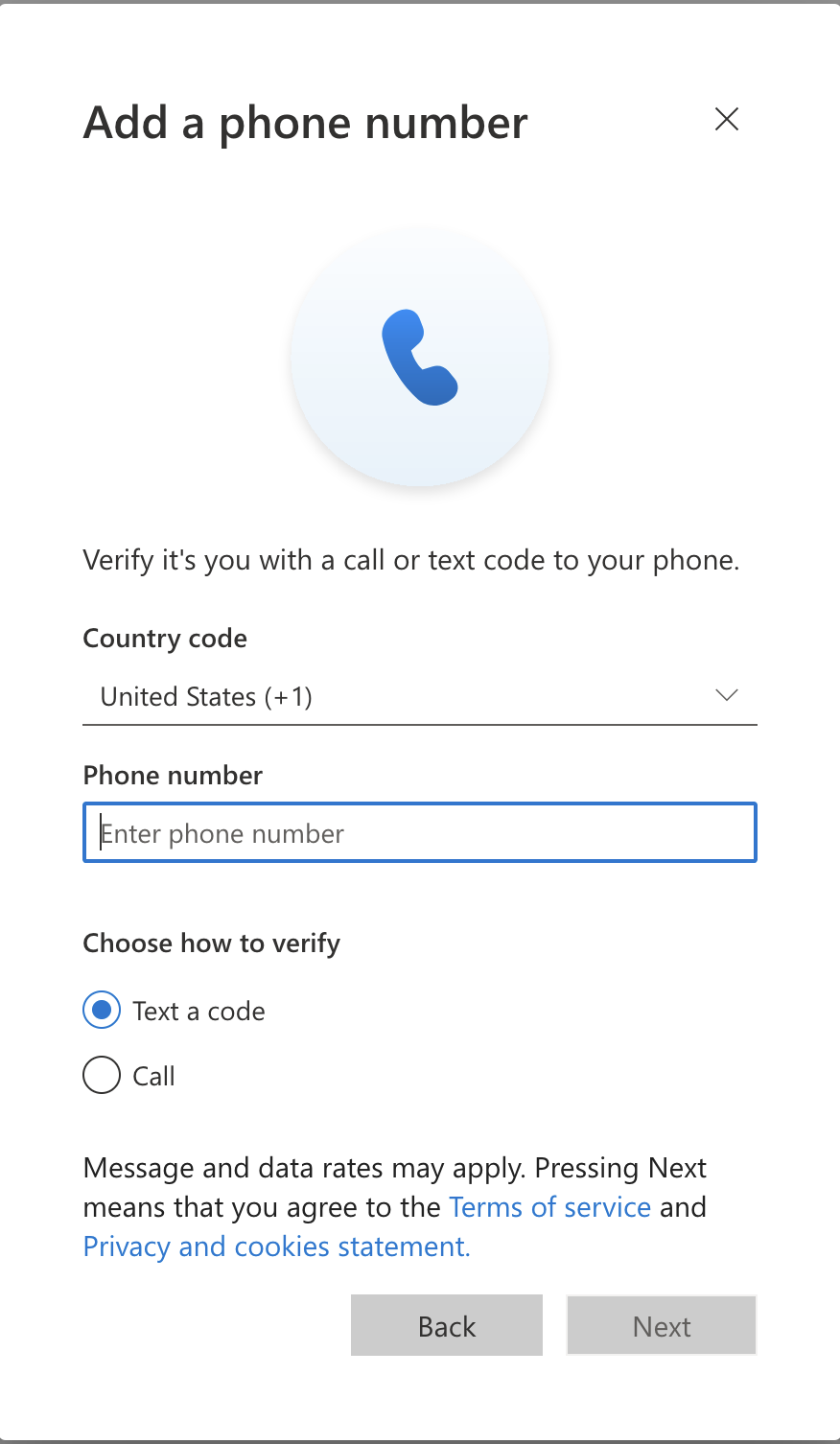
5a. If you choose to receive a text, a code will be sent to you via text message, input the code and hit Next
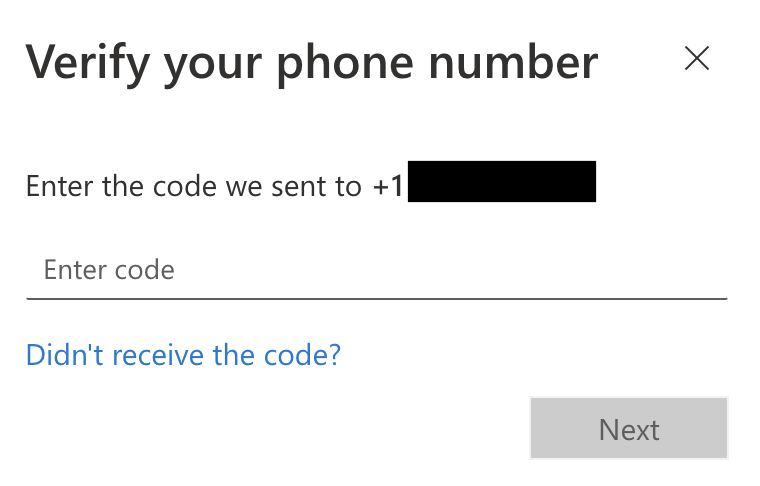
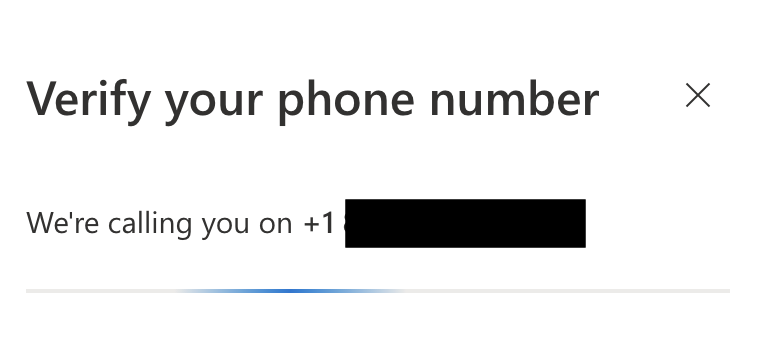
5b. If you choose to receive a call, you will get an automated call from Microsoft from this number (855-330-8653), just follow the instructions on the call and that will finish the call set up
Changing your phone number:
To change your phone number, please follow these steps:
- Go to myaccount.microsoft.com and sign in with your A-State credentials
- Select Security info under My Account on the left side of the screen
- Next to the phone number you want to change, select Change
- Enter the new phone number and select Next
- Enter the code that was text to the new phone number and select Next
Removing your phone number:
- Go to myaccount.microsoft.com and sign in with your A-State credentials
- Select Security info under My Account on the left side of the screen
- Next to the phone number you want to remove, click Remove
For further assistance, contact the ITS Help Desk at 870-972-3933 or stop by IT Support Services (itsupportservices@astate.edu). It is located on the bottom floor of the Dean B. Ellis Library, Room 149