
Microsoft Authenticator - Transferring Devices
If you are switching to a new phone, Follow these steps before removing the Microsoft Authenticator on your old device. If these steps are not followed, you may experience an account lockout known as the "Authenticator Loop." This occurs because your current device remains registered to your account until it is manually removed.
If your old device is no longer available, you will need to contact the Help Desk at 870-972-3933 during normal business hours 8 A.M to 5 P.M Central Standard Time (Monday through Friday) for assistance removing the old device and restoring access to your account.
Setup Using A Computer
Sign Into Your Security Info
-
Navigate to https://mysignins.microsoft.com/security-info
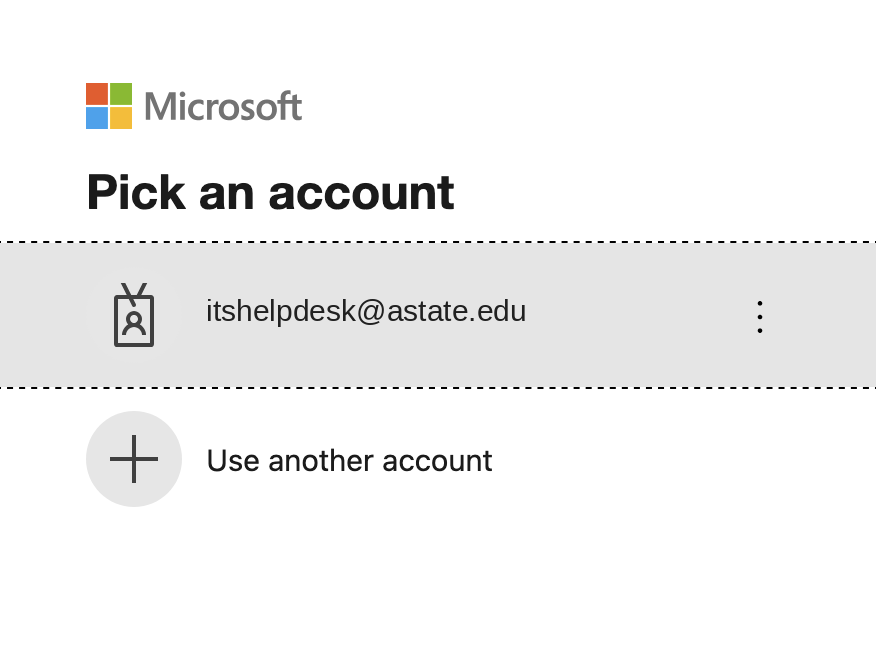
-
Sign in using your A-State email and password.
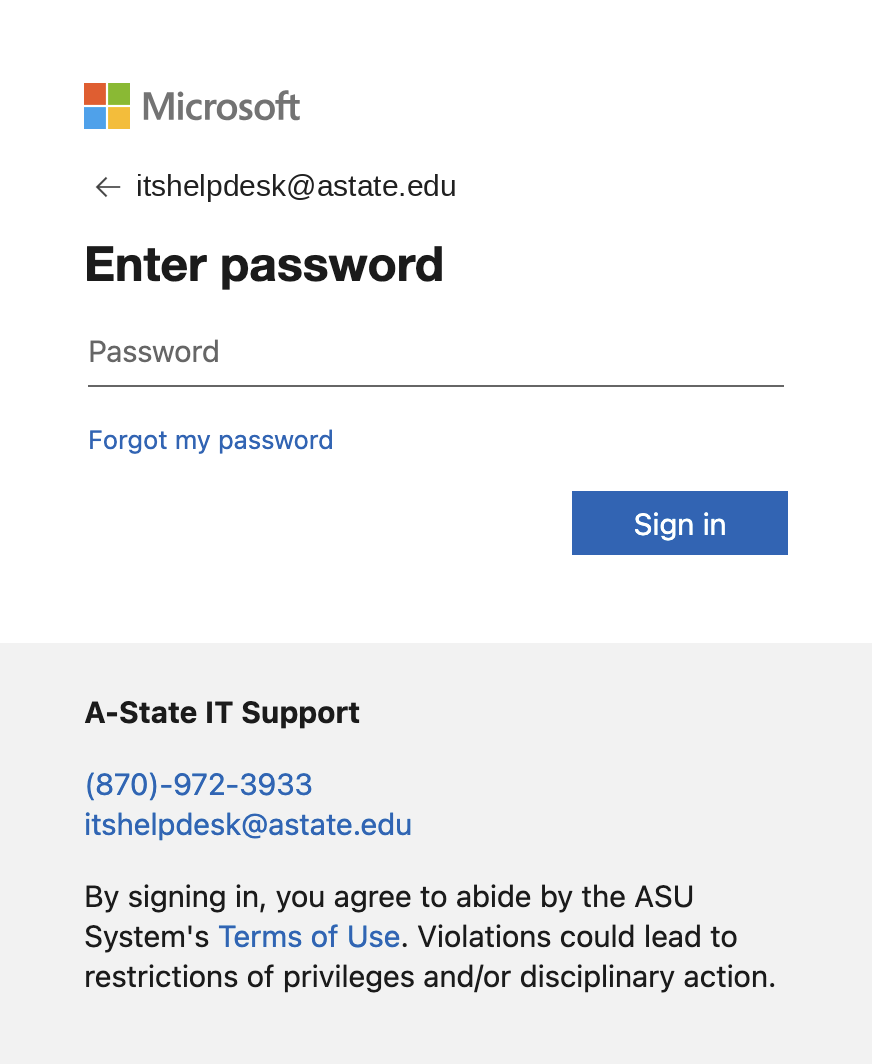
-
Complete the authentication prompt using your current Microsoft Authenticator app on the old device.
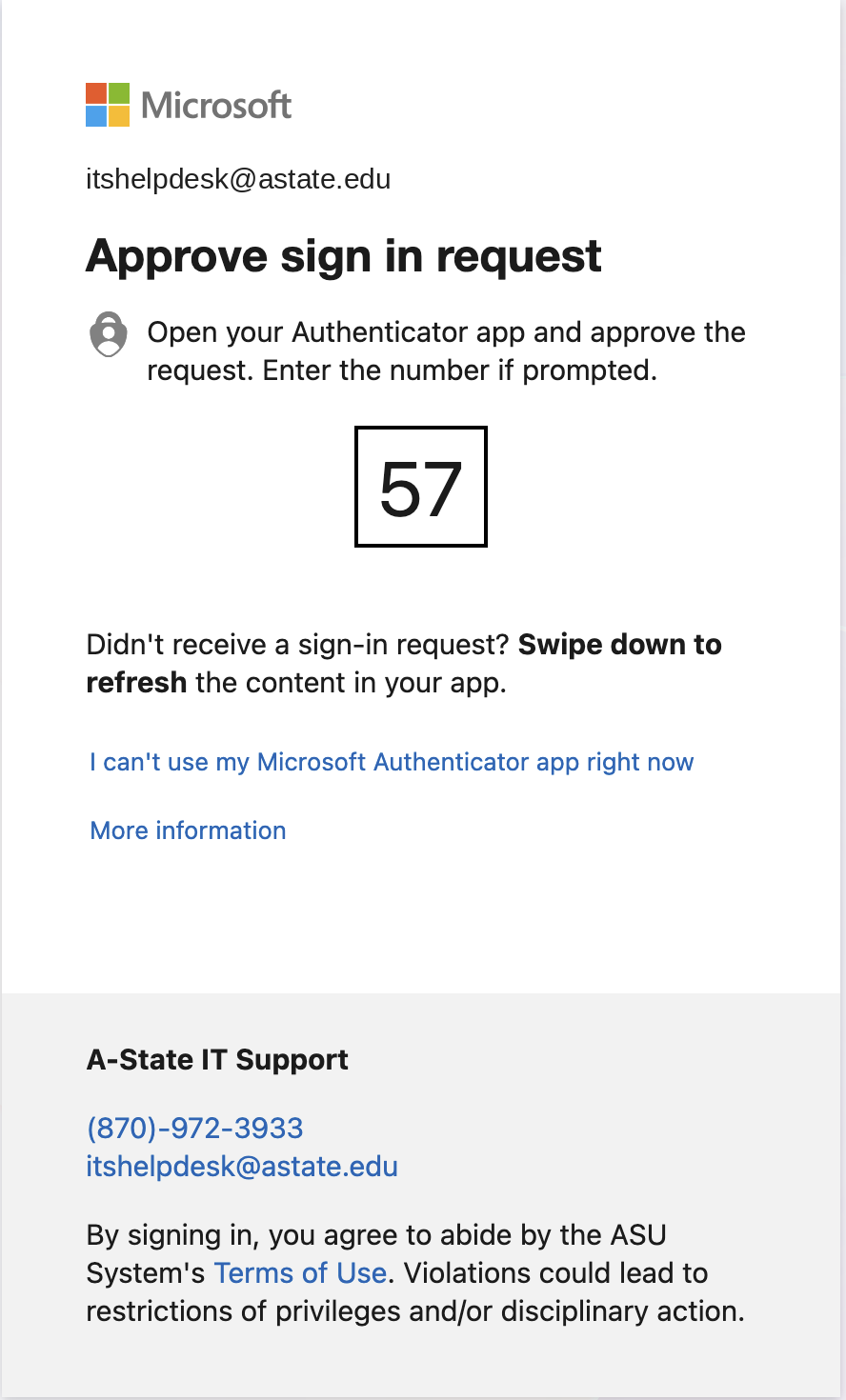
-
Enter the number on your phone as shown on the computer (If you don't see this popup skip to the next step)
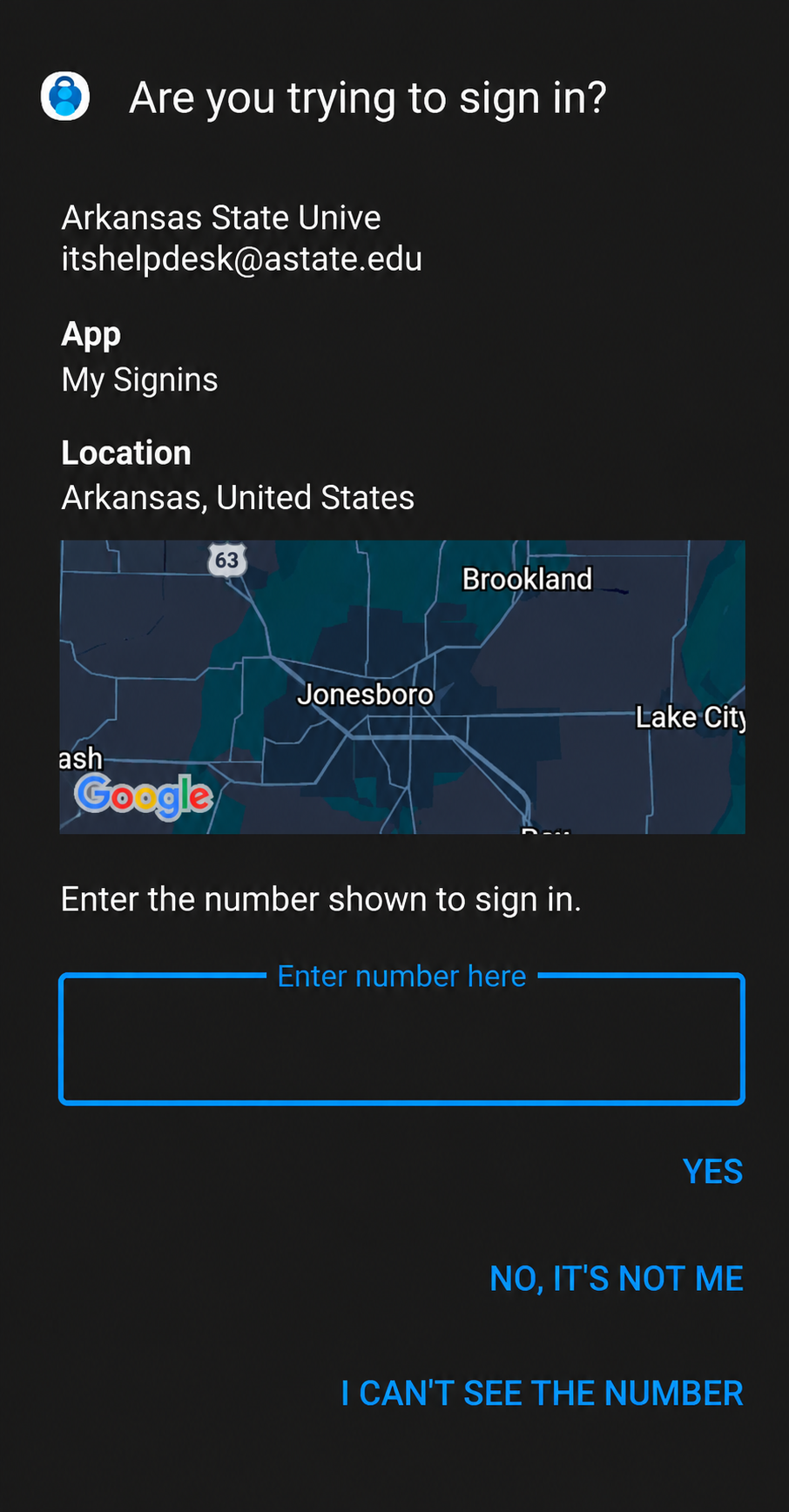
-
If you don't receive a push notification to your phone, On the computer select "I can't use my Microsoft Authenticator app right now." and then select "Use a verification code."
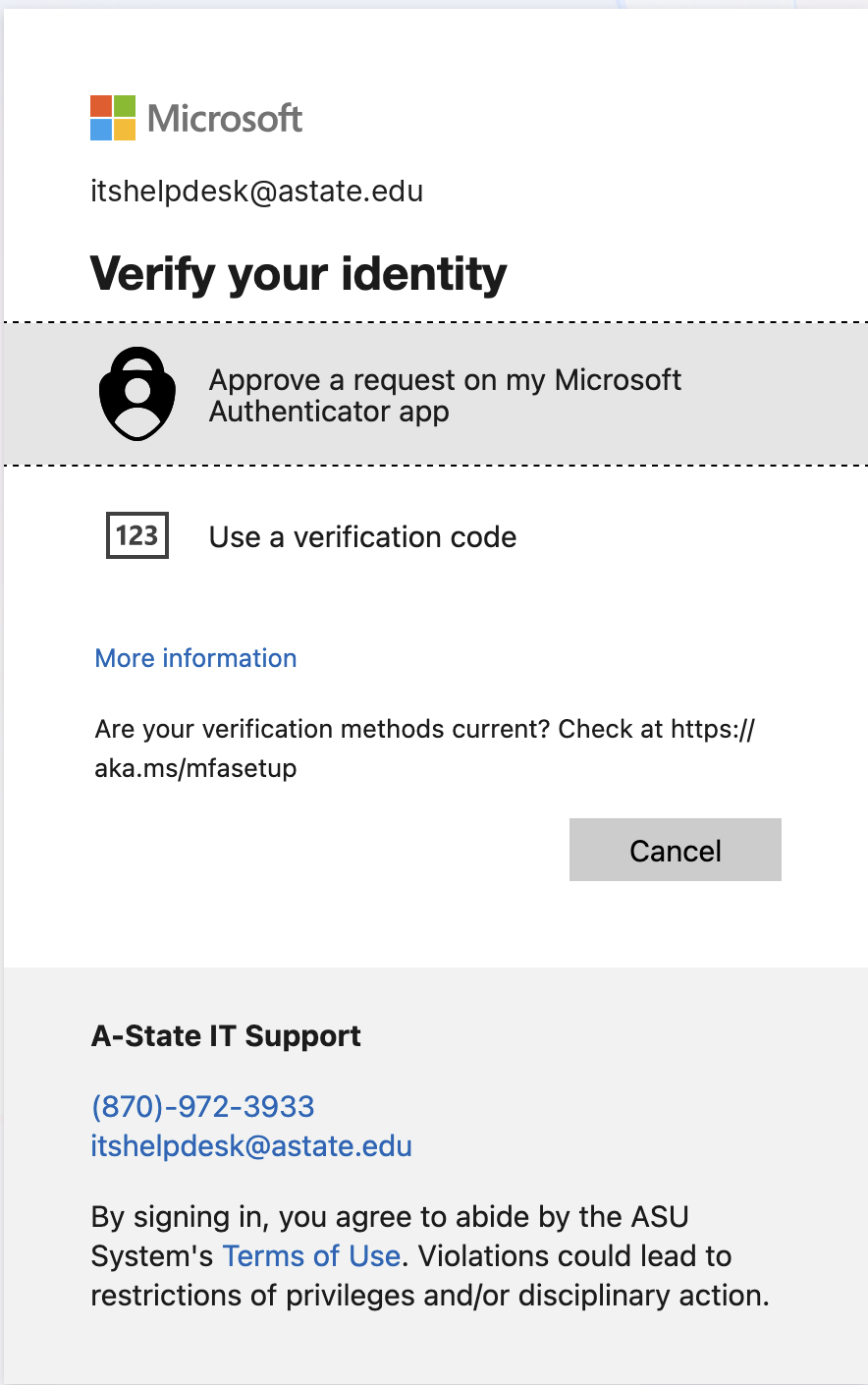
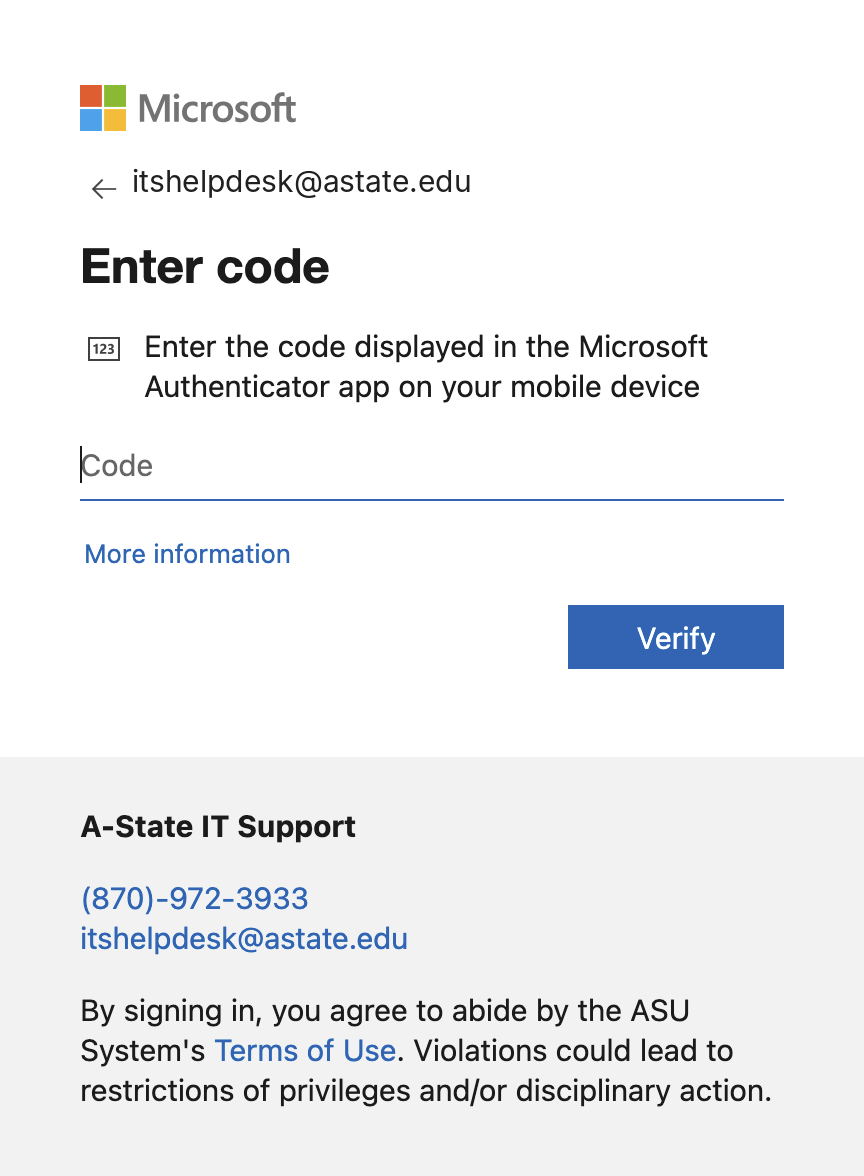
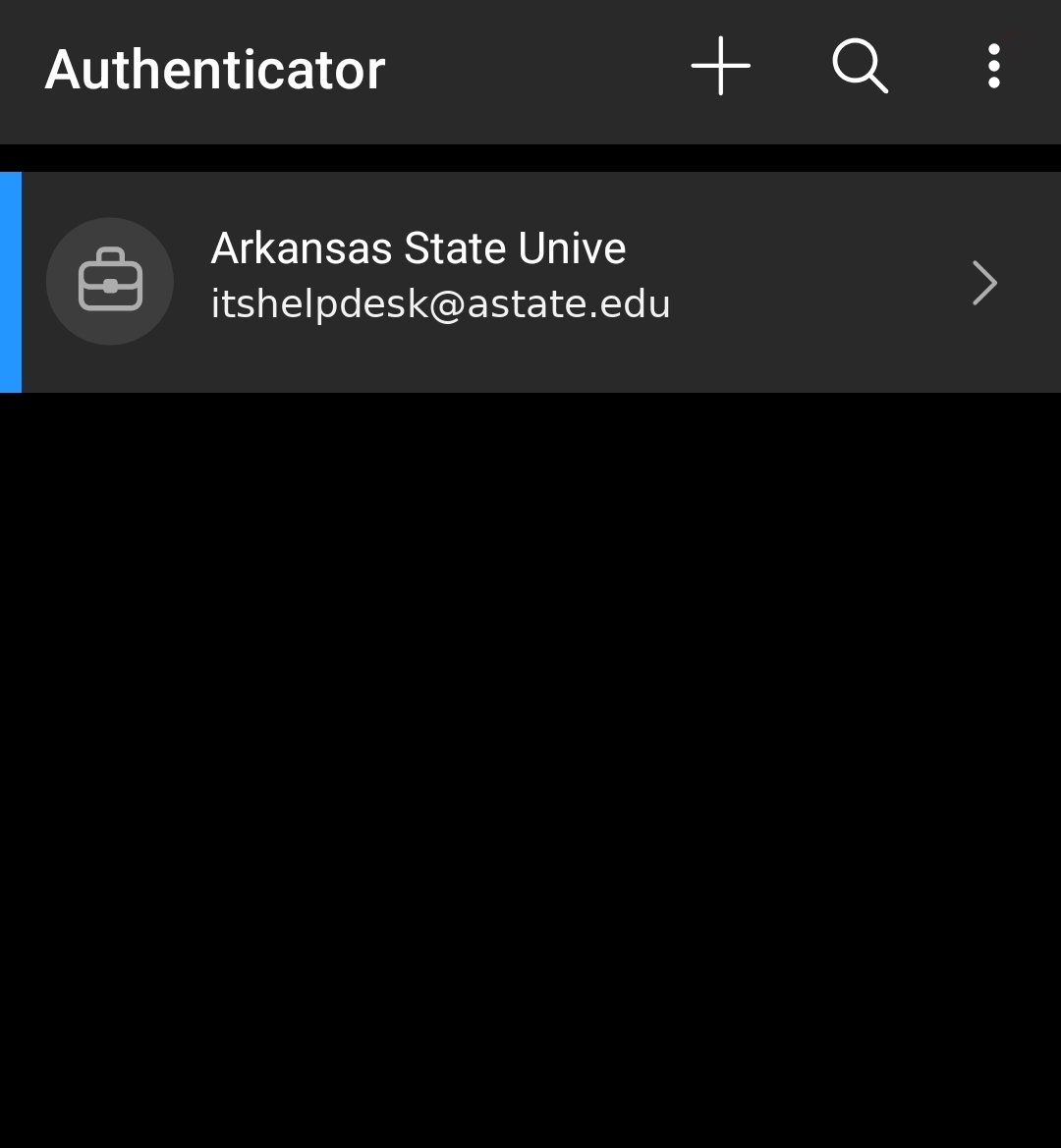
- Open the Microsoft Authenticator app on your phone and select your A-State email
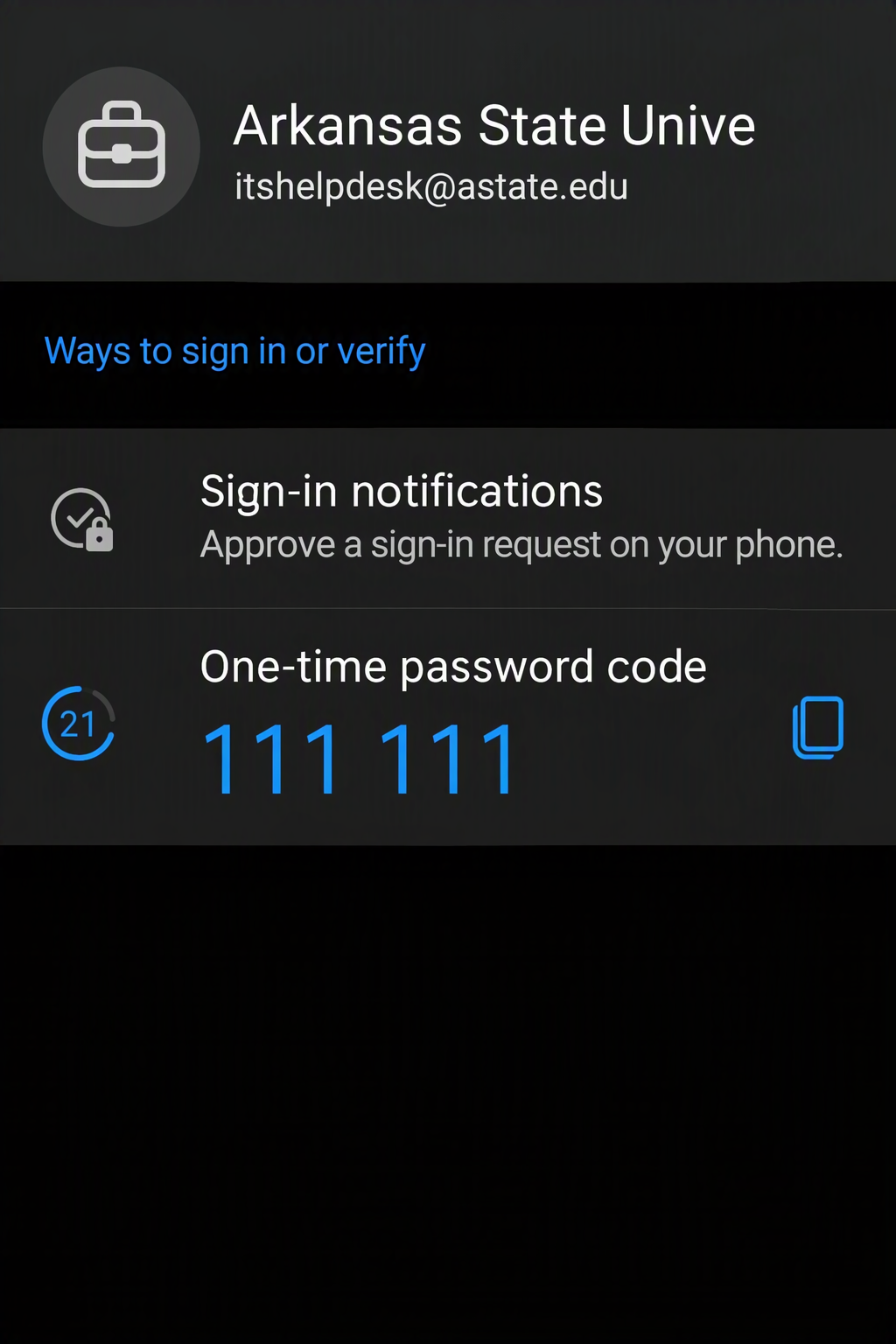
- Under One-Time password code, Enter the 6 digit code into the "Code" field on the computer
- Click on "Add sign-in method"
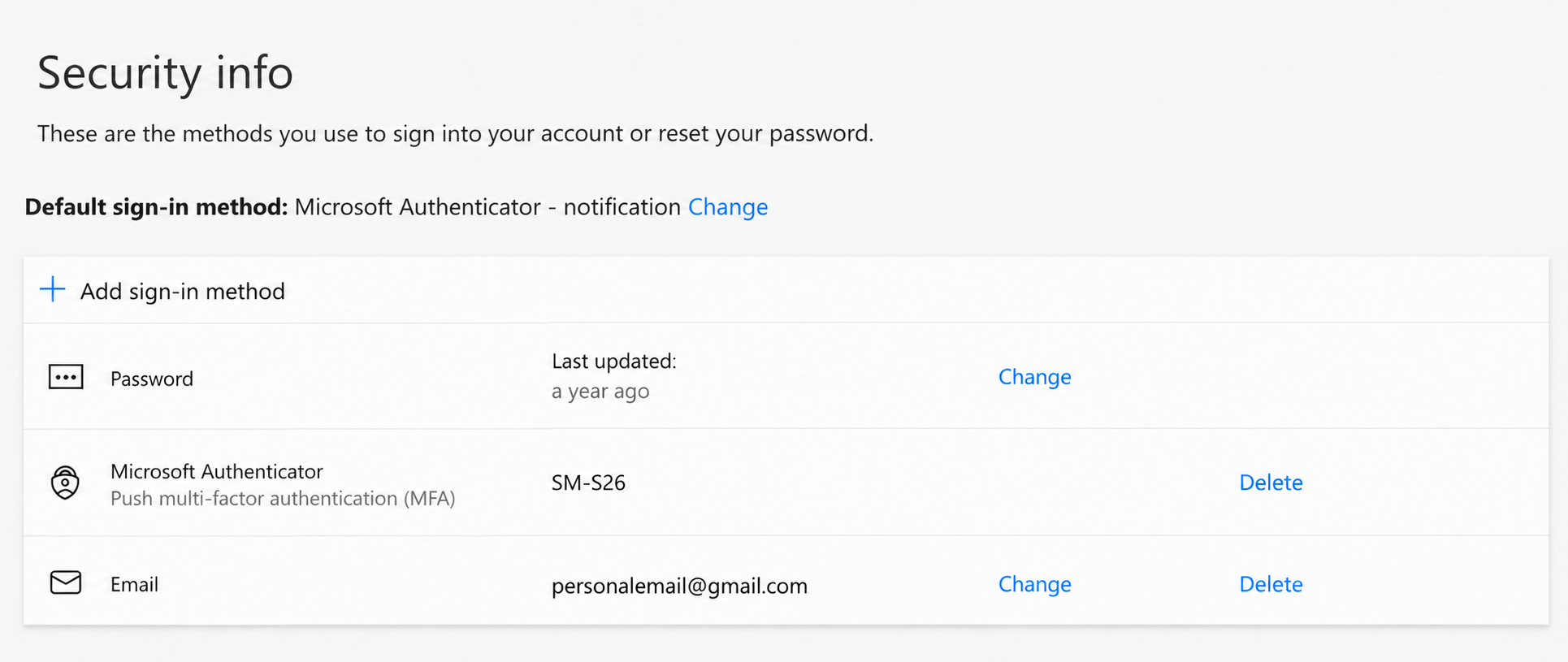
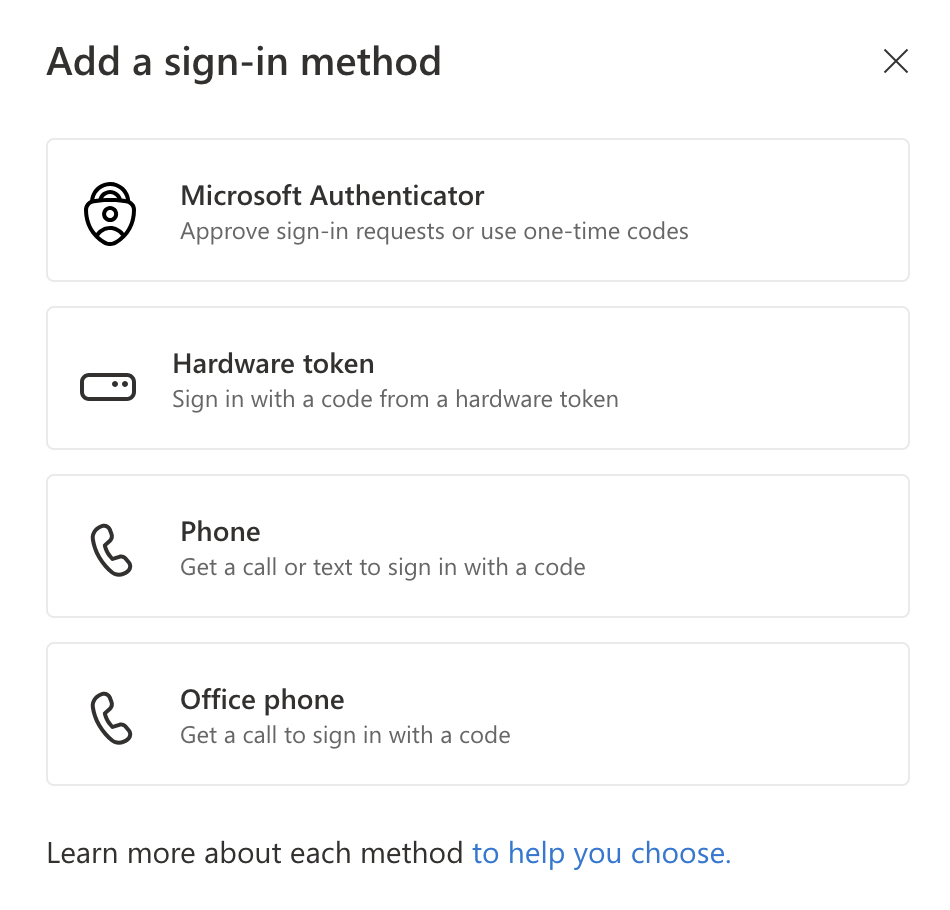
- Chose Microsoft Authenticator
- Download the free Microsoft Authenticator app by either scanning the QR code below or through the App Store (iPhone/iOS) or the Play Store (Android)


https://aka.ms/mobileauthenticator
- After you download the app, click "Next" and then click "Next" on the next pop-up

- Scan the generated QR code on your computer while using the Microsoft Authenticator app on your mobile device
-
- Do not use your built in camera app, this will not link the authenticator to your account

- After you scan the QR code, it will generate a random number, type the number on the screen into your mobile device
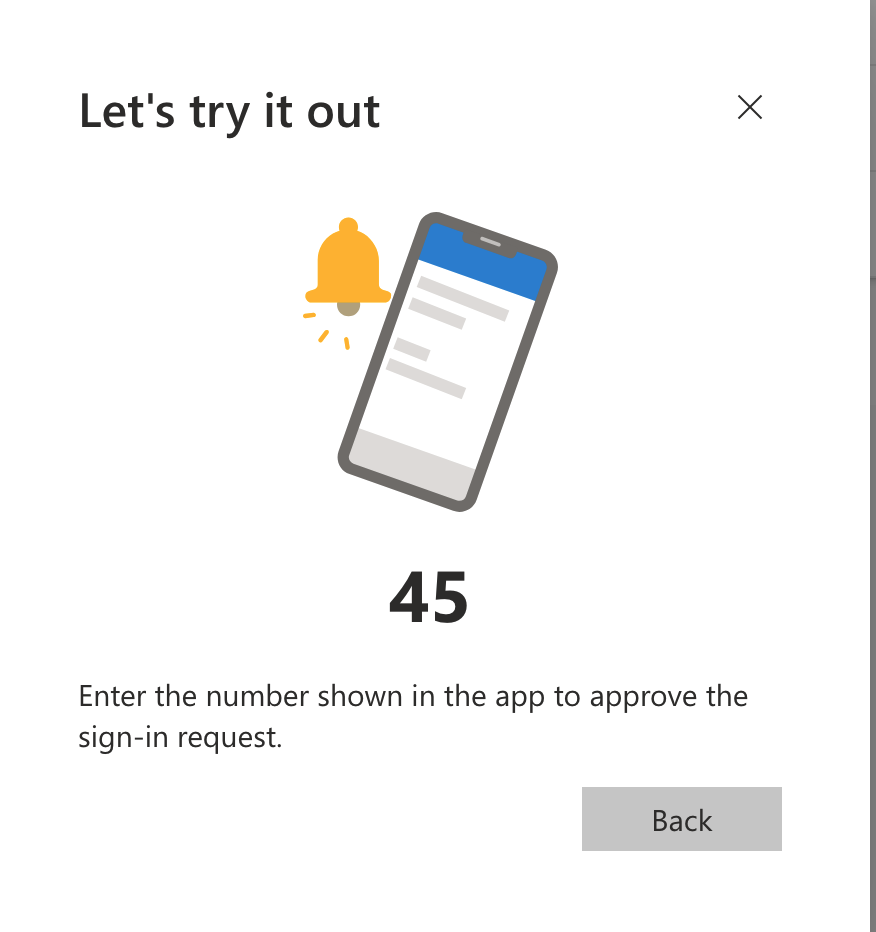
- After inputting the number, the Microsoft Authenticator has been added to your account successfully
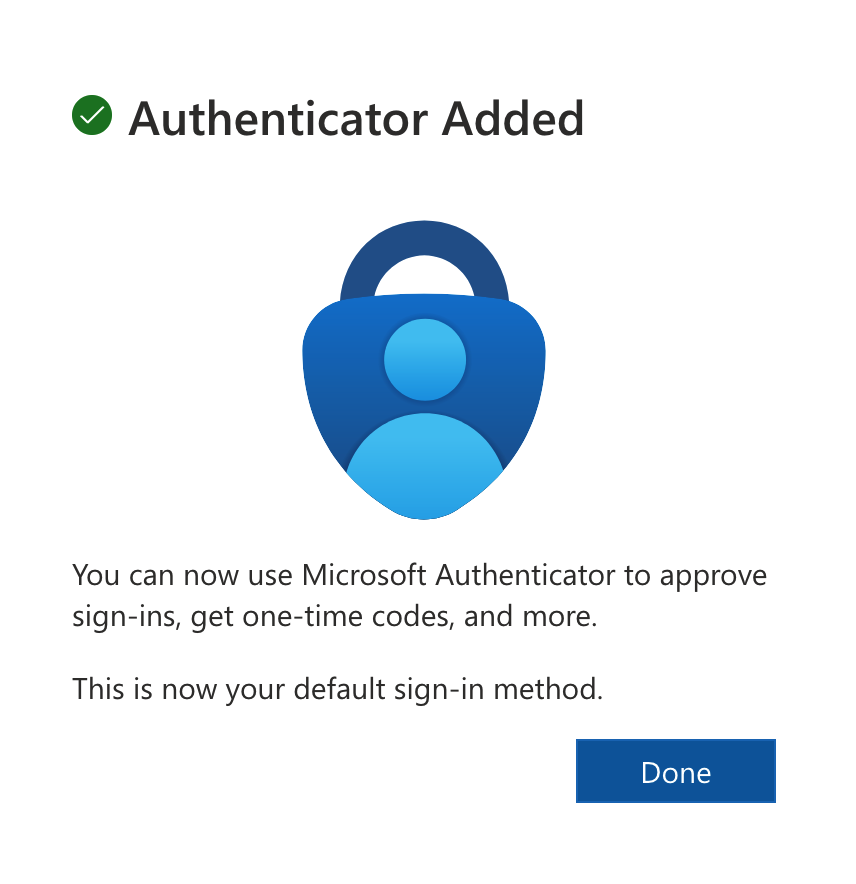
Click Done - If you are not automatically redirected back to Security Info, Navigate back to https://mysignins.microsoft.com/security-info
To the right of your old device, Click "Delete" and then click "OK" to confirm.