
Accessing Your Workspace
After logging into Nuventive through the Pack Portal, you’ll be directed to your personalized workspace. This is where you enter assessment data, upload documents, and manage program-level information. Most users will only have access to one workspace, but some may see multiple options depending on their role.
? Video Tutorial
Watch: Accessing Your Workspace
This video walks you through how to locate and enter your assigned workspace in Nuventive.
?
Steps to Access Your Workspace
-
Log in to Nuventive via pack.astate.edu
Follow the login instructions from the Logging In to Nuventive page. -
Once Nuventive opens, look for the workspace selection screen
- If you only have one workspace, it will open automatically.
- If you have access to multiple workspaces (e.g., college, department, program, or other specialized administrative roles), you’ll see a list to choose from.
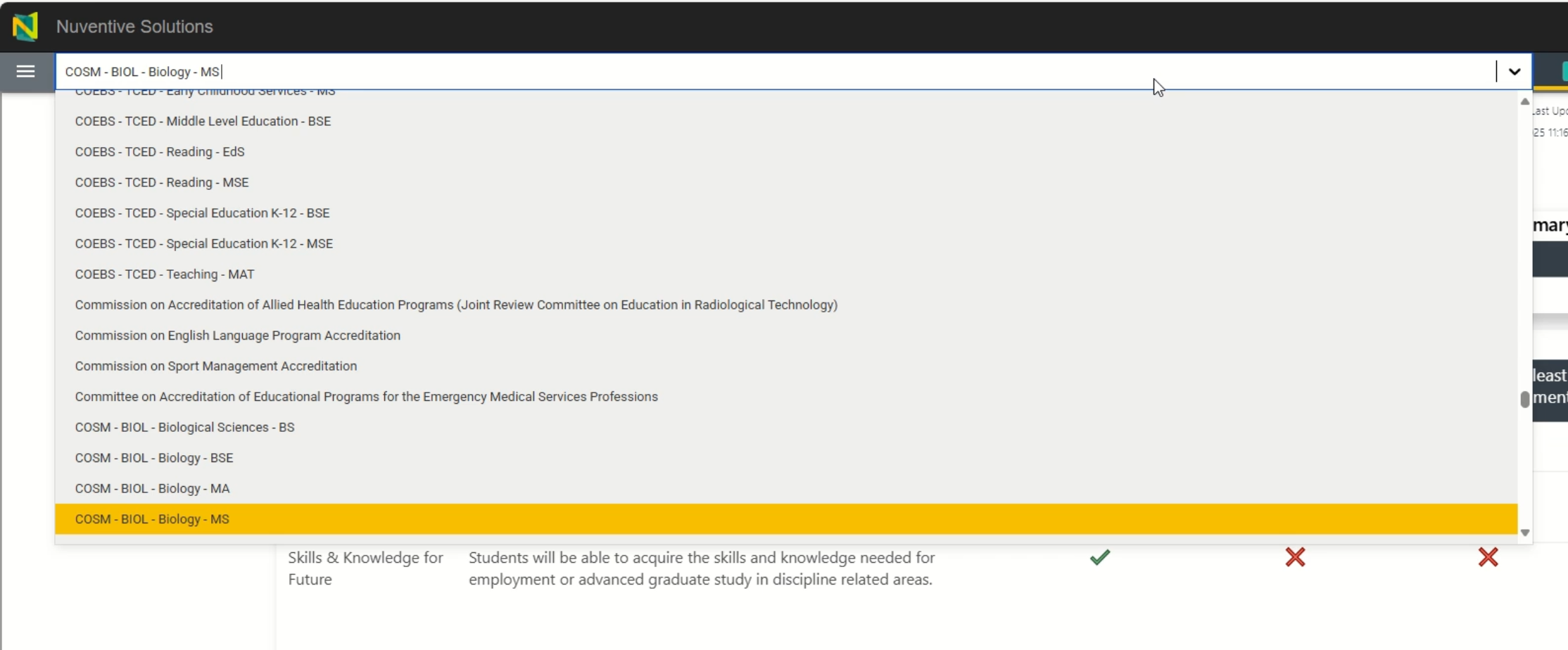
-
Click the name of the workspace you want to enter
- Workspaces are typically named by department, program, or role.
- If you’re unsure which workspace to select, contact the Office of Accreditation & Assessment.
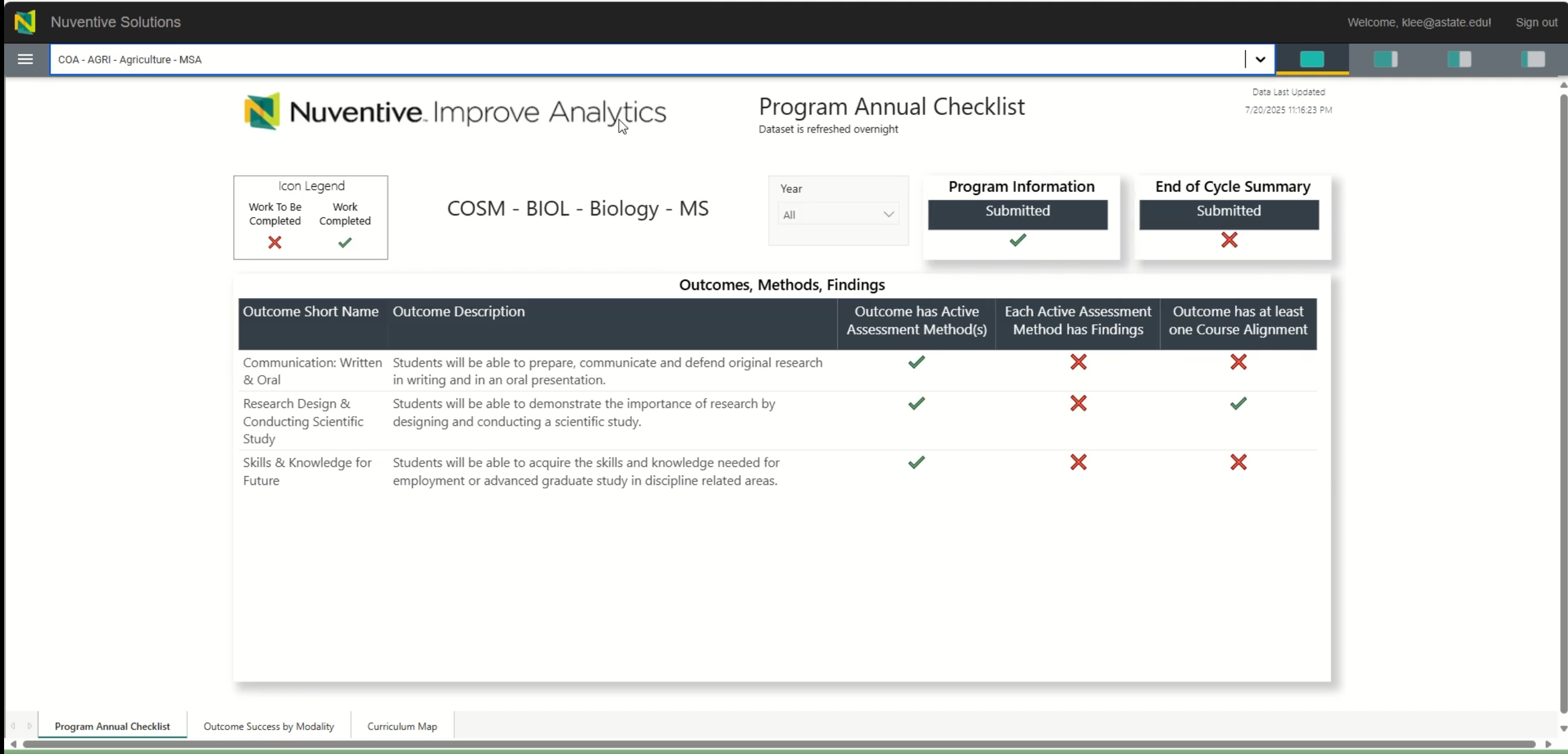


Tips for Navigating Your Workspace
Need Help?
If your workspace is missing or incorrect, contact:
? Office of Accreditation & Assessment: (870) 972-2989
? klee@astate.edu
? Room 610, Dean B. Ellis Library