
LockDown Browser – Power Options / Task Manager Disabled Fix
If your device has crashed when using the LockDown Browser and are unable to use Task Manager or access the power options on your device, follow these steps to resolve the issue:
Windows:
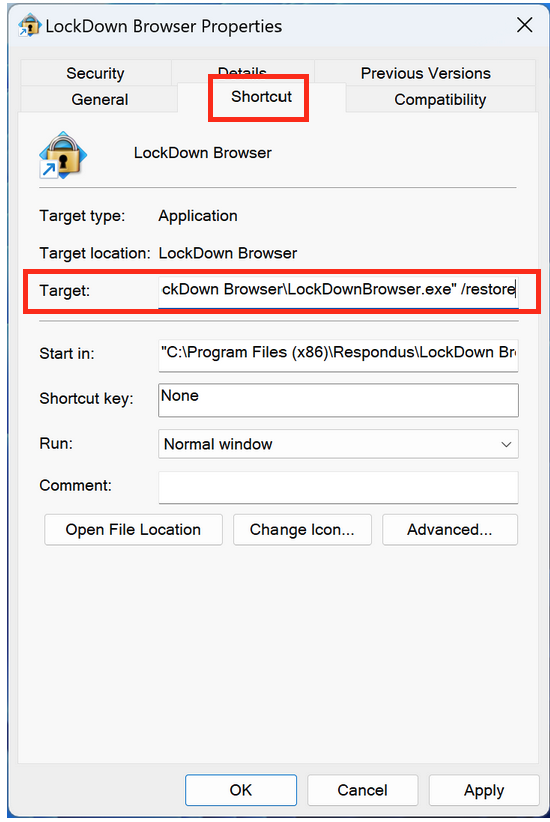
- Right click on the LockDown Browswer desktop shortcut
- Select Properties
- Under the Shortcut tab, locate Target: field.
- At the end of the target address, append the following parameter: /restore
(Note: there is a space in front of the parameter)

- At the end of the target address, append the following parameter: /restore
macOS:
- Start the system after fully powering down your device (not suspended/sleep mode)
- Start LockDown Browswer and let it navigate to the ASU Sign In Page ( You do not need to log in)
- Once you are at the log in page, shut down the LockDown Browser, Finder and the Power options should be re-enabled
For further assistance, contact the ITS Help Desk at 870-972-3933 or stop by IT Support Services (itsupportservices@astate.edu). It is located on the bottom floor of the Dean B. Ellis Library, Room 149.