
Transfer email from Gmail to Outlook
1. Download and install Office 365 from office.com, which includes Outlook. Use your student credentials to sign in. The following link provides detailed instructions: https://support.microsoft.com/en-us/office/download-and-install-or-reinstall-microsoft-365-or-office-2021-on-a-pc-or-mac-4414eaaf-0478-48be-9c42-23adc4716658
2. Open Outlook.
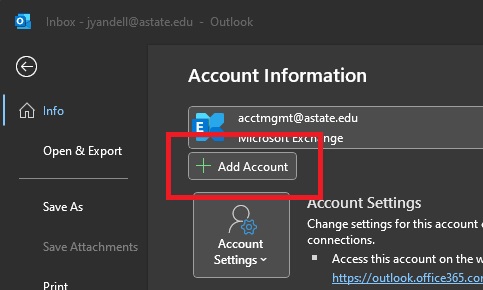
3. Click "FIle".

4. Click "Add Account".
5. Enter your student email address and click "Connect".

6. Select "Google".

7. Copy the settings underlined below, then click "Next".

8. Enter your password, then click "Connect".

9. Click "Next".

10. Enter your student email and password, then click "Login".

11. "Microsoft apps & services wants to access your Google Account" will show up, scroll down and click "Allow".


NOTE: You will be prompted to do steps 9, 10 and 11 once a day. It is recommended to remove your Gmail account once you've moved over all emails you wish to keep. Instructions on removing your Gmail account are at the end.
12. You should see "Account successfully added", click "Done".

13. Your Gmail inbox will be displayed on the left, below your new Outlook inbox.

14. Your Gmail acount has been successfully added! To move emails to your new inbox, simply select and drag emails from your old inbox into your new one.
Remove your Gmail account
1. Right click on your Gmail account and select "Remove First.last@smail.astate.edu".

2. A confirmation box will appear, click "Yes".
