
Accessing Your Account
 Access from Canvas
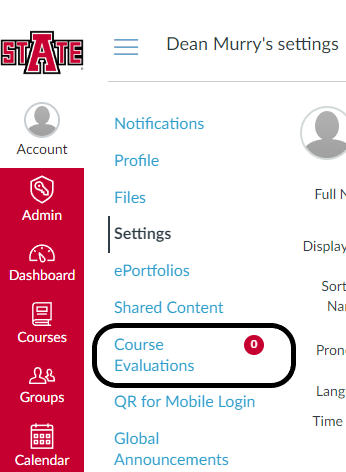
To access Watermark CES, log into Canvas and Select Account from the left hand Global Navigation Menu.
After a second or two you should then see Course Evaluations pop into the menu. If this does not happen, see the section below for the Direct log in option
Clicking on Course Evaluations will open your Watermark CES account.
 After Watermark CES has opened
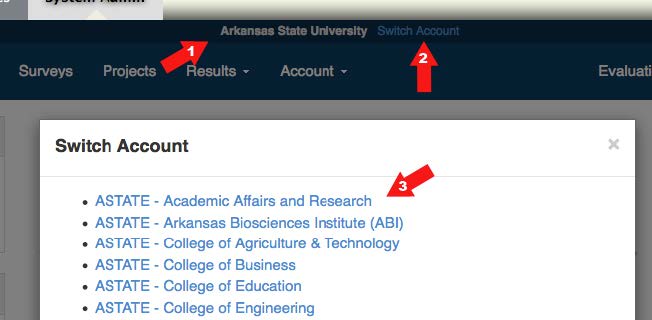
If you don't see what you expect, first check that you are viewing the correct account.
- Check for an account name at the top and center of the Watermark CES dashboard page.
- If a different College or Account is displayed, click Switch Accounts.
- Select your college or account from the list.
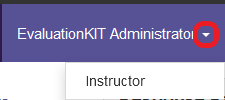
Next check that you have the correct role selected. You may need to change between the Student, Instructor, Administrator, or CES Administrator roles.
 Direct Login Option
If you don't see the option for Course Evaluations pop into your Account menu, you can use the following links to directly access the log in page for your account.
To log in, use your A-State ID number for your username.
If this is your first time logging in through these links, you will also need to use the Forgot your password option. You will need to save this password, as you will need to use it everytime you wish to use the direct log in link.
- Arkansas State University
- ASTATE - Academic Affairs and Research
- ASTATE - Arkansas Biosciences Institute (ABI)
- ASTATE - College of Agriculture & Technology
- ASTATE - College of Business
- ASTATE - College of Education
- ASTATE - College of Engineering
- ASTATE - College of Fine Arts
- ASTATE - College of Humanities & Social Sciences
- ASTATE - College of Media and Communication
- ASTATE - College of Nursing & Health Professions
- ASTATE - College of Science & Mathematics
- ASTATE - Concurrent Enrollment Program
- ASTATE - Continuing Education and Community Outreach
- ASTATE - Dean B. Ellis Library
- ASTATE - Department of Distance Education
- ASTATE - Graduate School
- ASTATE - Honors College
- ASTATE - Information and Technology Services
- ASTATE - Institutional Research, Planning, and Assessment
- ASTATE - ITTC Faculty Center
- ASTATE - LSDE
- ASTATE - Military Science
- ASTATE - Office of International Programs
- ASTATE - OSLO
- ASTATE - Querétaro Campus
- ASTATE - Univeristy Wide
- ASTATE - University College
- ASTATE - Writing Center