
How To Approve VPN Access for Managers
1. GoThe Supervisor will get an email stating that they have been assigned the, "Approval from Supervisor" assignment and show some details about how submitted the request for VPN. Click on the link in the email called, "Approval from Supervisor Workflow Step" to my.astate.edu.
2. Enter your full A-State email address and password and click Login.
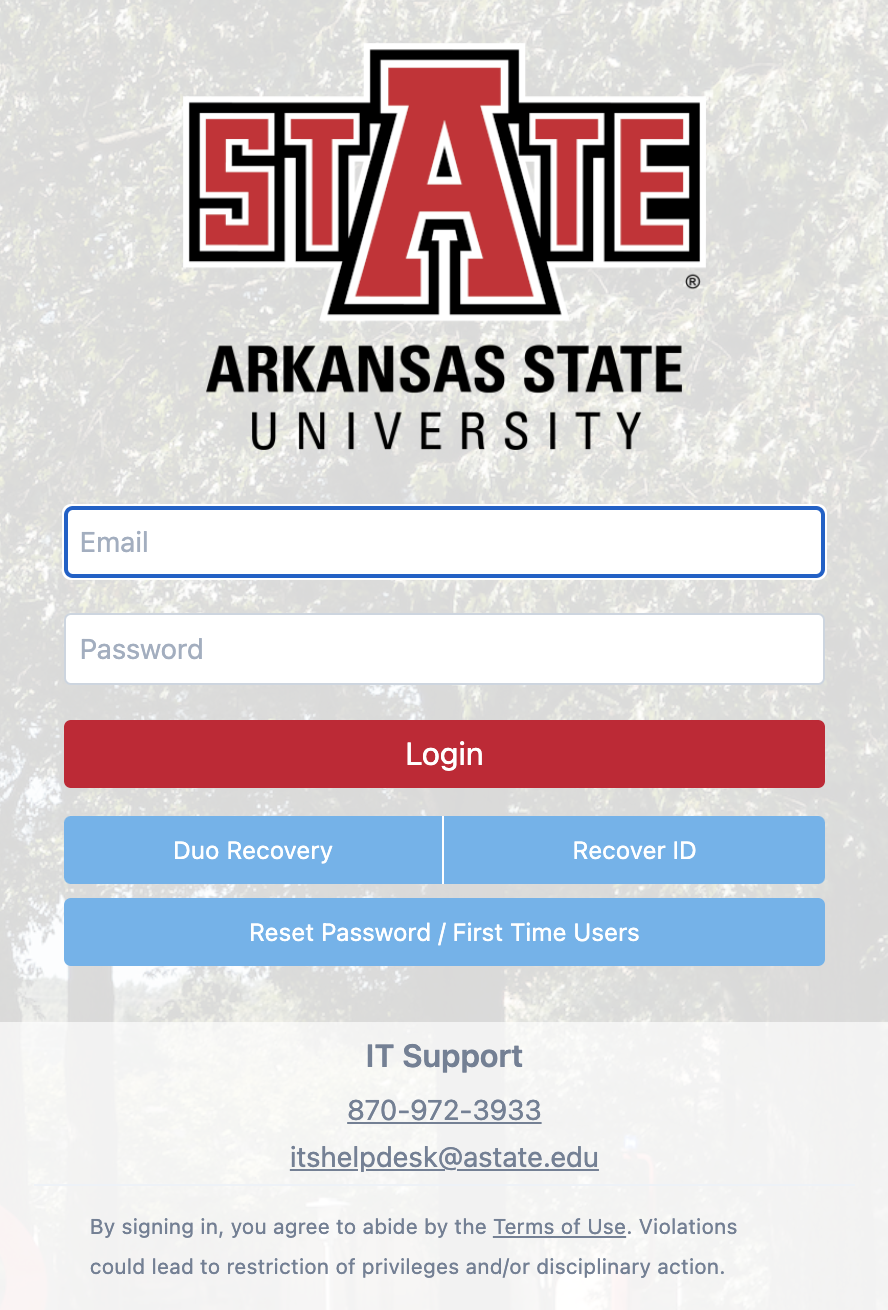
3. Authenticate using Duo Mobile.
4. Scroll down and click on VPN Access.
5. Lookgo to the rightapproval/rejection andscreen.

2. shouldThe supervisor will then see a menuscreen likewhere you can Approve or Reject the onerequest picturedwith below:
6.the Clickbuttons on Outstanding Requests.
7. Find the nameright side of the employeescreen.
4. thatWhen isthe requestingsupervisor accessselects and clickeither Approve or Reject, they can provide comments as to why it was Approved or Rejected for the Requestor to see. 
5. The next screen should display details about when the request was approved by the supervisor. 
6. Now that the VPN request has been approved by the supervisor, the requestor will receive an email notification telling them to allow 24-48 hours for the access to be added to their account. Once the VPN access is added to the rightrequestors ofaccount, theirthey name,will asget shownan below.
email stating how to intall and connect to Global Protect.

For further assistance, contact the ITS Help Desk at 870-972-3933 or stop by IT Support Services. It is located on the bottom floor of the Dean B. Ellis Library, Room 149.