UPDATE PERSONAL INFORMATION
You can manage personal information in Self Service. On the Self Service home page:
1. Select the four-square menu button on the upper left, then select “Banner”

2. Select “Personal Information”

3. Your personal information will be displayed
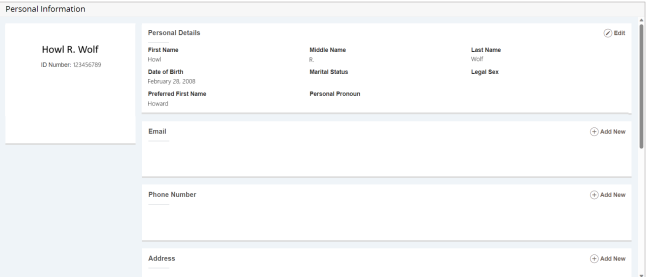
You can manage preferred first name, email, phone number, address, and emergency contact information.
4. Go to the section for the type of information you’d like to manage
a. To add an entry, select “Add New”
b. To edit an entry, select the pencil icon
c. To delete an entry, select the trash can icon
EXAMPLE: Managing Address Information
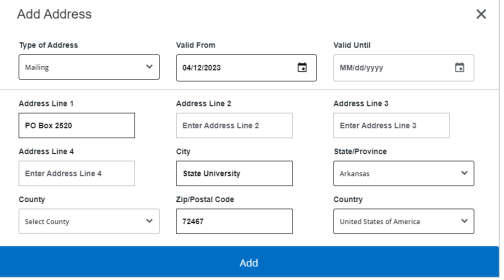
1. To add an address entry, select “Add New”
a. Enter the necessary information and select “Add”
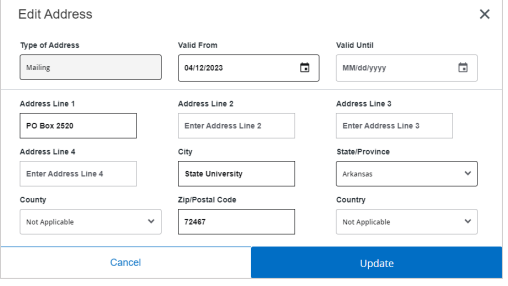
2. To edit an address entry, select the pencil icon
a. Update the necessary information and select “Update”
3. To delete an address entry, select the trash can icon
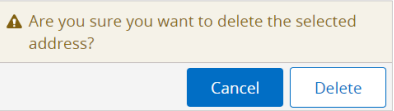
a. A pop-up will ask you to confirm the deletion, select “Delete”