
MacOS (Macbooks / Mac)
The current AStateSecure wireless network will be retired at noon on Saturday, Oct. 3, and will no longer be available after that time.
Connecting to AStateConnect
AStateConnect is the Wi-Fi network you will use while on campus. You log in with your A-State email address and password.
1. Open the Settings app on your iOS device. The icon should look like the image below.

2. Tap on Wi-Fi on the left hand side of the Settings screen.
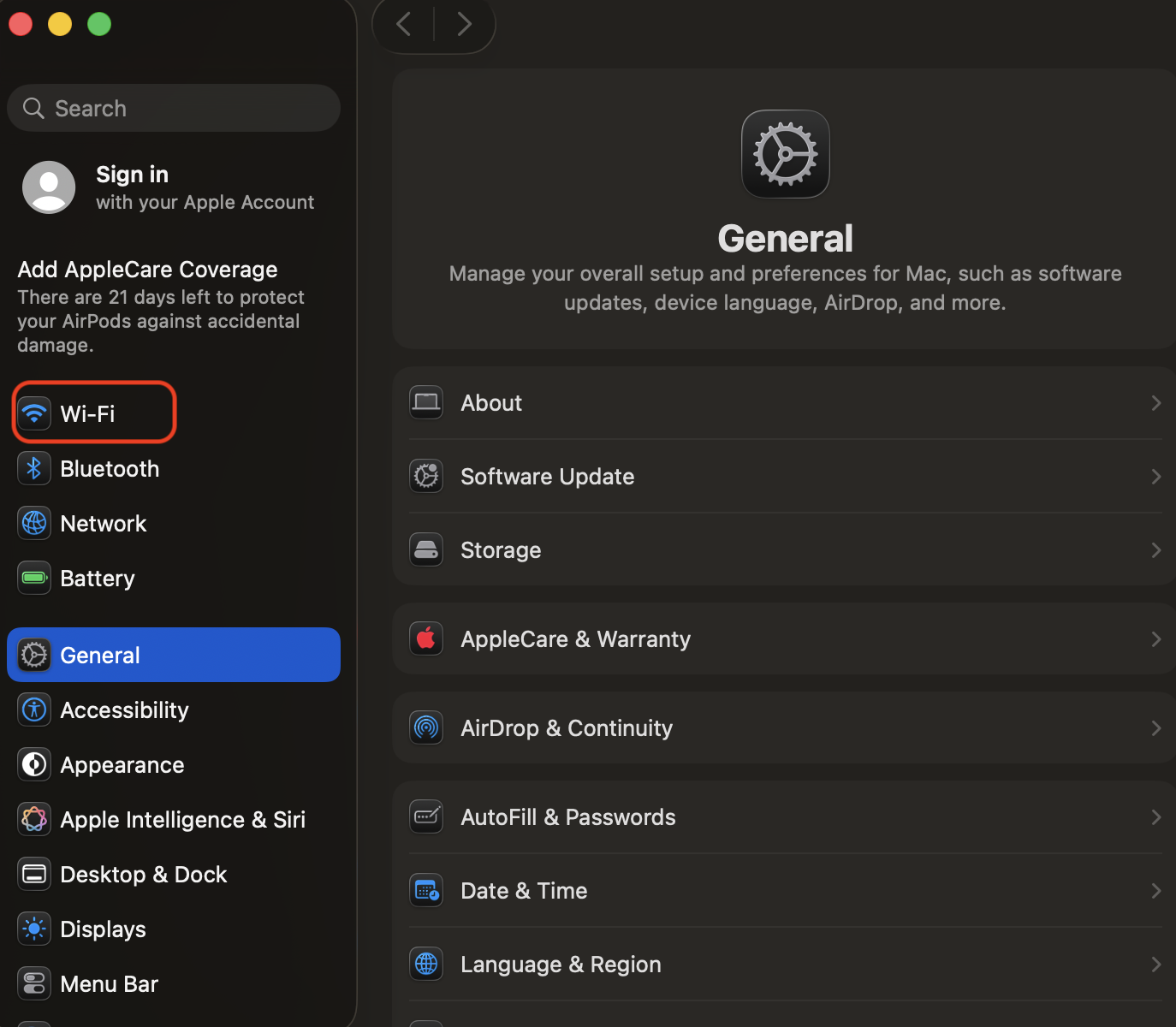
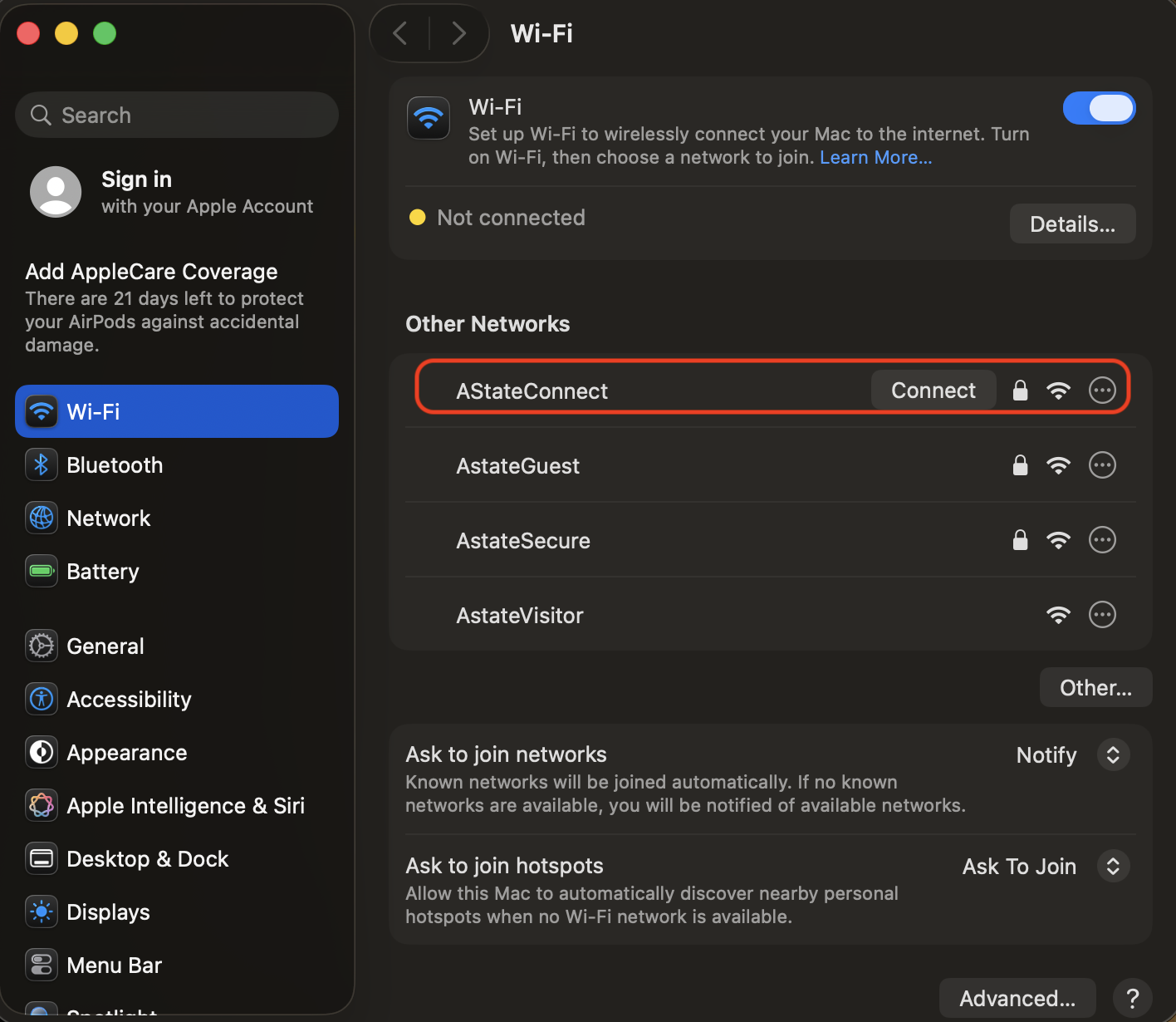
3. Tap on AStateConnect.
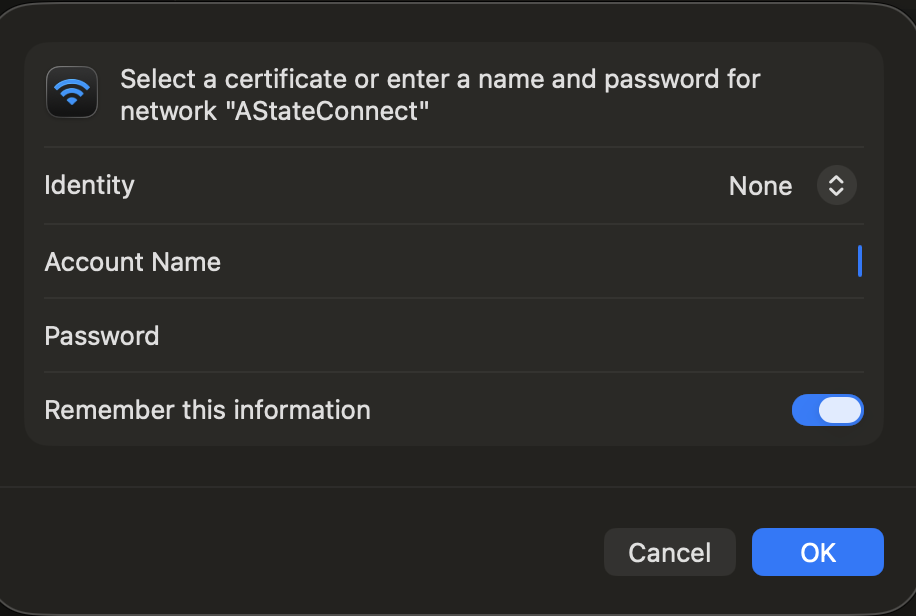
4. Enter your A-State email address and password and tap Join.
5. A screen will pop up like the image below. Tap Trust. 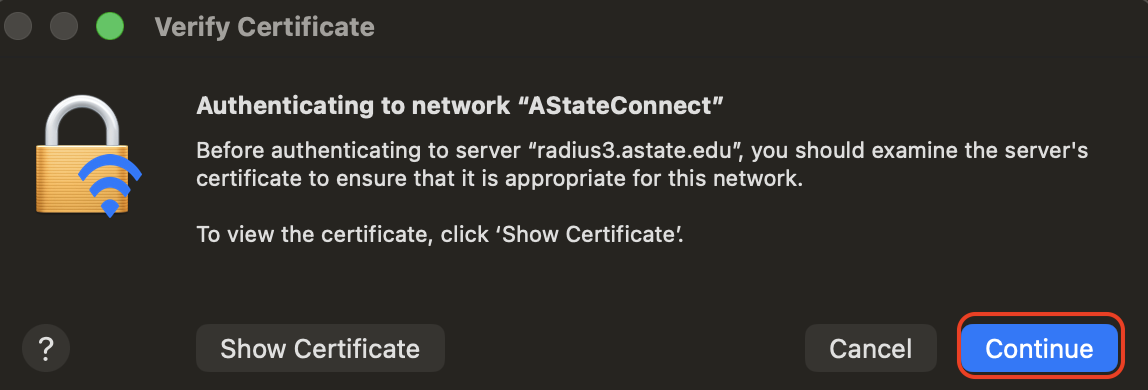
Your device should now be signed into the AStateConnect network.
Disable Private Wi-Fi Addressing
If you are exeriencing issues with the network, you might need to disable private wi-fi addressing. Steps for this can be found here.
Connecting to Home@AState
Home@AState is the Wi-Fi network used in A-State Campus Housing. Every student living in on-campus housing should have been provided a password for this Wi-Fi network to their A-State student email.
1. Open the Settings app on your iOS device. The icon should look like the image below.
2. Tap on Wi-Fi on the left hand side of the Settings screen. 
3. Tap on Home@AState.
4. Enter the Home@AState password provided via A-State student email and tap Join.
Your device should now be signed into the Home@AState network.
If you have not received your Home@AState password, send an email to itshelpdesk@astate.edu with your Campus Wide ID, which dorm you live in, and your room number.
Forgetting a Wi-Fi Network
Forgetting the network is a good way to troubleshoot any Wi-Fi issues you may be experiencing. Go through these steps to see if you can self-solve your issues.
1. Go to the Settings app on your iOSMacOS device. The icon looks like the image below.
2. Tap on Wi-Fi on the left hand side of the Settings screen.
3. Next to where you see AStateConnect, youclick shouldon seeDetails an information symbol.

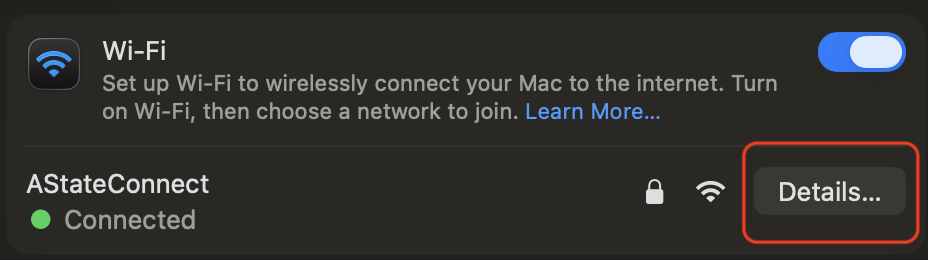
4. Tap on the information symbol.
5.4. TapClick on Forget This Network on the right side of the screen.
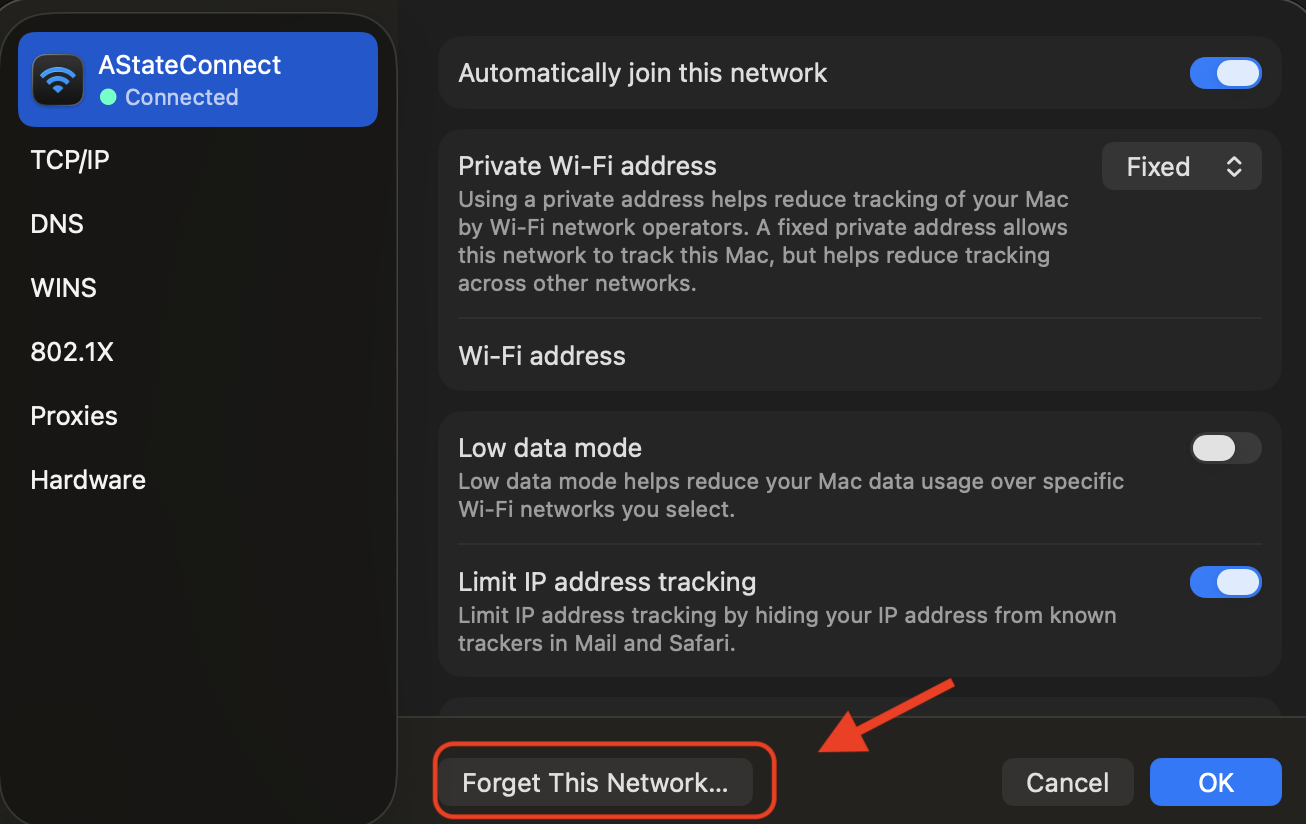
6. TapClick on ForgetRemove.

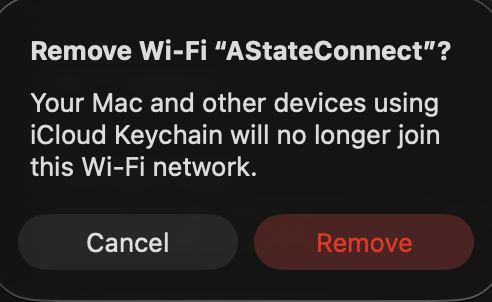
This will successfully disconnect your device from the AStateConnect network.
These steps can also be used to Forget the Home@AState network if necessary. You would instead tap on Home@AState and then tap Forget.
If you would like to reconnect to AStateConnect or Home@AState, you will need to go through the above steps to reconnect.
For further assistance, contact the ITS Help Desk at 870-972-3933 or stop by IT Support Services (itsupportservices@astate.edu). It is located on the bottom floor of the Dean B. Ellis Library, Room 149.