
BitLocker Recovery Guide
Before completing the steps in this document be sure that you have backednot upmodified allany filesinternal fromcomponents or peripherals of the impacted device (hard drive, motherboard, network interface card, external storage drive etc.) and that you have attempted to restart the device prior to troubleshooting. If your currentdevices localhardware profilehas tobeen OneDrive.modified, Atremoving it and restarting may resolve your issue.
1. What is BitLocker?
BitLocker is Microsoft’s full-disk encryption feature built into supported editions of Windows that helps protect data by encrypting the endentire ofdrive. thisBitLocker joining process you will no longer be accessing the managed asset using a local account. For additionalsafeguards information on OneDrive,desktops, pleaselaptops, seeand removable drives from unauthorized access if a device is lost, stolen, or improperly accessed. It commonly uses a Trusted Platform Module (TPM) to securely store encryption keys and verify system integrity during startup, helping prevent attackers from accessing data by removing the followingdrive KBor Articles:bypassing https://kb.astate.edu/books/microsoft-365/chapter/onedrivethe operating system. When configured, BitLocker provides strong data protection with minimal impact on the user experience and is widely used by organizations to support security, compliance, and data protection requirements.
1.2. PurposeWhy Does A-State Use BitLocker?
ThisThe procedureInformation establishesand Technology Resource Security Policy requires A-State to encrypt the necessaryfull stepsdisk forof anevery institutionally owned andasset. managedThis assetencryption tois benot joined to A-State’s Microsoft Entra ID tenant. To ensure compliance with university standardsoptional and ais consistentenforced experienceusing forour users,campus allmobile technologydevice resourcesmanagement shall(MDM) beplatform configured to meet a minimum standard. Remote devices that are not joined to the on-premise domain must be manually joined to Entra ID to ensure compliance with these standards.
2. Scope
This standard applies to all Arkansas State University (A-State) owned technology resources and users of those resources.Intune.
3. DefinitionsThe BitLocker Recovery Screen
EntraIf IDyour –computer Entradisplays IDthe isBitLocker Microsoft’Recovery screen after powering on, BitLocker has detected a change that requires verification before it can unlock the encrypted drive. This screen looks similar to the following:
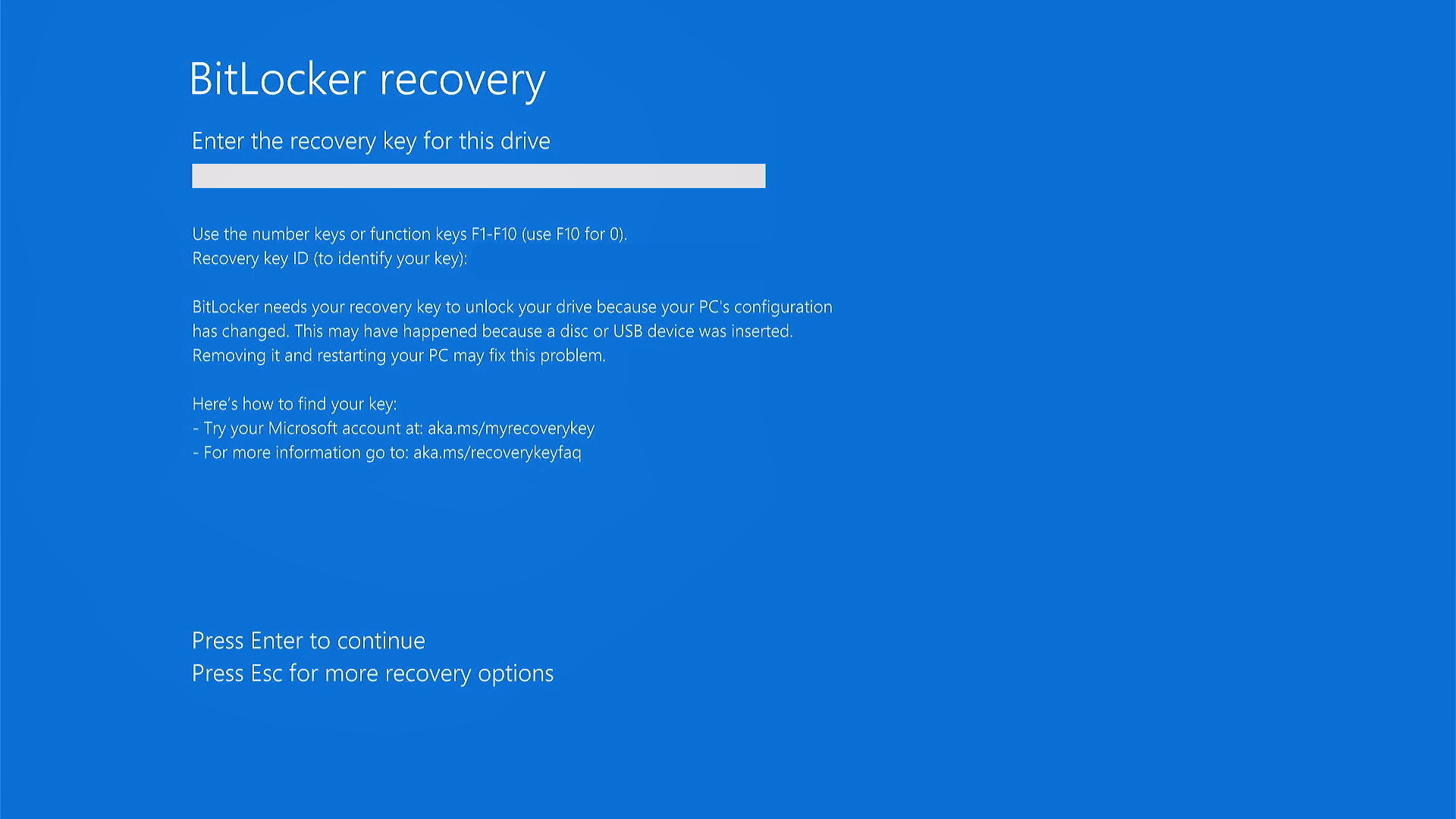
This can occur after hardware changes, BIOS/UEFI updates, firmware updates, security setting changes, TPM issues, or other events that affect the system's cloud-basedstartup identityintegrity checks. To regain access to the device, a user can enter the 48-digit BitLocker recovery key when prompted. Recovery keys are stored in two locations for domain joined devices and accessmust managementbe (IAM) service, parallelprovided to on-premiseyou Activeby Directory.your zone technician if an initial restart does not resolve your issue.
4. Responsibilities
IT Security Team – Responsible for the technical configuration of device join settings in Entra ID, including the permissions of who is able to join devices.
ITS Endpoint Technician – Responsible for assisting users in their area of support with the Entra join process.
User – Responsible for enrolling their remote assets into Entra ID and ensuring all necessary files are backed up prior to this enrollment.
5. Entra ID Join Steps
Need assistance with these steps?assistance? You can request support with this process from your assigned zone technician in completing these steps. https://kb.astate.edu/books/endpoint-technicians-team/page/its-zone-structure
On your A-State owned asset, sign in and go to system settings.Onthrough theleft,TDXselect “Accounts”.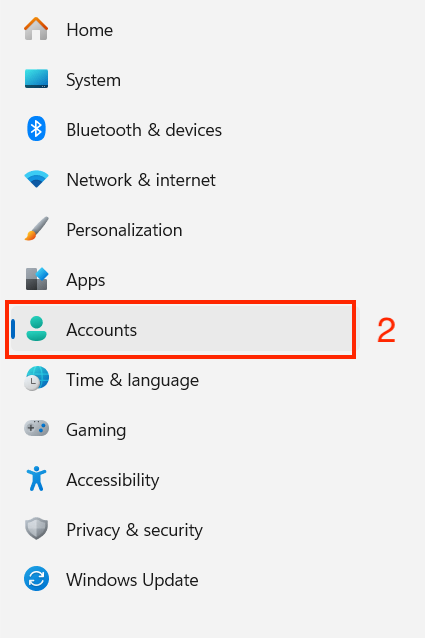
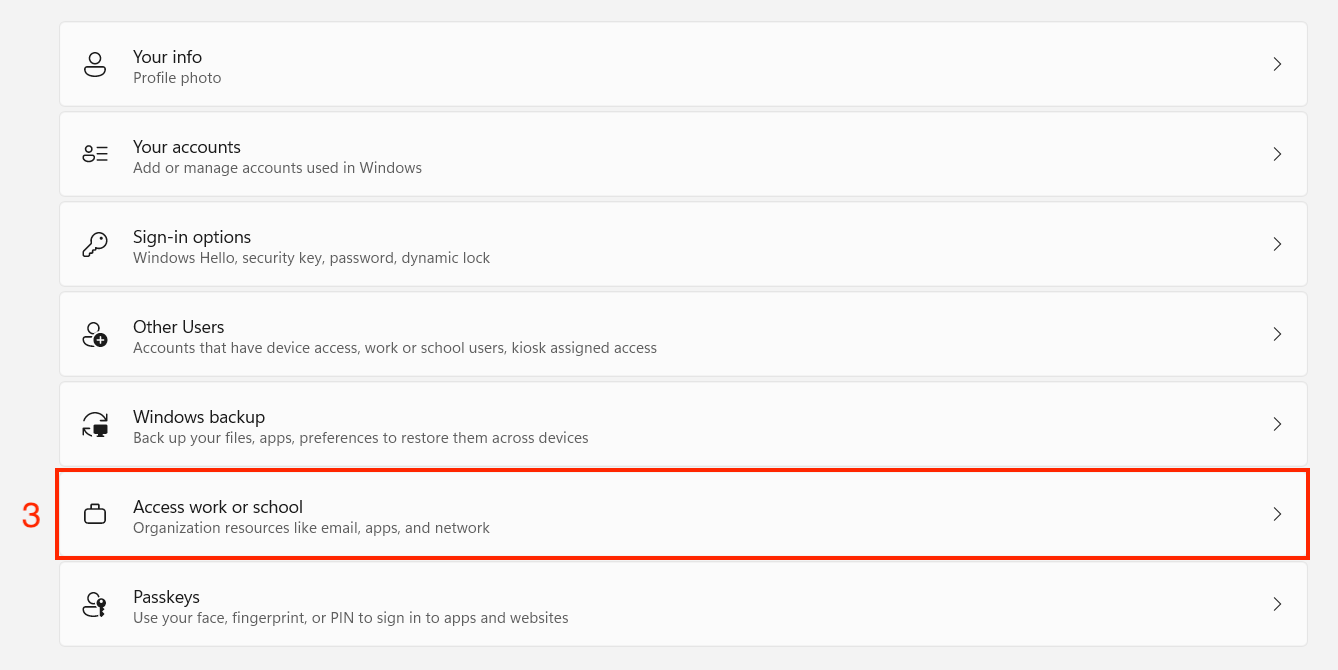
Find and select “Access work or school”.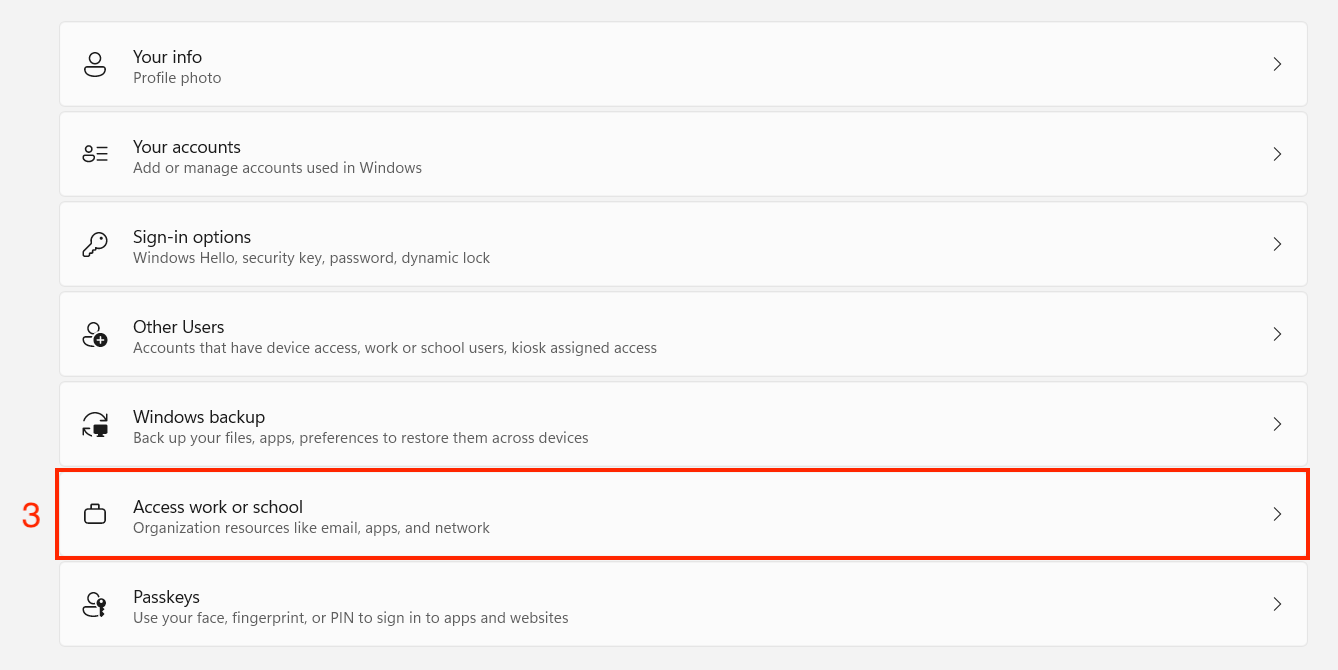
In the “Add a work or school account” section, click “Connect”.
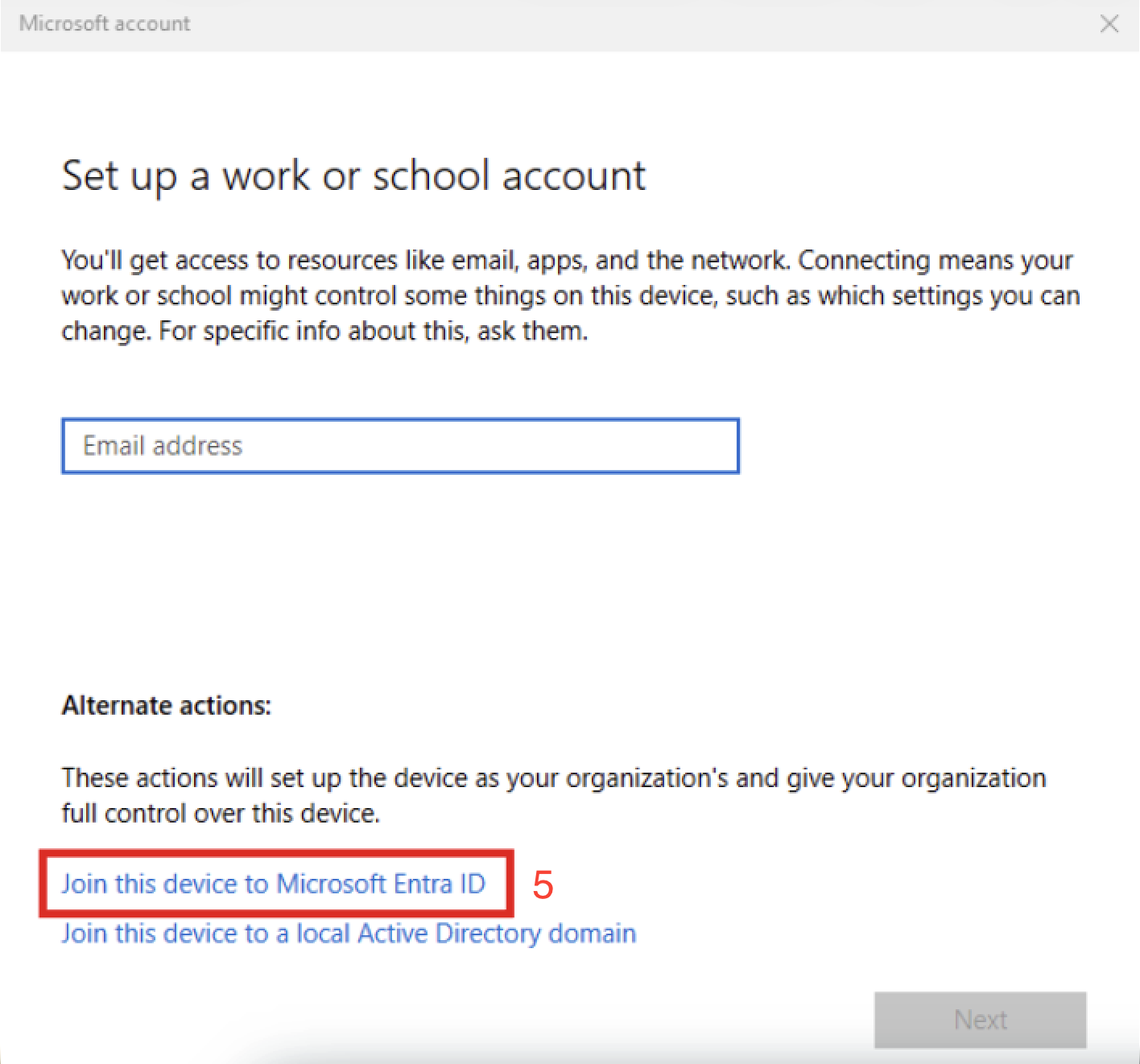
At the bottom of the window, there is text that says, “Join this device to Microsoft Entra ID”. Click on that text.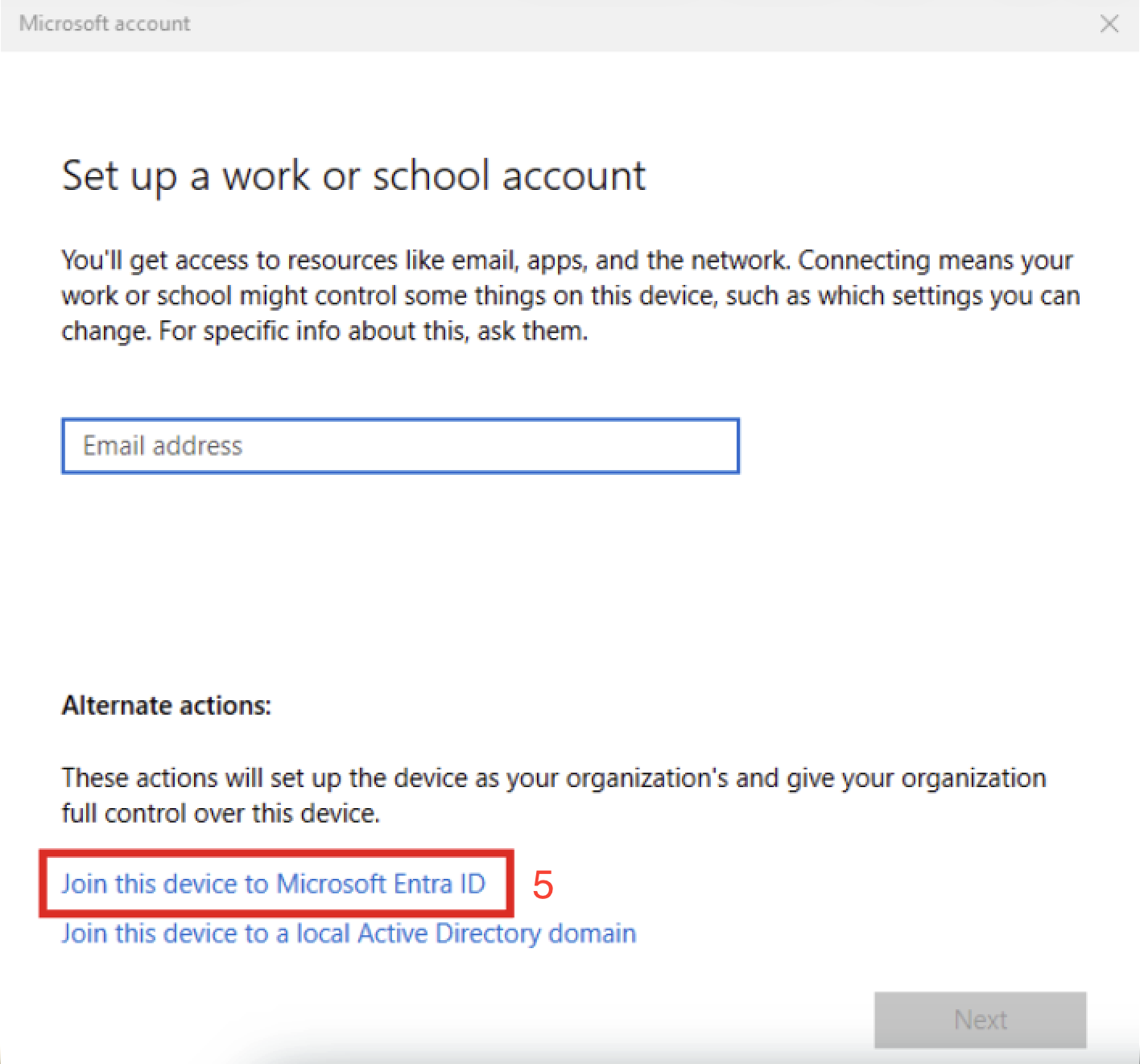
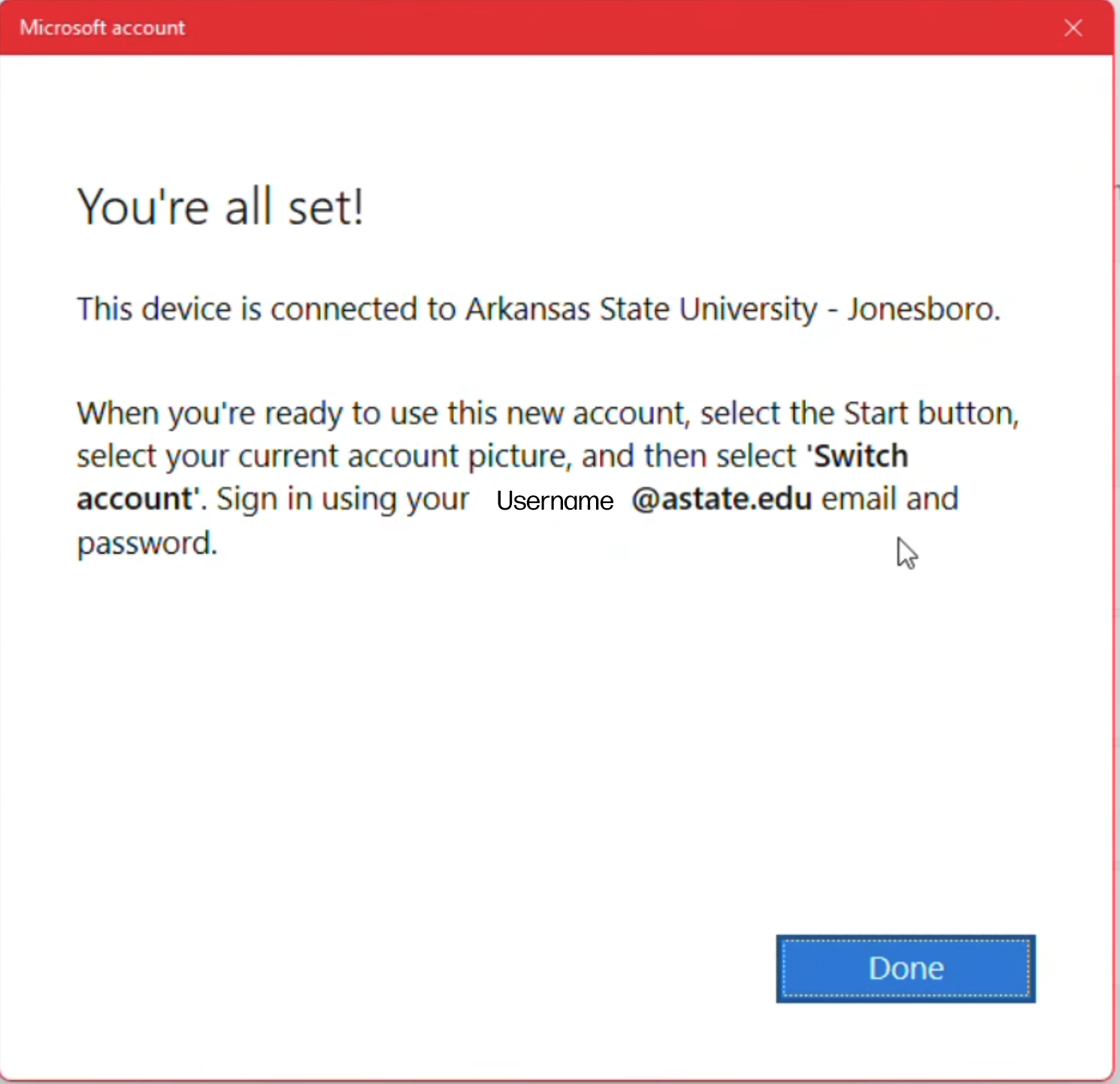
A Microsoft credential window will pop-up, enter your A-State email and password.A window should pop up asking you to accept, and/or a confirmation window asking you to “Make sure this is your organization”. Hit Accept/Join.You should receive a message stating that your device has been connected to A-State.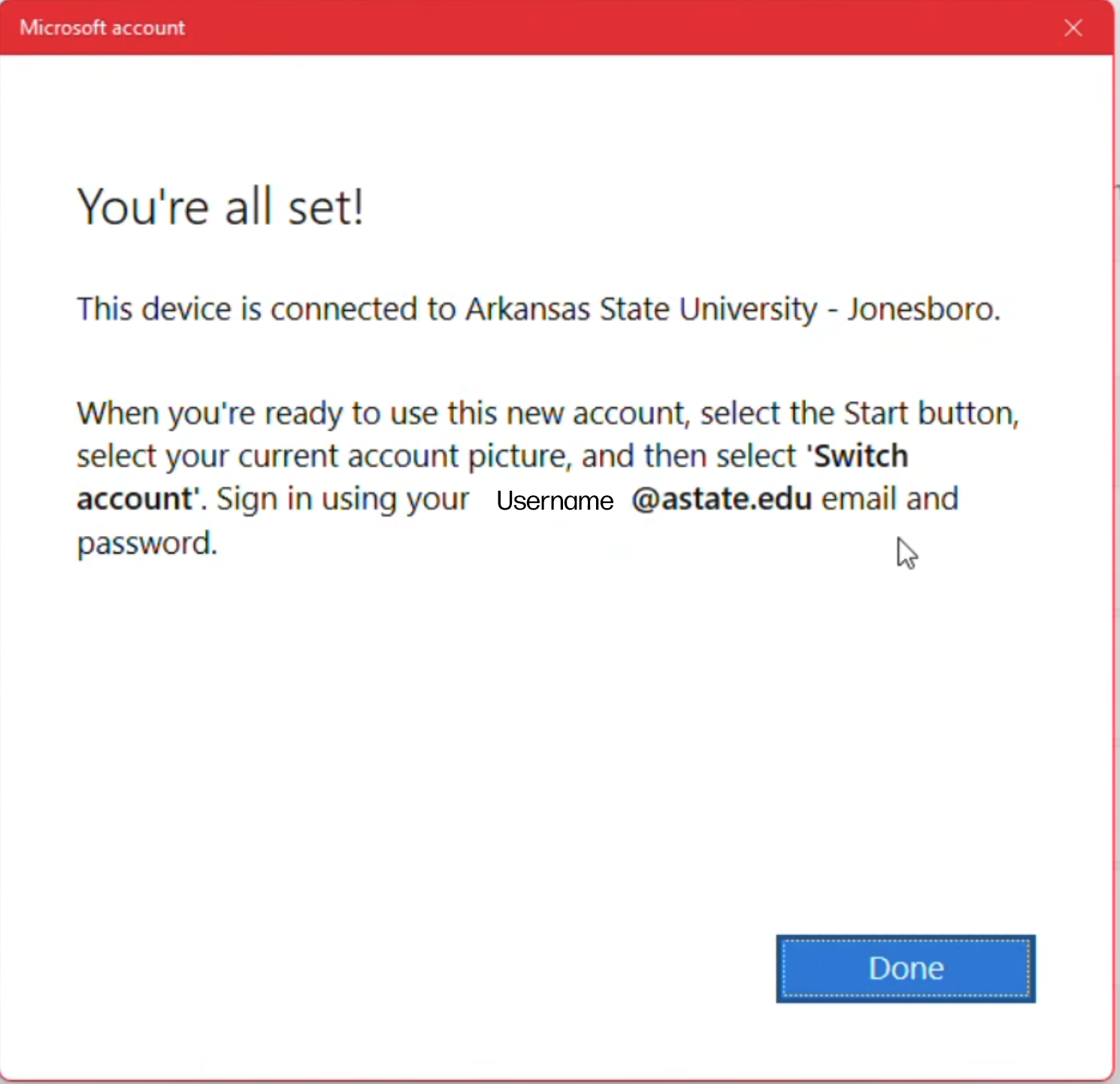

6. Next Steps
To speed up the Intune sync process you can manually start a sync using the CompanyClient Portal application on your device. To do this you can do the following:.
Press the Windows key and type "Company Portal"If no application shows up, you may have to wait for the application to be automatically installed.
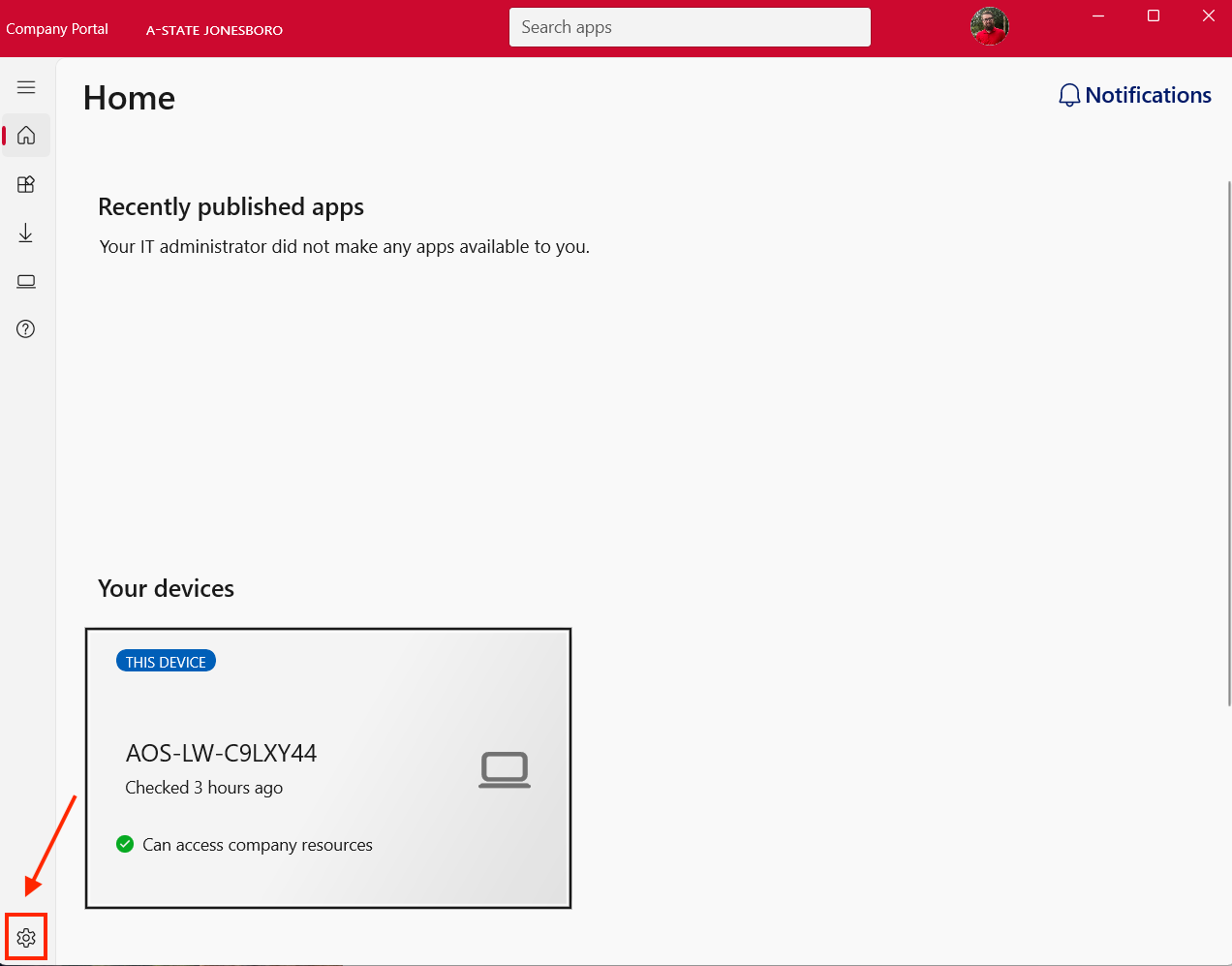
Sign in using your work credentials.On the home page select the settings icon in the bottom left corner.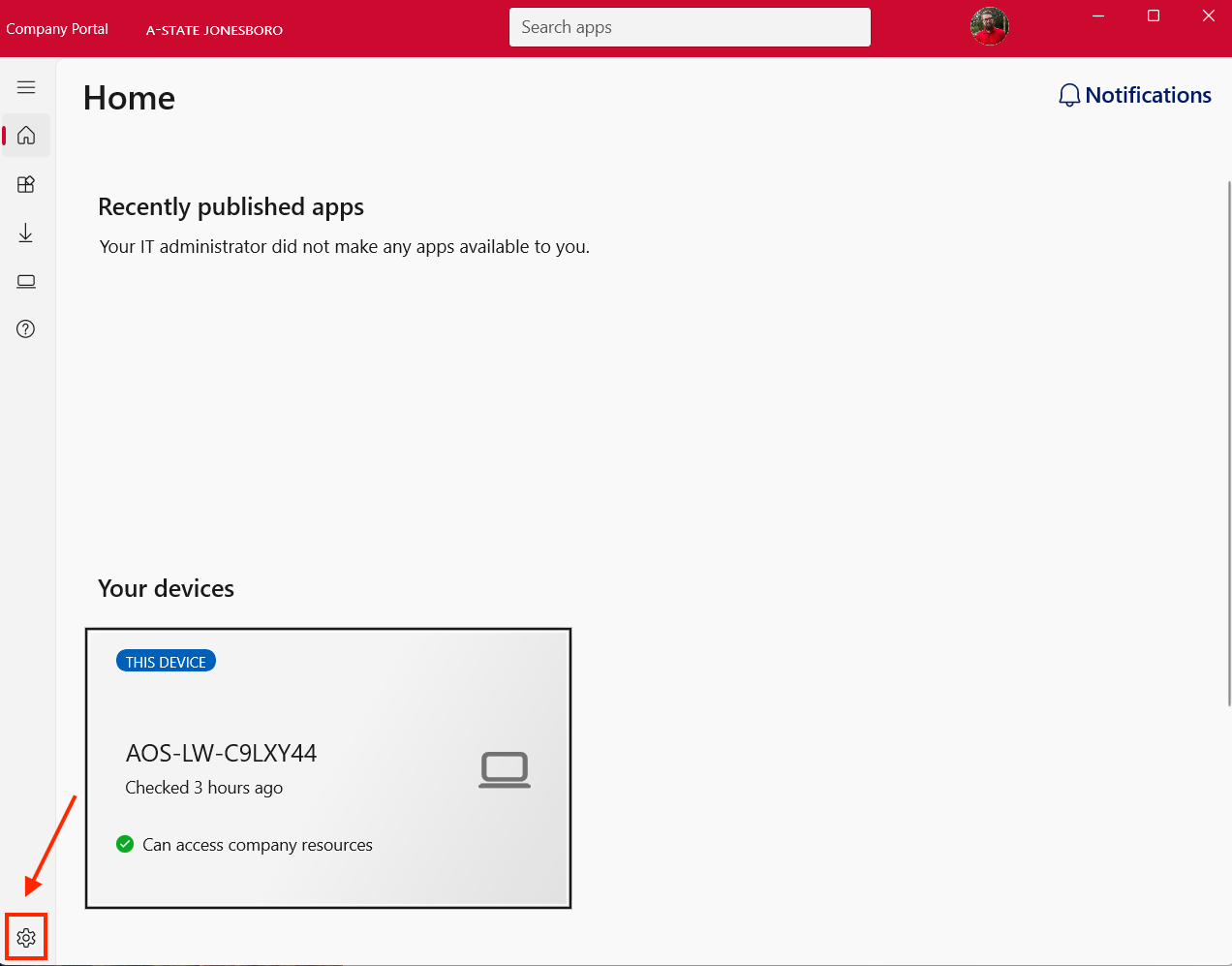
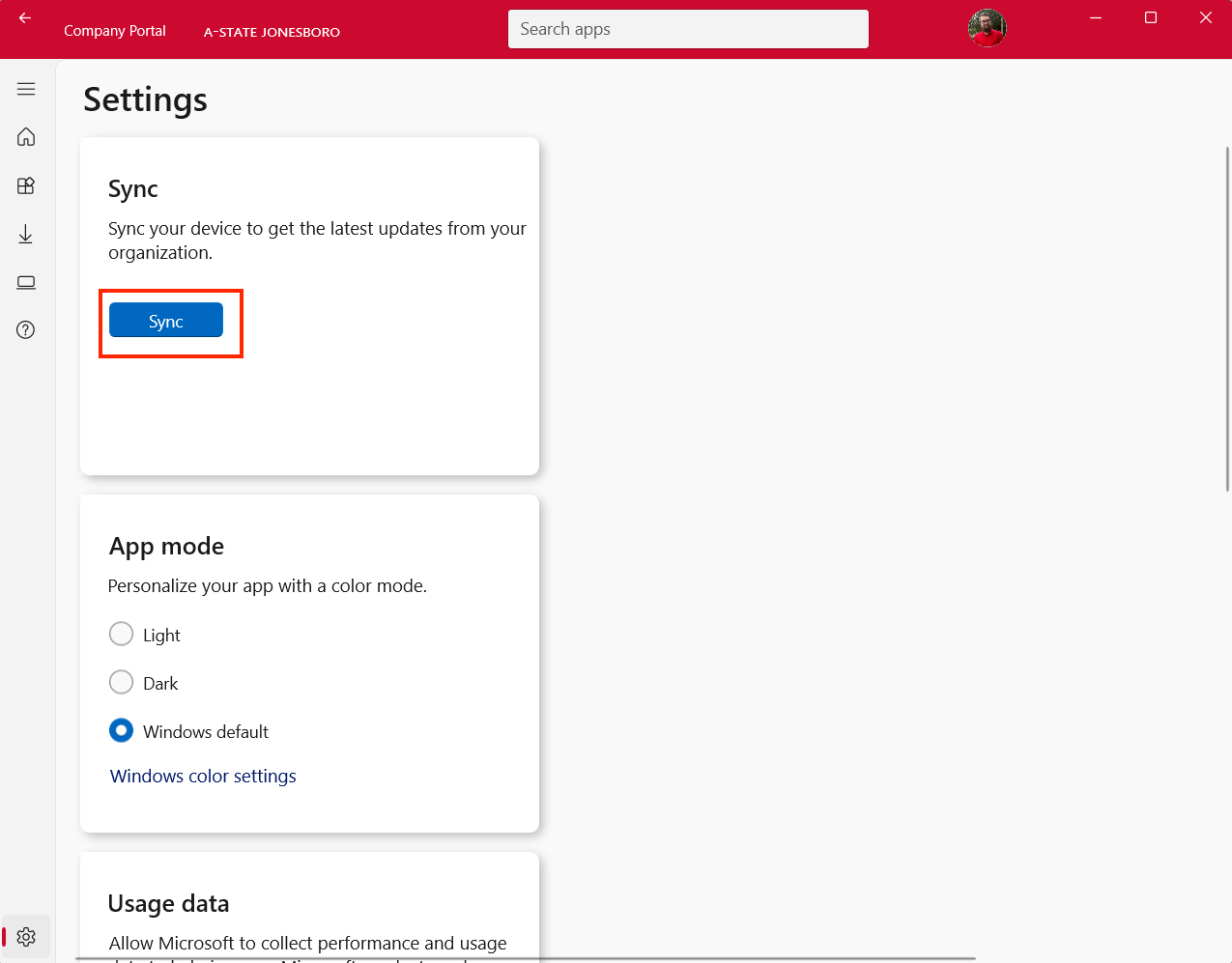
In settings select the "sync" button.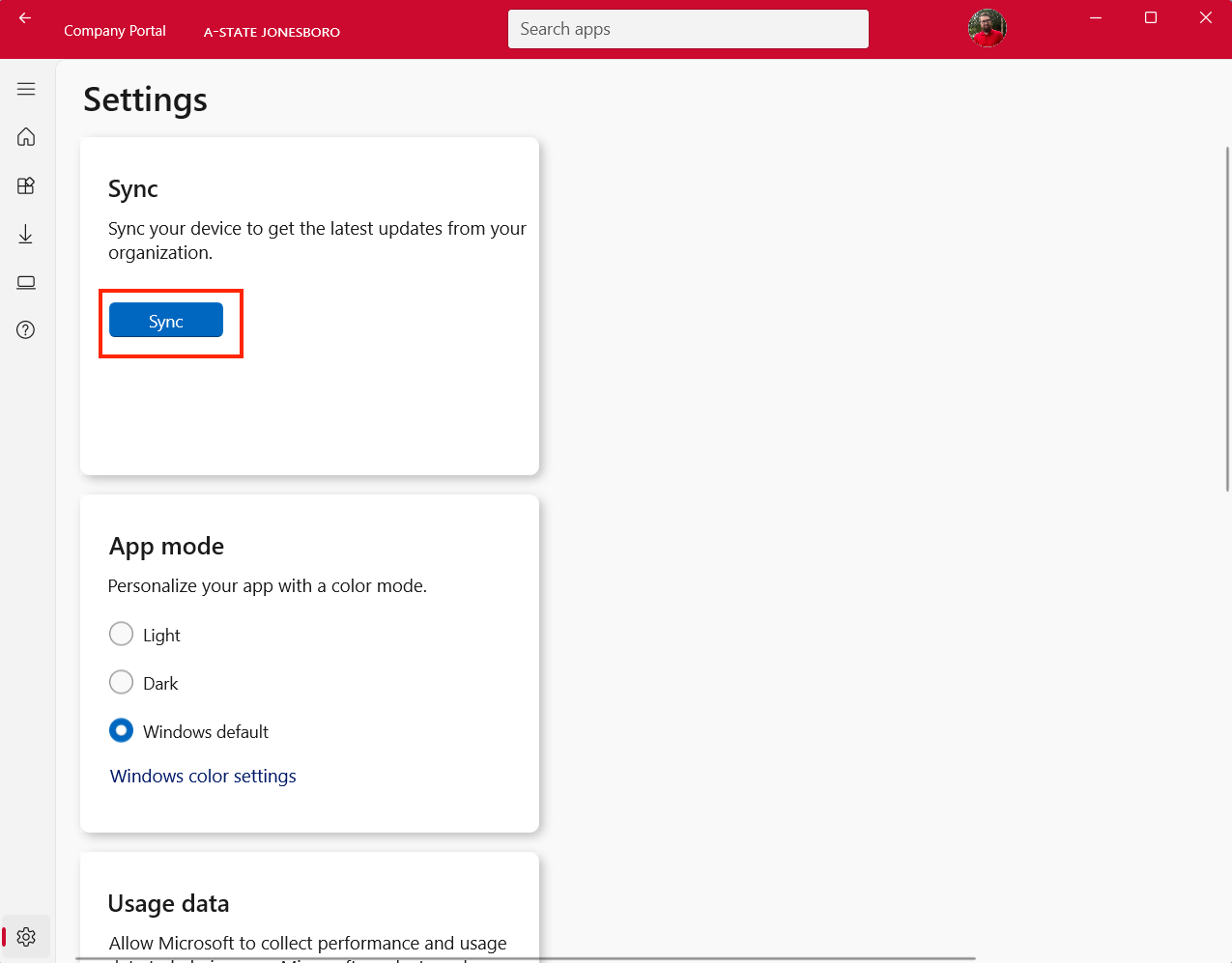
Sync times may vary, so please allow 5-30 minutes for this to complete.Once this is completed you will need to restart your device.
Before restarting your device be sure that you have backed up all files from your current local profile to OneDrive. At the end of this joining process you will no longer be accessing the managed asset using a local account. For additional information on OneDrive, please see the following KB Articles: https://kb.astate.edu/books/microsoft-365/chapter/onedrive