
BitLocker Recovery Guide
Before completing the steps in this document be sure that you have not modified any internal components or peripherals of the impacted device (hard drive, motherboard, network interface card, external storage drive etc.) and that you have attempted to restart the device prior to troubleshooting. If your devices hardware has been modified, removing it and restarting may resolve your issue.
1. What is BitLocker?
BitLocker is Microsoft’s full-disk encryption feature built into supported editions of Windows that helps protect data by encrypting the entire drive. BitLocker safeguards information on desktops, laptops, and removable drives from unauthorized access if a device is lost, stolen, or improperly accessed. It commonly uses a Trusted Platform Module (TPM) to securely store encryption keys and verify system integrity during startup, helping prevent attackers from accessing data by removing the drive or bypassing the operating system. When configured, BitLocker provides strong data protection with minimal impact on the user experience and is widely used by organizations to support security, compliance, and data protection requirements.
2. Why Does A-State Use BitLocker?
The Information and Technology Resource Security Policy requires A-State to encrypt the full disk of every institutionally owned asset. This encryption is not optional and is enforced using our campus mobile device management (MDM) platform Intune.
3. The BitLocker Recovery Screen
If your computer displays the BitLocker Recovery screen after powering on, BitLocker has detected a change that requires verification before it can unlock the encrypted drive. This screen looks similar to the following:
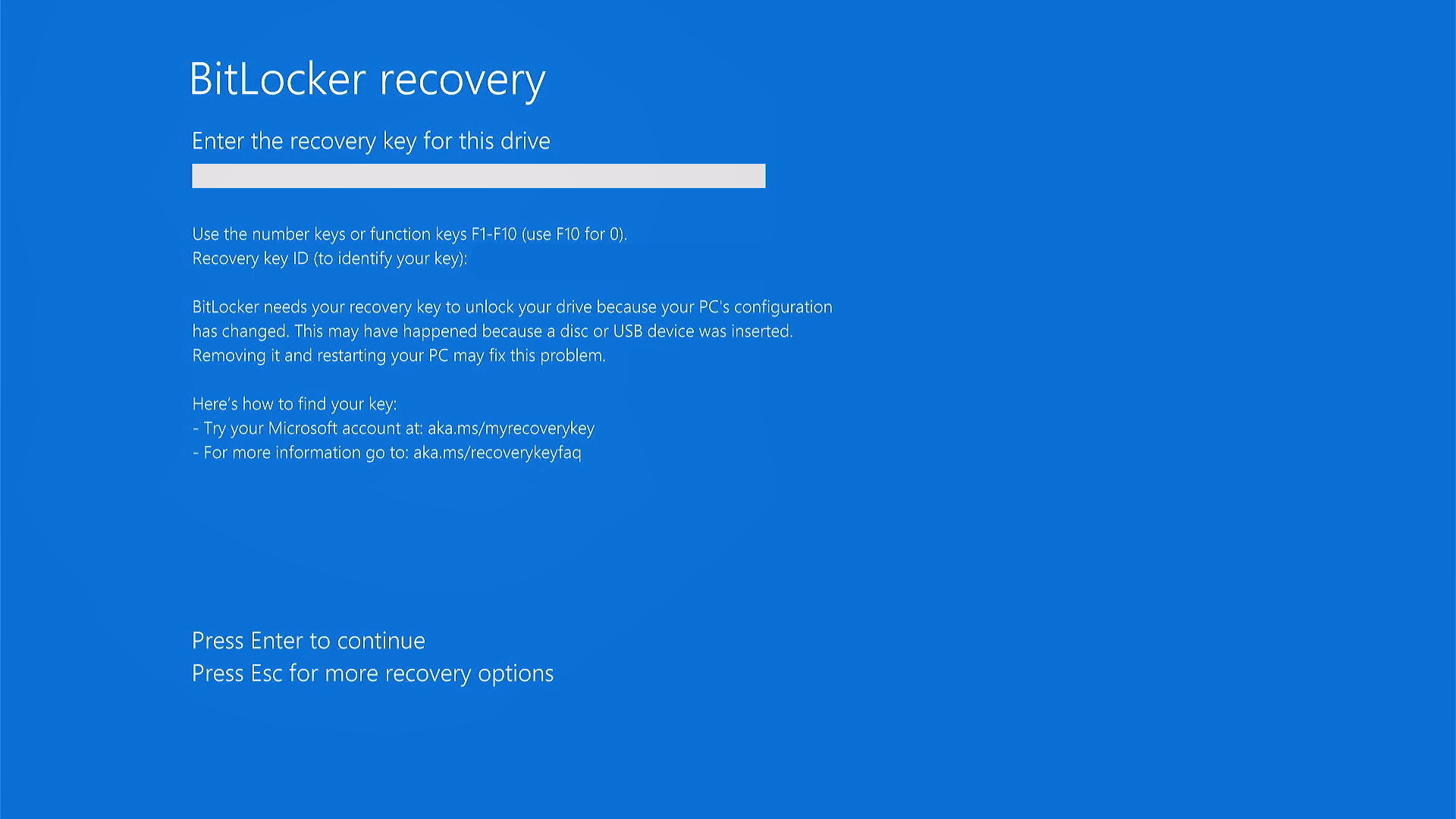
This can occur after hardware changes, BIOS/UEFI updates, firmware updates, security setting changes, TPM issues, or other events that affect the system's startup integrity checks. To regain access to the device, a user can enter the 48-digit BitLocker recovery key when prompted. Recovery keys are stored in two locations for domain joined devices and must be provided to you by your zone technician if an initial restart does not resolve your issue.
Need assistance? You can request support through the TDX Client Portal.