
Collaborate in OneDrive
Default Settings
File and folder links
- The default type of link that is selected when sharing files or folders is Specific people
- The default permission level is View
Restrictions
When sharing files or folders you must explicitly list each user or group you would like to share with. The share option 'Anyone with the link can...' is disabled. This does not restrict whom you can share with. You can still share files and folders with users outside of the A-State organization.
Share OneDrive files from your Office apps
To share a file from within Word, Excel, PowerPoint, or another Office app:
-
Select
 Share on the ribbon (generally located on the right side of the ribbon).
Or, select File > Share.
Note: If your file is not already saved to OneDrive, you'll be prompted to upload your file to OneDrive to share it.
-
Select who you want to share with from the drop-down, or enter a name or email address.
-
Add a message (optional) and select Send.

Share files from OneDrive on the web
-
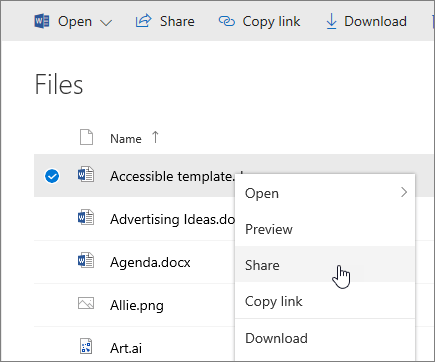
Right click the file and select Share.
Or, select a file and select
Share on the toolbar. -
Select who you want to share with from the drop-down, or enter a name or email address.
-
Add a message (optional) and select Send.
Change views
The left pane lets you filter your view of items in OneDrive.
-
My Files - See all of your OneDrive files and folders.
-
Recent - See which Office documents you've opened most recently, whether you've modified them or not.
-
Shared - See items that you've shared with other people and that other people have shared with you.
-
Recycle bin - See items and folders that you've deleted.

Stop or change sharing
If you are the file owner, or have edit permissions, you can stop or change the sharing permissions.
-
Select the file or folder you want to stop sharing.
-
Select Information icon in the upper-right corner to open the Details pane.

-
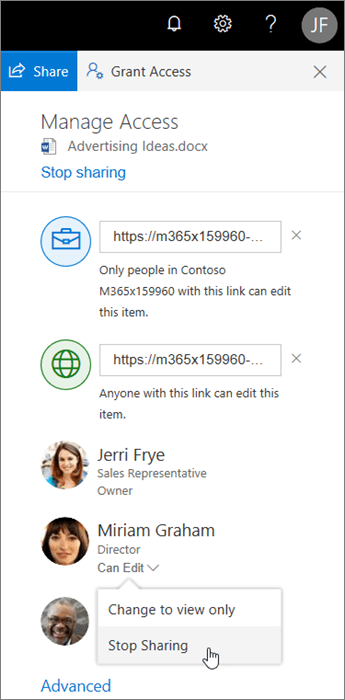
Under the Has access section, select Manage access.
- To remove sharing permissions
- To completely stop sharing the item, select Stop sharing at the top of the Manage Access window.
- To remove a link
- Select the X next to a link to disable it.
-
Select Can Edit or Can View, and then select Stop Sharing.
-
Select Can Edit or Can View and then select Change to….

Copy link
-
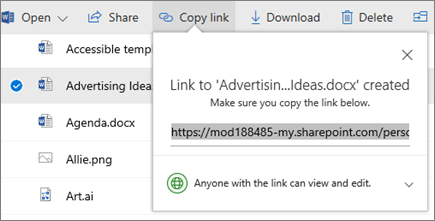
Select a file and select
 Copy link.
 -
Or, right click a file and select Copy link.
Learn more: