
Set up the Outlook mobile mail app iOS/Android
If you have a work or school account that uses Microsoft 365 for business or Exchange-based accounts, there may be additional requirements set by your IT admin. For example, if you have a company-managed device, an on-premises Exchange server configured for basic authentication, or your company requires mobile app management for app protection. See the section Set up work or school accounts that have additional requirements below for specific instructions.
Set up an Outlook account in the iOS Mail app


Download Outlook for iOS from the iOS App Store and then open it. The icon looks like this:

Note: See system requirements for your iOS devices here.

If it's your first time using Outlook for iOS, enter your full email address, then tap Add Account.
If not, open the Menu > tap Settings  > Add Account > Add Email Account.
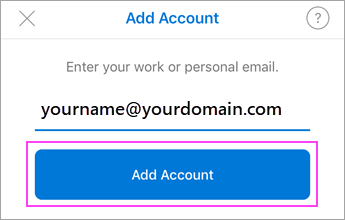

If you're asked to select your email provider, please contact your IT admin for support as there may be a misconfiguration.
You can also set up your email account manually or use IMAP/POP.

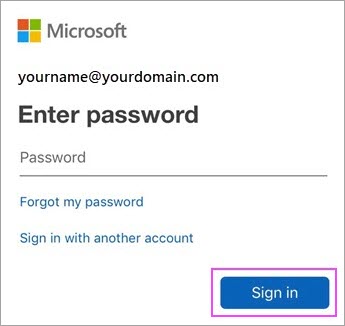
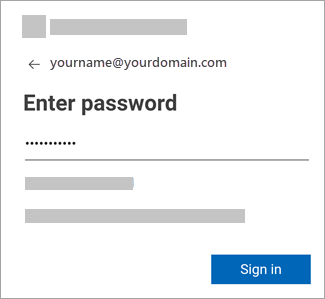
Enter your email account password and tap Sign In.
Note: The sign in screen may look different for you depending on your email provider.

If multi-factor authentication is enabled, verify your identity. For more information, see Security info overview.
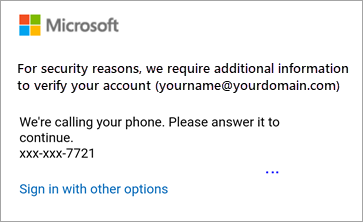

Accept any prompts for permission you may receive.
Swipe through the features and you're now ready to use Outlook for iOS!
Optimize the Outlook mobile app for your phone or tablet
Set up an Outlook account in the Android Mail app
Install the Outlook for Android app from the Google Play Store and then open it.
Tap Get Started if this is your first time.
Otherwise, to add another email account, open the Menu  > Settings
 > Add Account > Add Email Account.
Enter your full email address, then tap Continue.
Note: If you're asked to choose your provider, you'll have to Set up your Exchange manually or set up an IMAP or POP account.
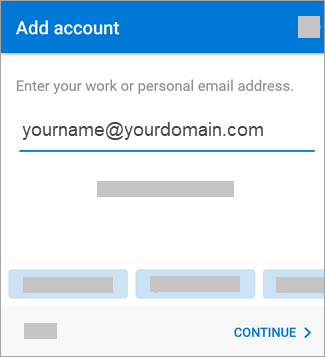
Enter your email account password and tap Sign In or Next.
Note: The sign in screen may look different for you depending on your email provider.

If multi-factor authentication is enabled, verify your identity. For more information, see Security info overview.