Skip to main content
Migration - Troubleshooting
Outlook disconnects from your mailbox and you cannot get it to reconnect
Disclaimer: Office 2013 is not compatible with the migrated email accounts
Windows:
Solution 1
- First reboot your computer
- Open Outlook and when prompted enter your A-State credentials
Solution 2
- Close Outlook
- Open Windows Credential Manager and remove any credentials that refer to Outlook
Solution 3
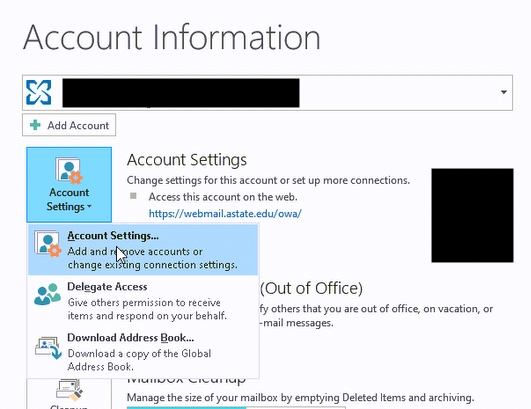
- Open Outlook and Select File at the top left

- Select Account Settings
- Click your email and then click Remove

- If you receive an error message asking for a Data File to be created, click the Data Files tab, click New, and in the pop-up window, click Ok
- Once removed, click New
- Enter your
AStateA-State credentials when prompted
- If you are asked to pick an account type, choose Work or School
- Authenticate with Duo like
normalnormal, if prompted
- Once you have signed in, close Outlook and reopen it. It make take several minutes for your content to populate
Checking your version of Office
- Click File
- Click Office Account
- Look for Product Information. This should include the year of the version installed.
- If the version installed is 2013 or earlier, you can submit a work order ticket by signing in to my.astate and selecting Help Desk Ticket
Mac:
- Click Outlook at the top left of your screen. This is by the Apple logo.
- Click Preferences
- Click Accounts
- Make sure your
AStateA-State account is selected, and click the minus sign (-) in the bottom left
- Once removed, click the plus sign (+)
- You may have to click New Account
- Enter your
AStateA-State credentials
- If you are asked to pick an account type, choose Work or School
- Authenticate with Duo like normal if prompted
- Click Done
Checking your version of Office
- Click Outlook at the top left of your screen. This is by the Apple logo.
- Click About Outlook
- If the version installed is 2013 or earlier, you can submit a work order ticket by signing in to my.astate and selecting Help Desk Ticket