Scheduling multiple sections in the same room
How to schedule multiple sections in the same room:
To override the room assignment and schedule multiple sections in the same room, please follow these steps:
- Open the Section Dashboard for the course.
- Click the Room field.
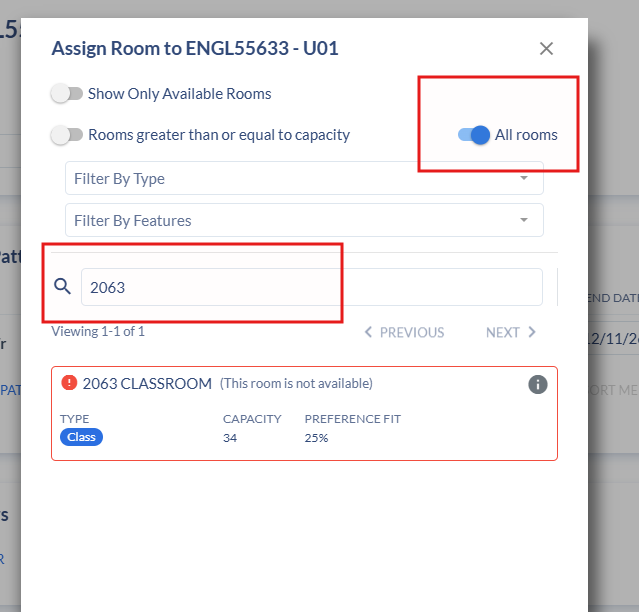
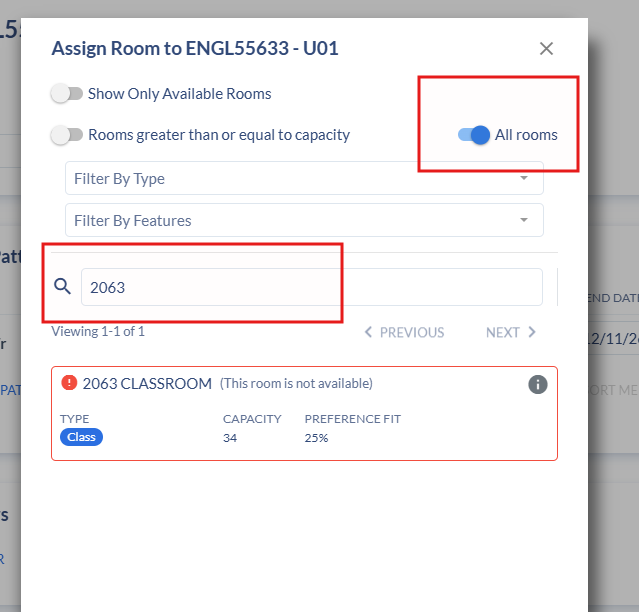
- Disable Show only available rooms and Rooms greater than or equal to capacity.
-
Enable All Rooms, enter the desired room number, and select the room.
Next:
- Click Set Details.
- Change the Override Indicator to O. While R was previously recommended, with Coursedog we now recommend using O.
-
Close the dialog box and save the section.