
Instructions
Installing Global Protect to Mac
2. Sign in with your A-State username and password and then approve DuoDuo.
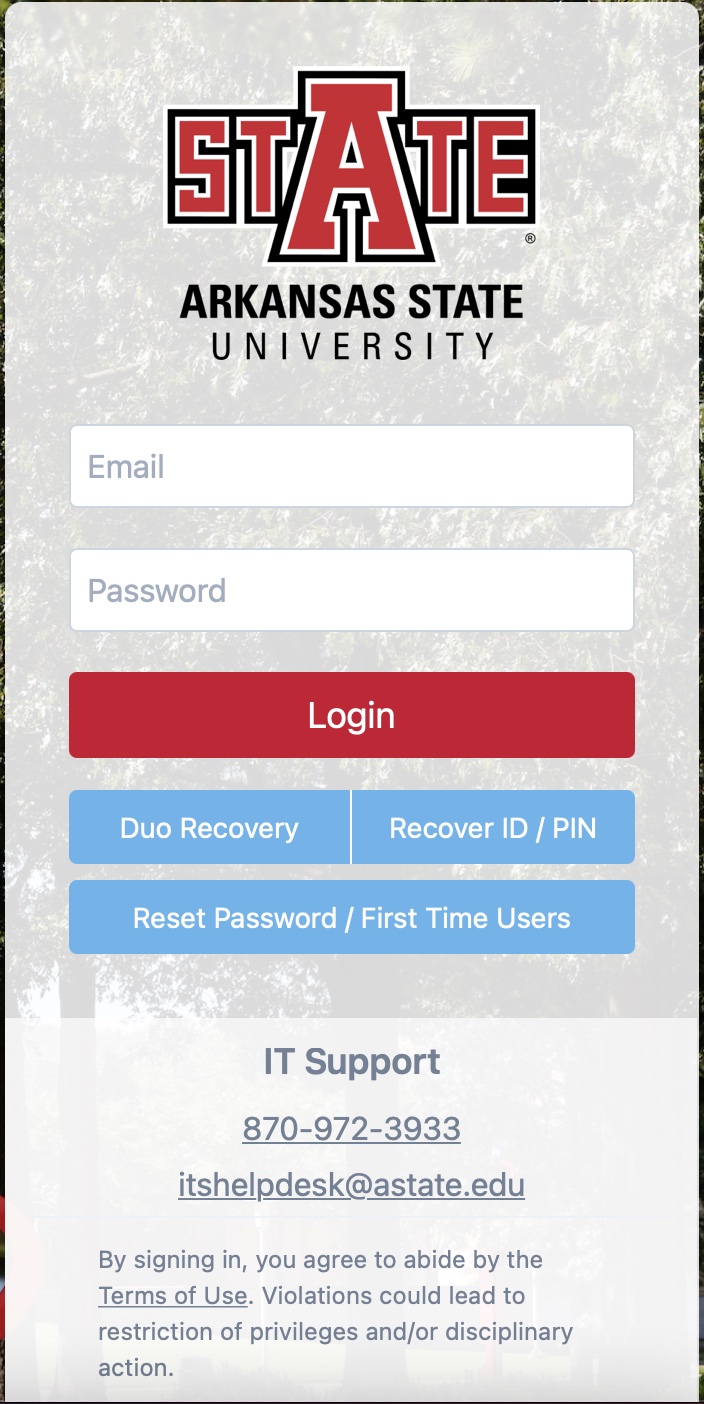
3. Select Download Mac 32/64 bit GlobalProtect agent
4. Run installer
Installing Global Protect to Windows
1. Go to globalprotect.astate.edu
2. Sign in and approve Duo
3. Select Download Windows 64 bit GlobalProtect agent
4. Run installer
Using Global Protect
1. Open Global Protect and enter the portal address globalprotect.astate.edu
2. Sign in using your AState login
3. Approve with Duo
4. Open Global Protect and check that it says Connected
For further assistance connecting contact the Help Desk at 870-972-3933 or stop by the IT Store located on the first floor of the library.