
Instructions
Installing Global Protect to Mac
2. Sign in with your A-State username and password and then approve Duo.

3. Select Download Mac 32/64 bit GlobalProtect agent

4. Run installer (images below include the steps you will go through in order to install the application.
Step One: Make sure the Open with Installer (default) option is selected and then click OK.

Step Two: Click Continue.

Step Three: Make sure the Macintosh HD disk is selected and then click Continue.

Step Four: Make sure the Global Protect option is selected and then click Continue.

Step Five: Click Install.

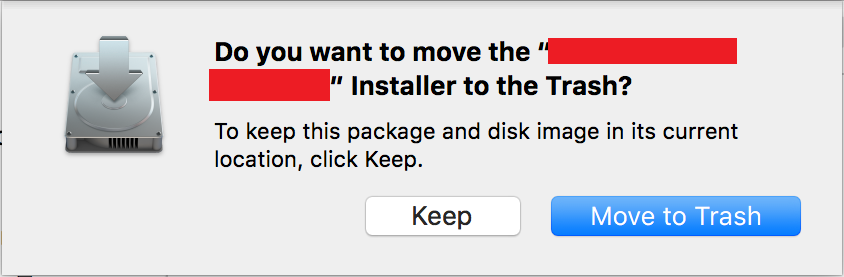
Once you go through these 5 steps and the Download is complete, Global Protect will be successfully installed on your device. You will receive a pop up window like the image below, you can click Move to Trash.
Scroll below for instructions on how to use Global Protect!
Installing Global Protect to Windows
1. Go to globalprotect.astate.edu
2. Sign in and approve Duo
3. Select Download Windows 64 bit GlobalProtect agent
4. Run installer
Using Global Protect
1. Open Global Protect and enter the portal address globalprotect.astate.edu
2. Sign in using your AState login
3. Approve with Duo
4. Open Global Protect and check that it says Connected
For further assistance connecting contact the Help Desk at 870-972-3933 or stop by the IT Store located on the first floor of the library.