
11. Accessibility Guidelines
Why is accessibility important?
All users deserve to easily access a website and enjoy the experience. Nearly 20% of the U.S. population lives with a disability that makes accessing the internet difficult, or impossible. When the A-State website was designed and developed, all the colors and heading styles were chosen to ensure the site met, and exceeded globally accepted website accessibility standards for companies and institutions of all sizes: WCAG 2.1 and Section 508 of the Rehabilitation Act of 1973.
Any changes, unintentional or otherwise, that are made to the default colors and fonts on the new website risk frustrating users, missing business opportunities, and creating potential legal problems.
Compliance Requirements
To remain compliant, follow the guidelines listed below.
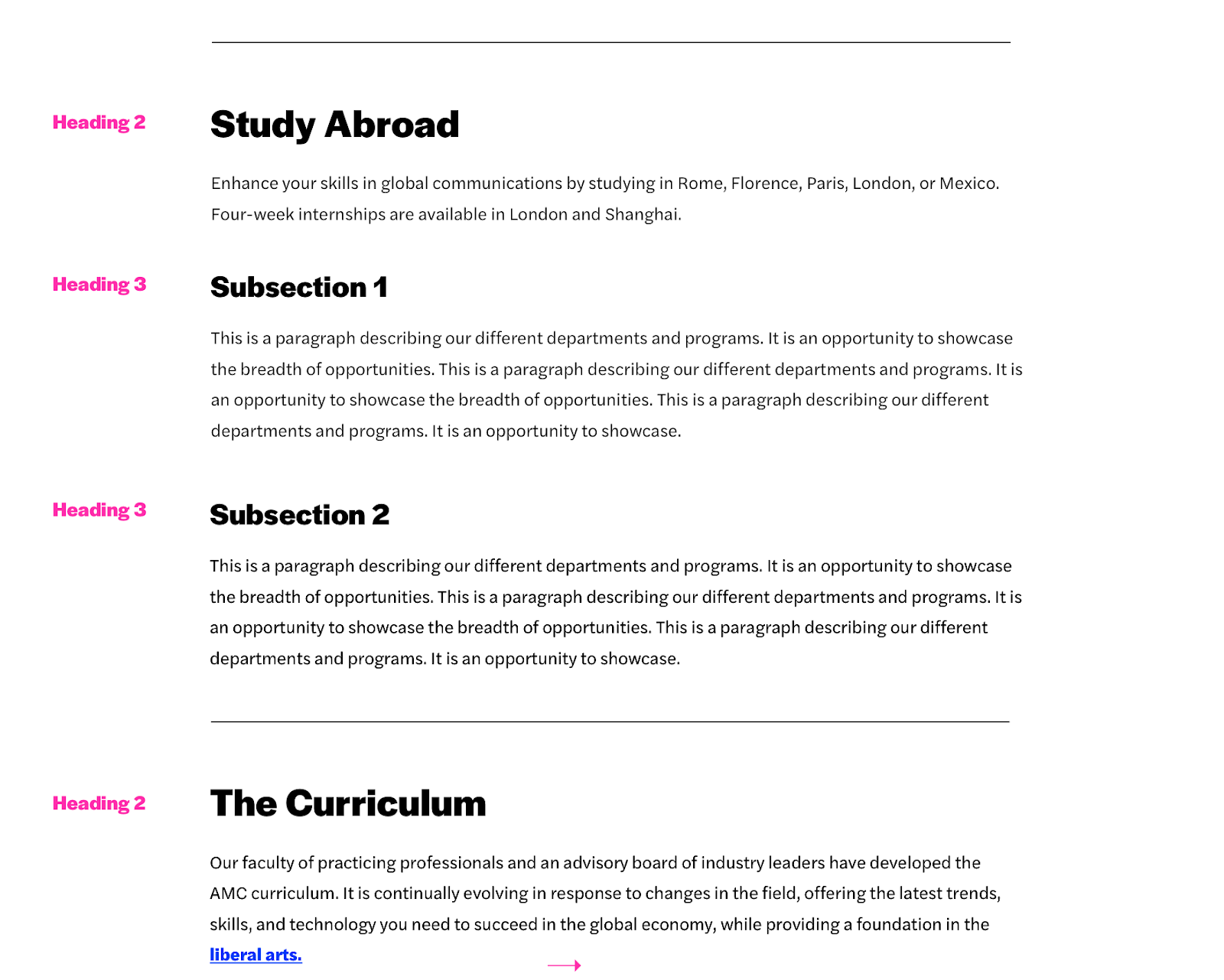
Headings
Any text that serves as a heading should use heading tags.
- Headings should use <h1>-<h6> tags, not merely text styled to look large.
- <h1> is reserved for the page title only, and there can only be one per page.
Headings must be sequential.
- A heading level cannot be skipped (e.g. <h2> cannot be followed by <h4>).
- Regardless of the visual style in the design, the underlying tags must follow the correct order.
Lists
Use a bulleted list <ul> or numbered list <ol> for lists.
- Do not use paragraphs <p> with line breaks.
- Do not use spaces to simulate indentation.
Images
All images should have descriptive alternative text.
- The “alt” attribute should describe the contents of the image in a few words, not be the filename, the word “photo”, or repeat the text of a nearby link or heading.
- Avoid the “title” attribute.
Avoid uploading images with text in them.
- If absolutely necessary, the text should be included in the image’s alternative text, and the text embedded in the image should have a contrast ratio of at least 4.5:1 between text color and background color. Test with this tool: http://webaim.org/resources/contrastchecker/
- Logos are permitted.
Tables
Tables should have column and/or row headers using <th>.
- The headers cannot be blank.
- They should contain text that describes the data in the associated columns or rows.
Links
Link text should provide information about its destination.
- Don’t use “click here”. Link the name of the destination instead.
- Non-specific links like “learn more” or “see all” should be rewritten or contained in a paragraph or list item that provides context.
- Avoid the “title” attribute.
Text
No interface element should be referenced solely based on its visual characteristics.
- Incorrect examples: “Click the blue button.” “Content in the circle to the right.”
- “Above” and “below” are permitted.
Language changes must be marked.
- Add <span lang="xx"></span> around text in a language other than English, where xx is the 2-letter language code from this chart: https://www.w3schools.com/tags/ref_language_codes.asp
Be careful when changing the color, font family, or size of text.
- If this is necessary, ensure the text color and background color have a contrast ratio of at least 4.5:1 using this tool: https://webaim.org/resources/contrastchecker/
Forms
All form fields should have a label.
- Form fields are: text fields, checkboxes, and radio buttons <input>, dropdown menus <select>, and text areas <textarea>.
- Labels should be associated with the fields they describe: <label for="name">Name:</label><input id="name" type="text">
- Required for radio buttons <input type="radio"> and checkboxes <input type="checkbox">
- The <legend> should be the first element inside the <fieldset>.
Audio
All audio (such as radio shows or podcasts) should have a transcript.
- Link to the transcript after the audio player.
Video
All videos should have captions and audio descriptions.
- The captions should contain the audio content.
- The audio descriptions should contain the visual content.
- Consult with your video service provider (Brightcove, Vimeo, YouTube, or other) regarding how to add captions. If supported, run the automated captioning feature, and then edit for accuracy.
- If the video player doesn’t provide a separate track for audio descriptions, the captions should also describe the visual content in a few words (the people, actions, and places in the video) during pauses in the audio.
Motion
Any motion longer than 5 seconds or auto-updating information:
- Cannot flash more than 3 times per second.
- Must have a mechanism to pause, stop, or hide it.
Animated GIFs should stop moving within 5 seconds and not loop infinitely.
Documents & Embeds
Documents should be avoided as much as possible. If the information can be displayed on a page, that should always be the first option.
- PDFs should be tagged.
- All of the other content requirements above apply.
- Make sure any files linked to the content are corrected for accessibility. Follow these checklists:
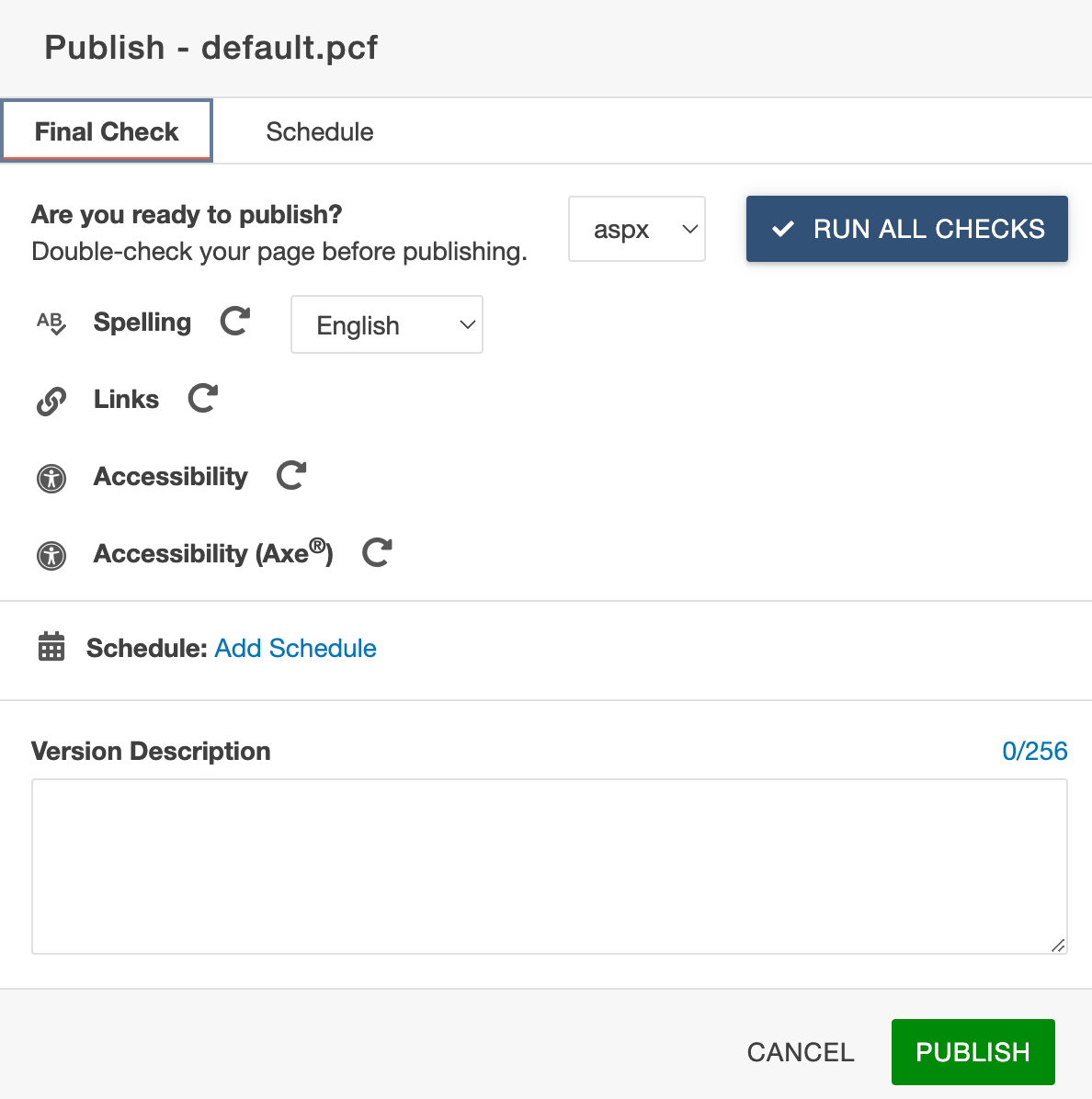
How to Use the Accessibility Checkers
After you click “Publish,” you’ll be presented with the “Final Check.” Click Run All Checks.
- Spelling: Shows any words the CMS does not recognize. This may include terms that are spelled correctly but it will also show you any obvious spelling errors.
- Links: Shows any broken internal or external links
- Accessibility: Checks if the page is W3C Valid
Accessibility (Axe): Checks for Section 508 and Web Content Accessibility Guidelines (WCAG) compliance
If you receive an error, the screen will show:
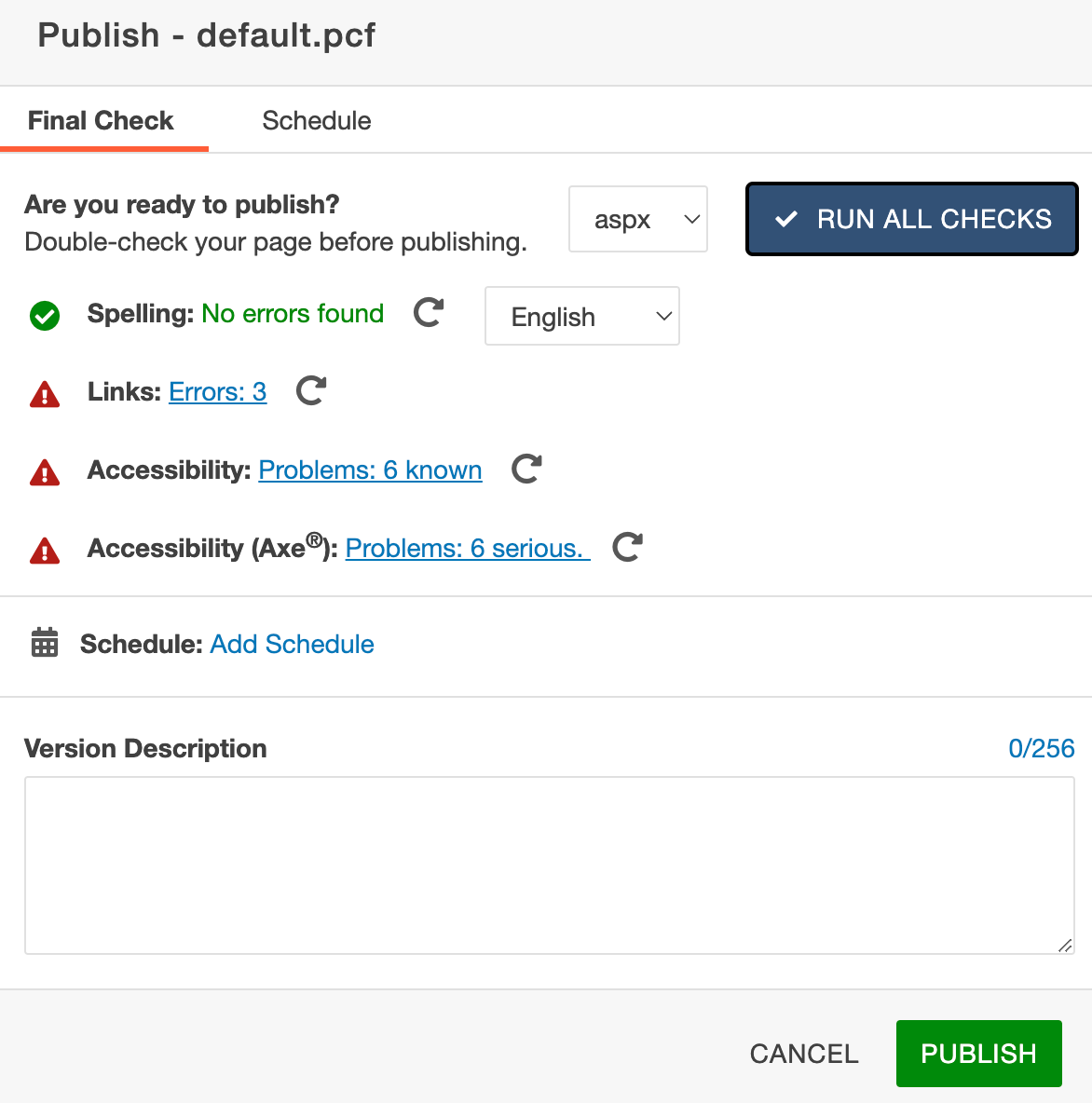
Click on the errors to see the errors. Do not publish without fixing these errors. Reach out the Marketing and Communications Team if you have problems fixing these errors.
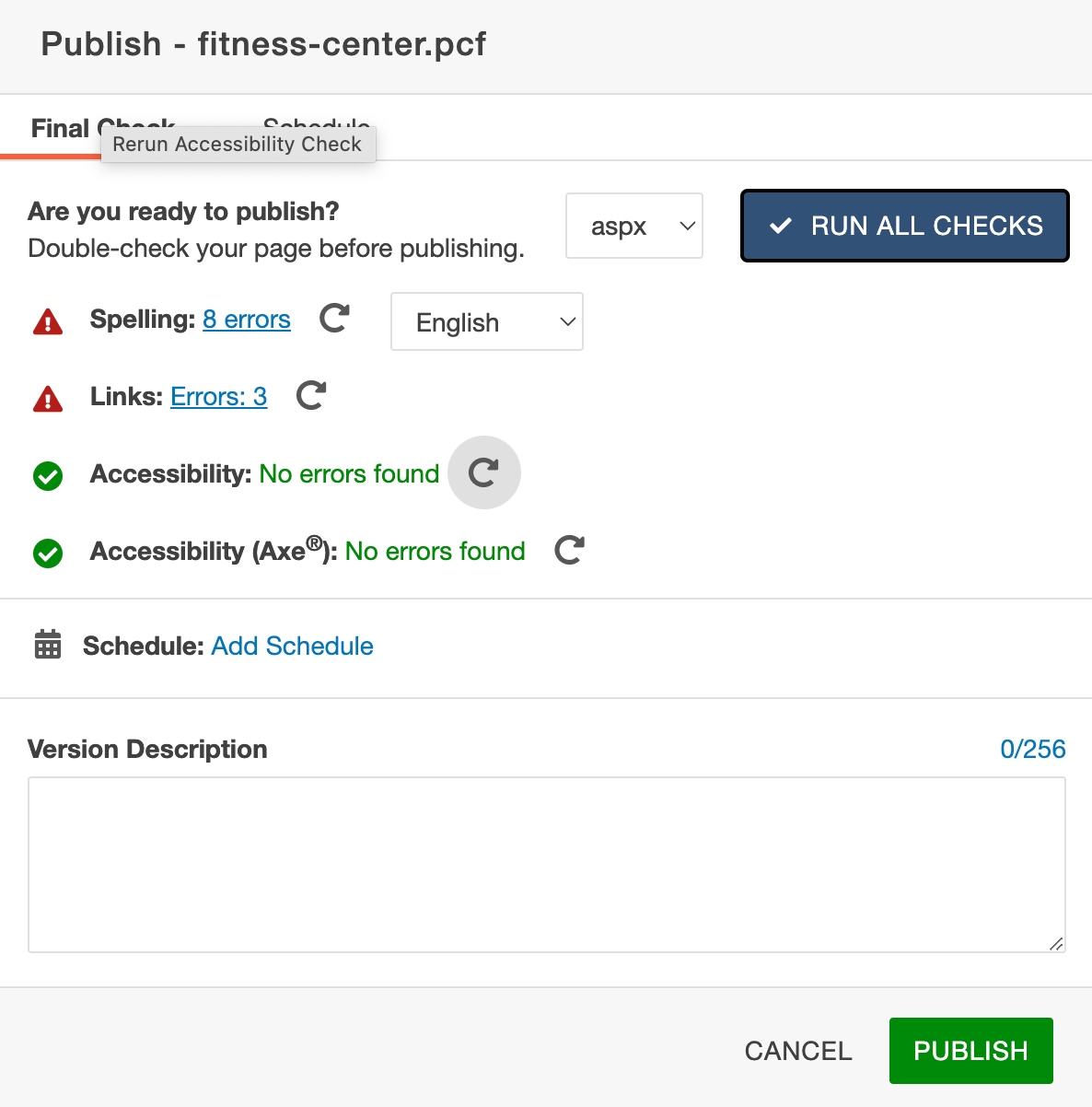
Once you receive green checkmarks, click publish.