Skip to main content
Microsoft Authenticator FOB Guide
- Go to https://myaccount.microsoft.com/
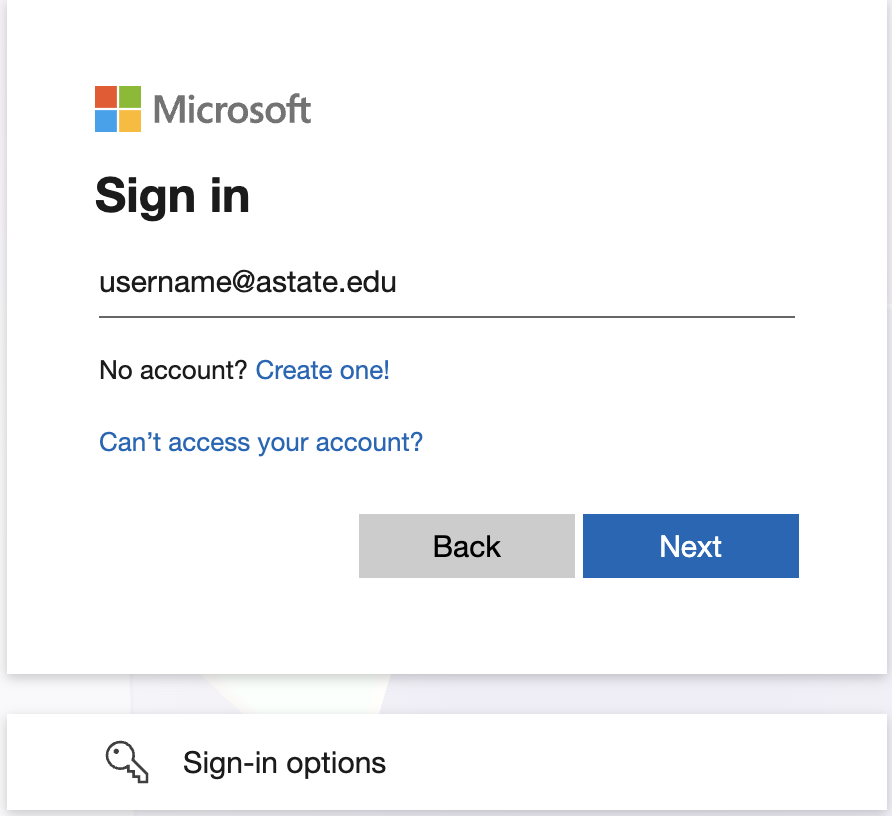
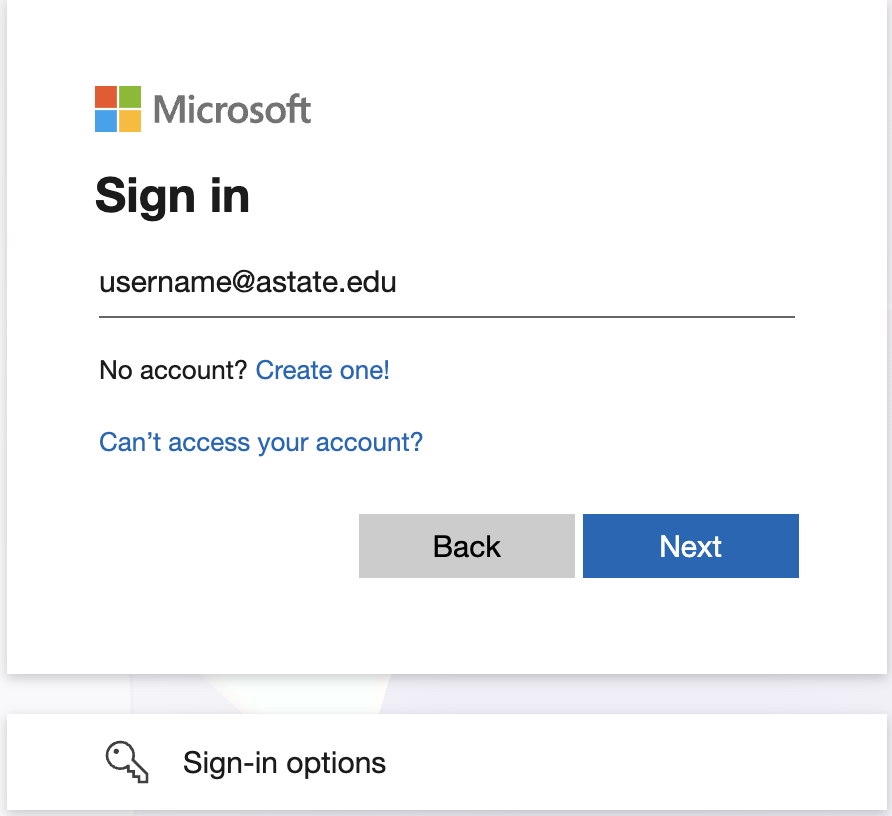
- Sign in with your A-State username > click Next.
(example: username@astate.edu or username@smail.astate.edu)
- Enter your A-State password > click Sign in.
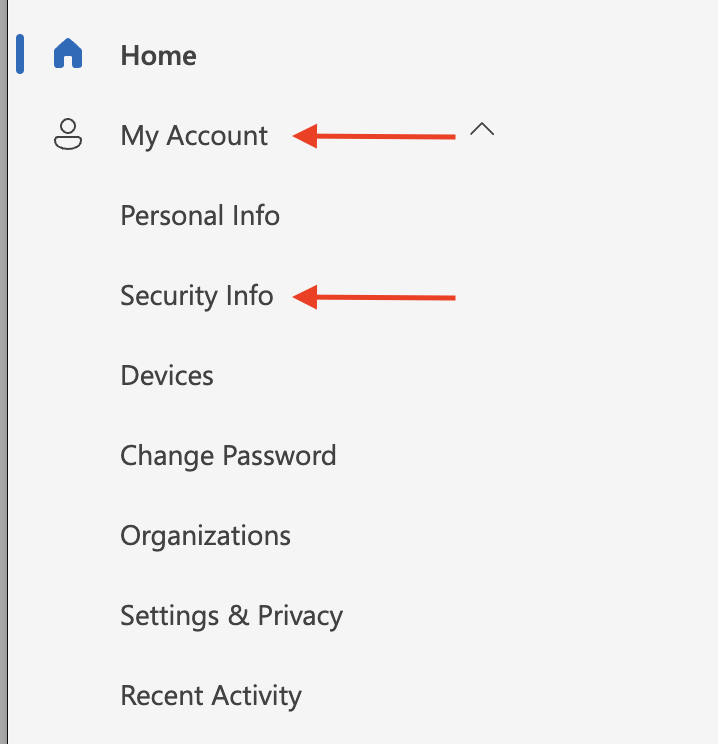
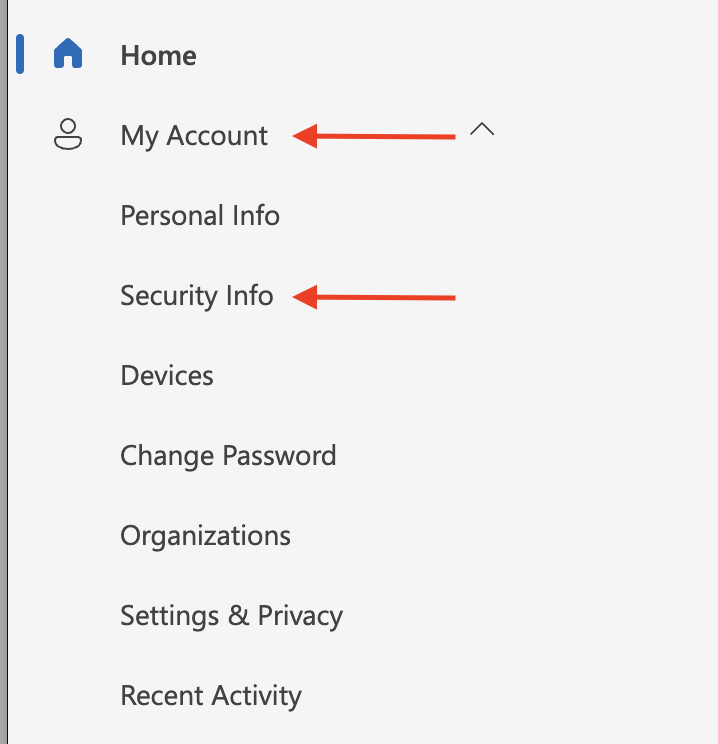
- On the left Click “My Account” and Select “Security Info”.
(Note: When using a smart device, you may have to select the ≡ first)
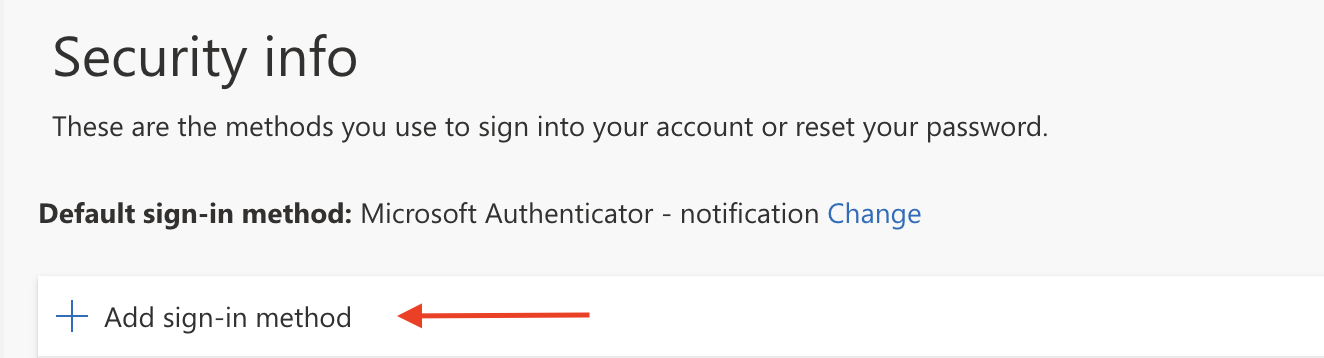
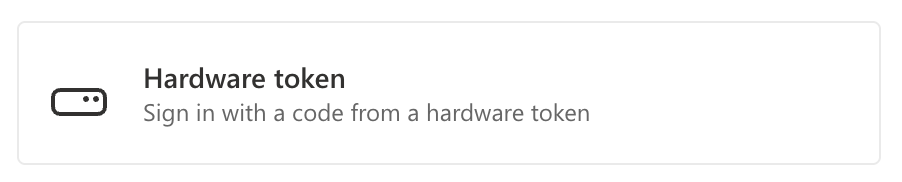
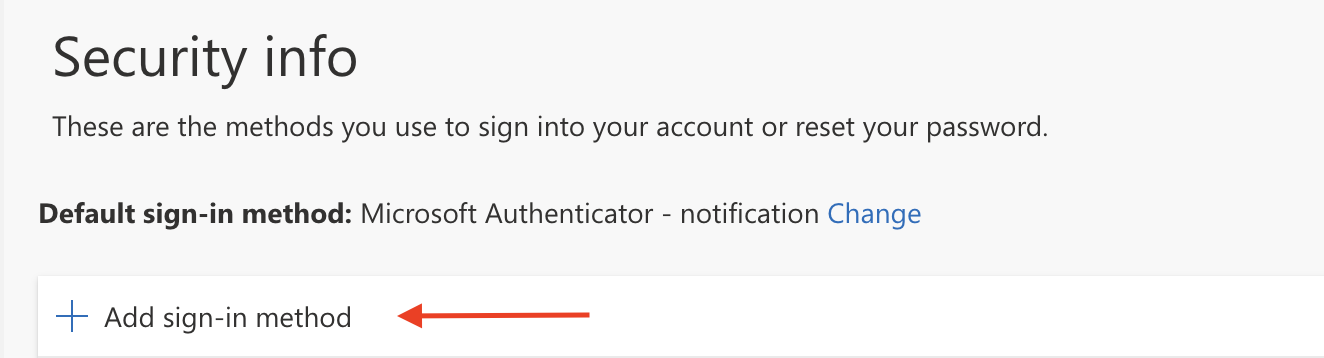
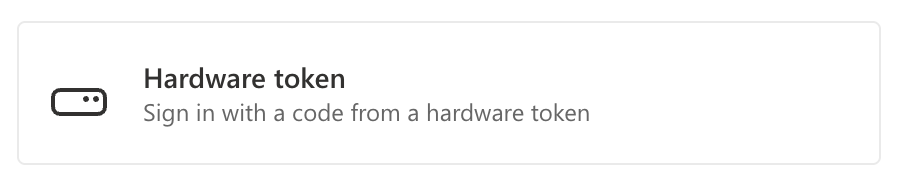
- Click Add sign-in method and select Hardware token.
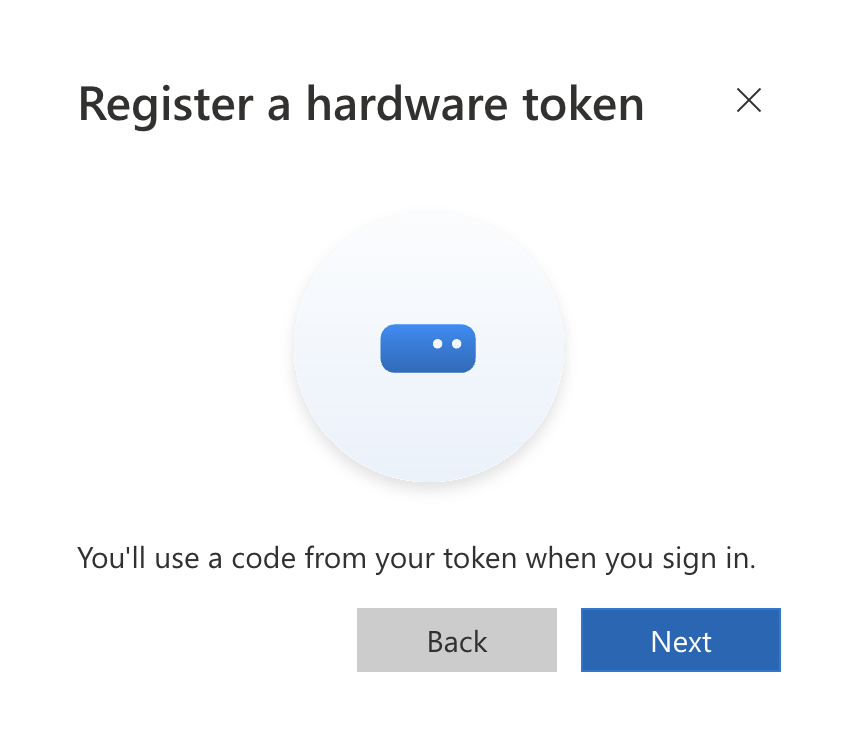
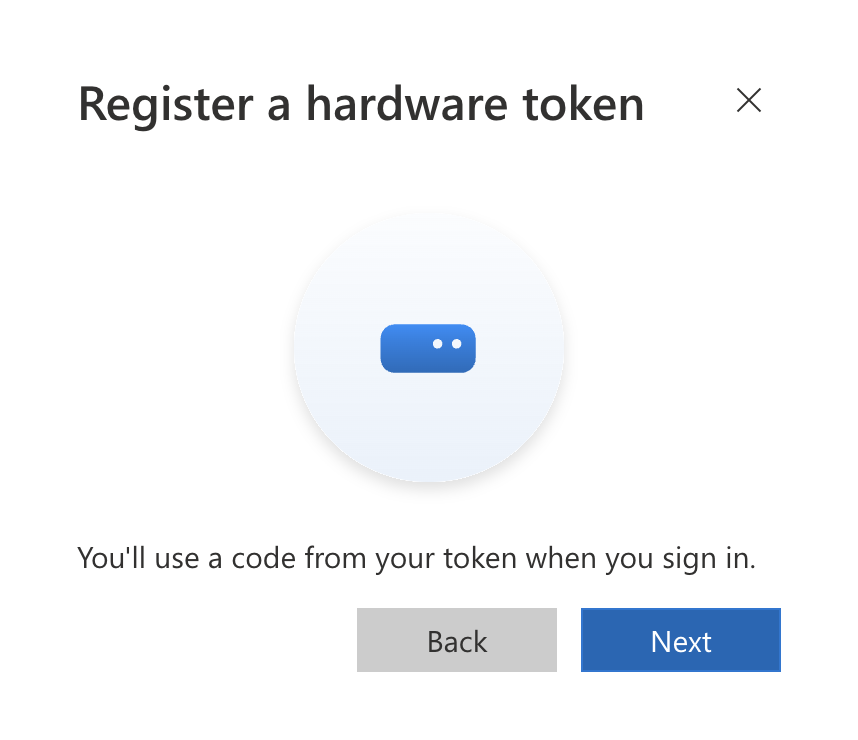
- Click Next, at the below screen.
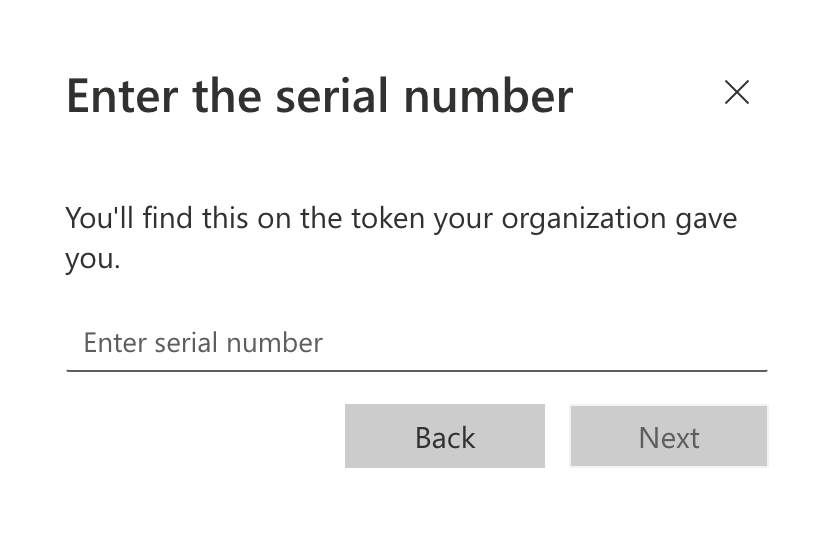
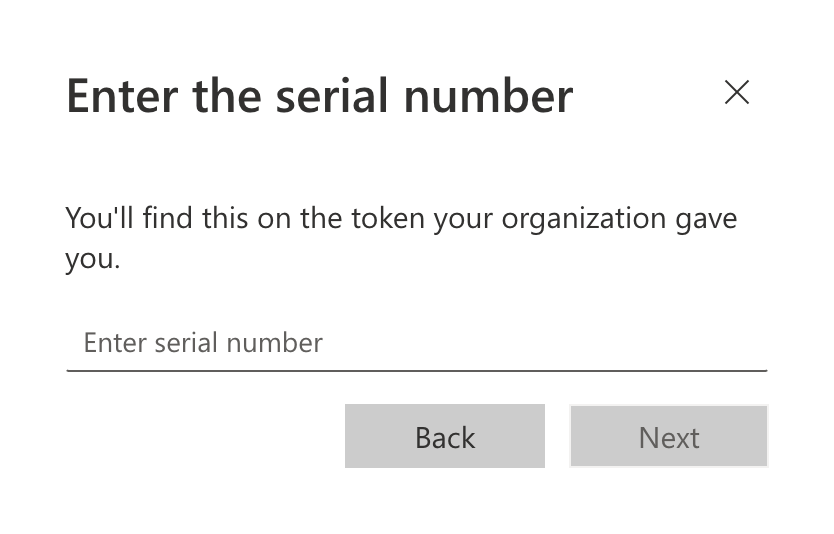
- Here you will enter the serial number on the back of the FOB and click Next.
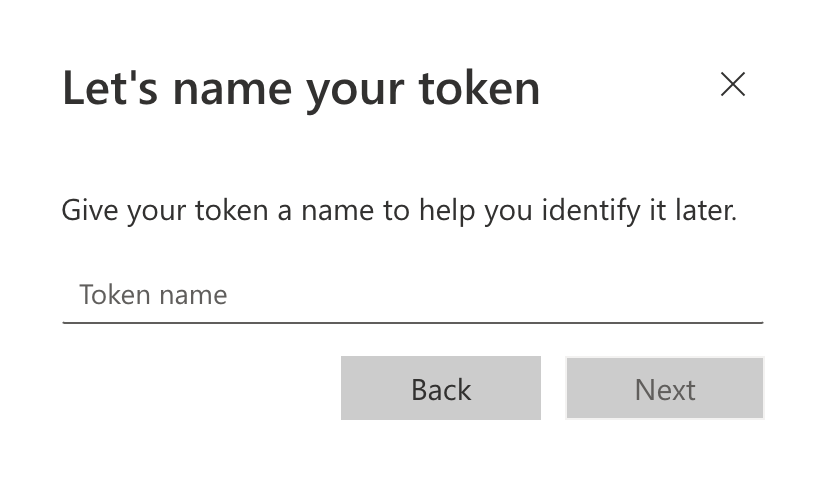
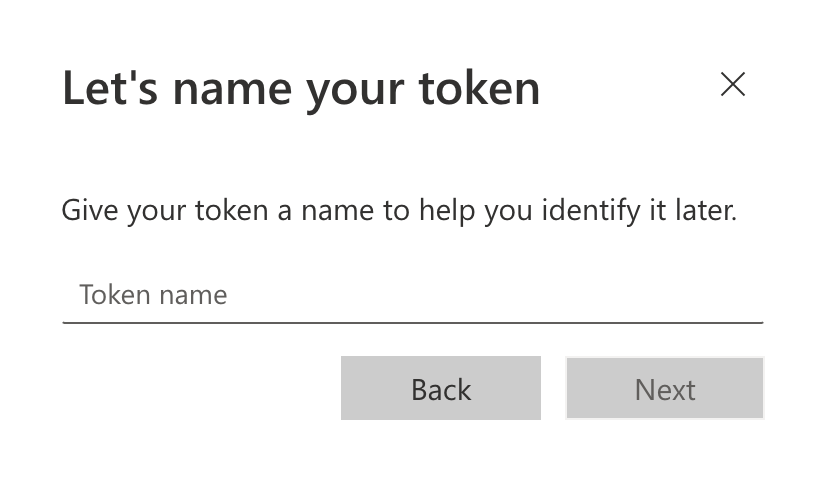
- Name your FOB and click Next.
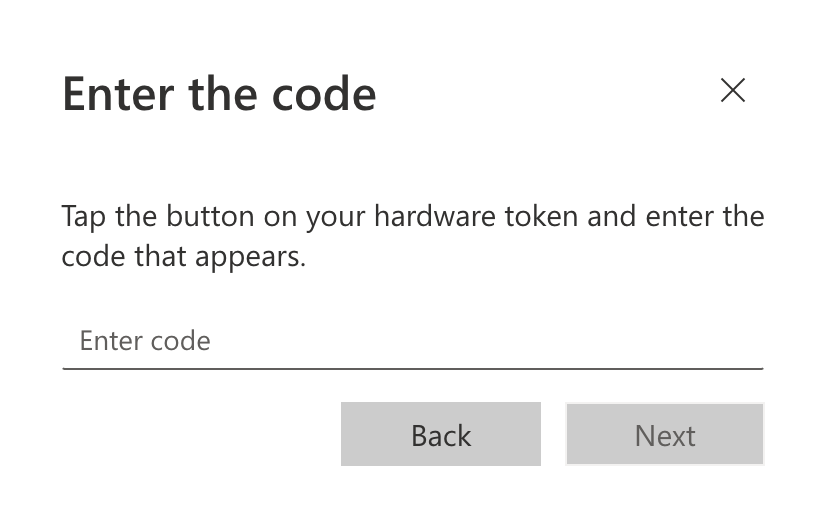
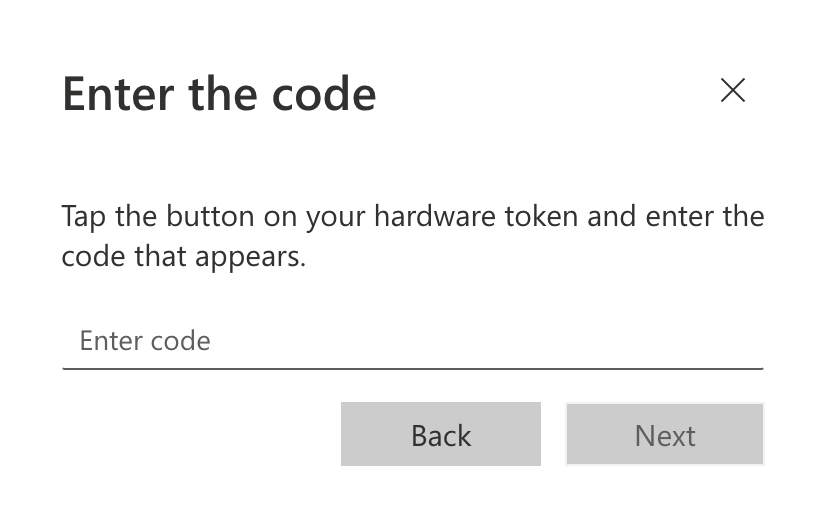
- Push the button on the FOB to display the random 6-digit authentication and enter the code on the enter code screen and click Next.
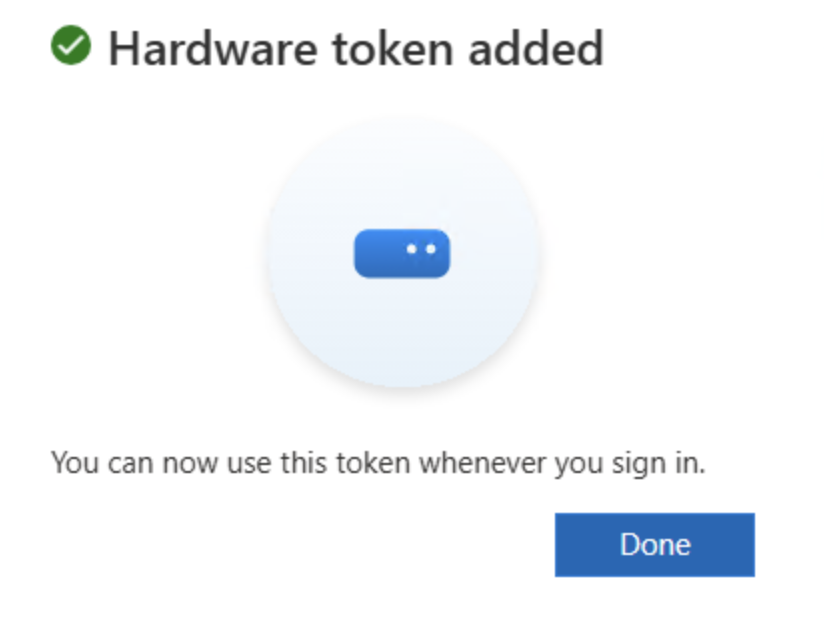
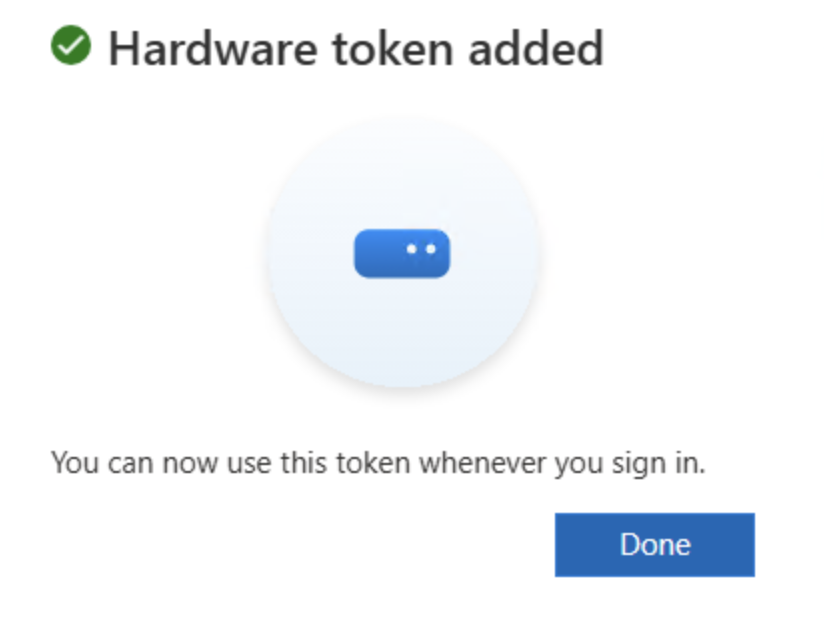
- Now click "Done."
- Congratulations, you have successfully added the FOB to your account.