
How to Set Up and Use Remote Desktop
How to Set Up Remote Desktop
You will need to set up the PC you want to connect to so it allows remote connections.
1. Click the Start button.

2. Open Settings.
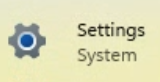
3. Click System.
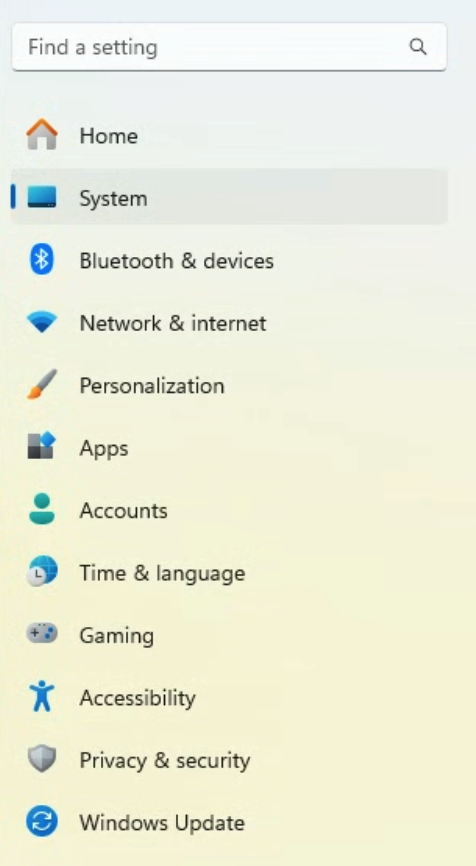
4. Under System, click Remote Desktop.

5. Set Remote Desktop to On.

6. Select Confirm.

Make note of the PC name under PC Name; you will need it to connect.
How to Use Remote Desktop
-
On your local Windows PC: In the search box on the taskbar, type Remote Desktop Connection, and then select Remote Desktop Connection. In Remote Desktop Connection, type the name of the PC you want to connect to (from Step 1), and then select Connect.
- On your macOS or iOS device:
1. Open Microsoft Remote Desktop (available for free from Microsoft Store and the Apple App Store).

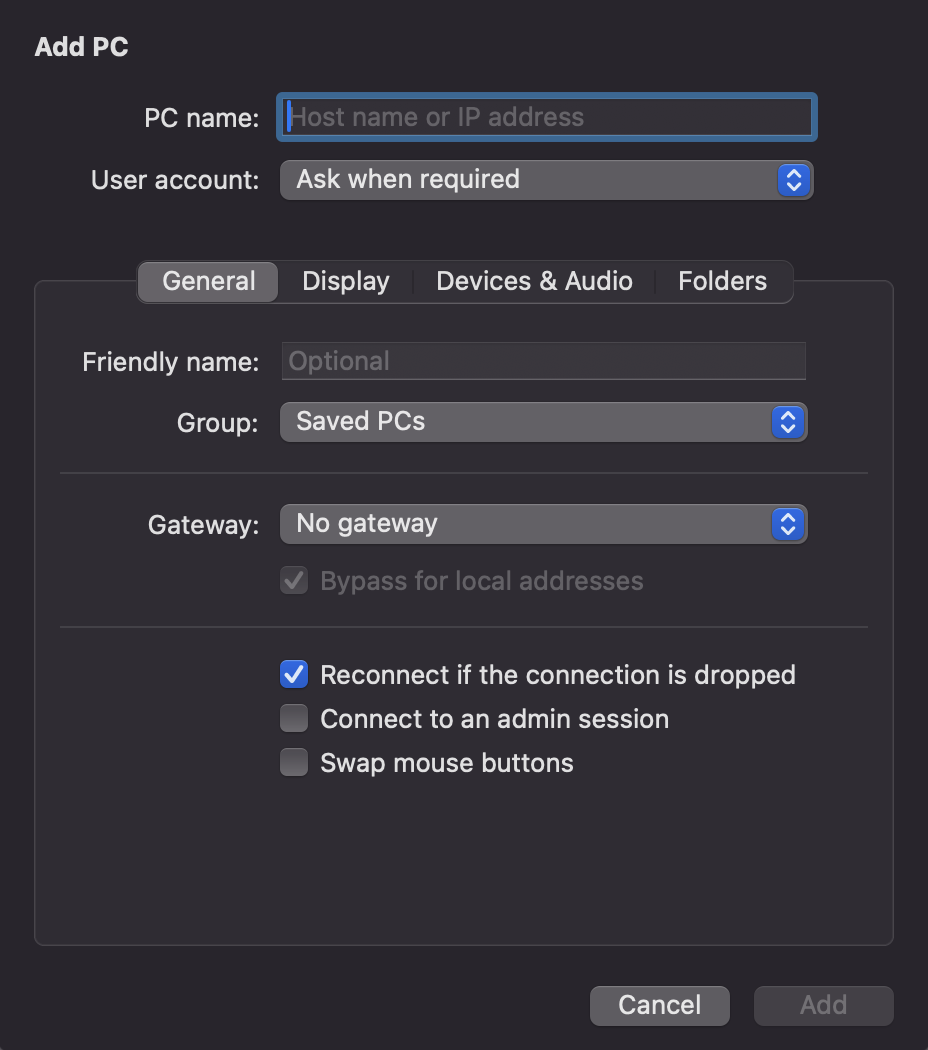
2. Click the arrow by the plus sign (+) and choose Add PC.
3. Add the name of the PC that you want to connect to (from Step 1).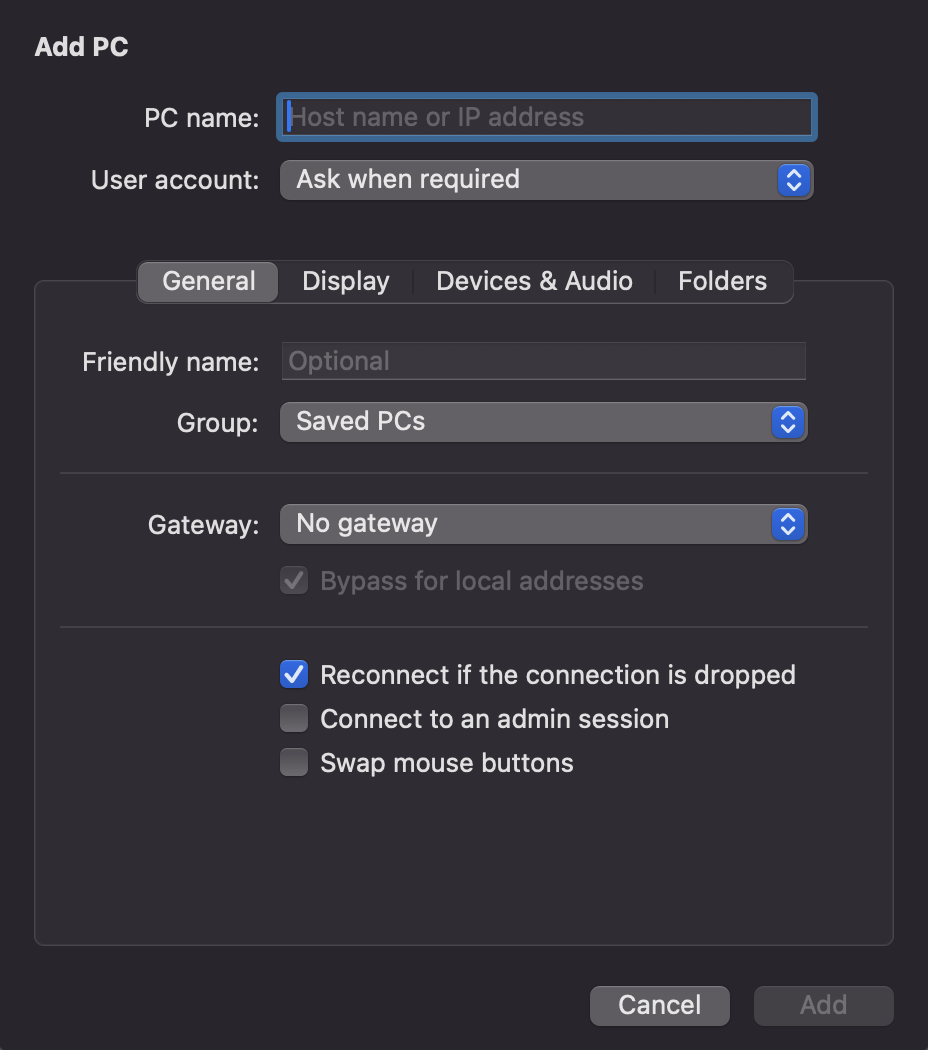
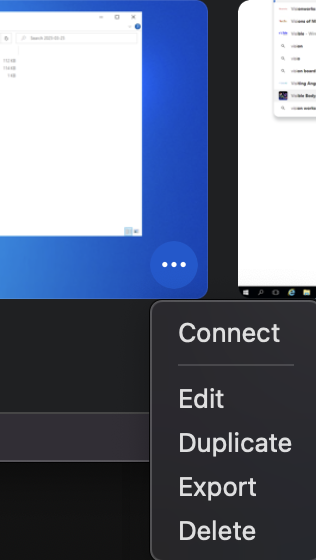
4. Select the remote PC name that you added and choose Connect.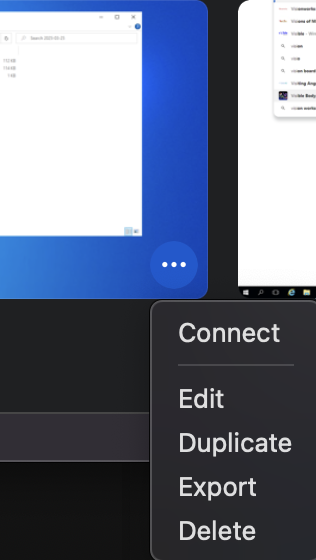
5. When prompted, enter your Username and Password.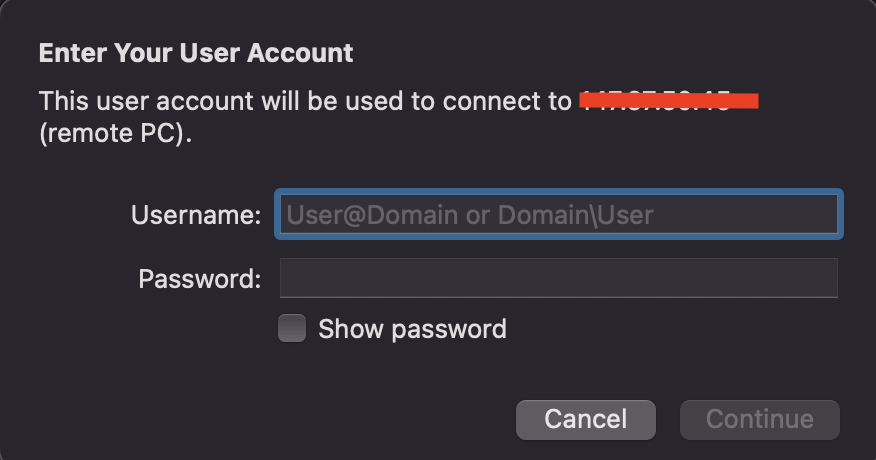


While a Remote Desktop server (as in, the PC that you are connecting to) needs to be running a Pro edition of Windows, a client machine (the device you are connecting from) can be running any edition of Windows (Pro or Home), or even a different operating system altogether.