
Google Pixel
The current AStateSecure wireless network will be retired at noon on Saturday, Oct. 3, and will no longer be available after that time.
Connecting to AStateConnect
AStateConnect is the Wi-Fi network you will use while on campus. You log in with your A-State email address and password.
1. Open the Settings on your Google Pixel. The icon should look like the image below.
2. Scroll and tap on Connections.
3. Tap on Wi-Fi.
4. Tap on AStateConnect.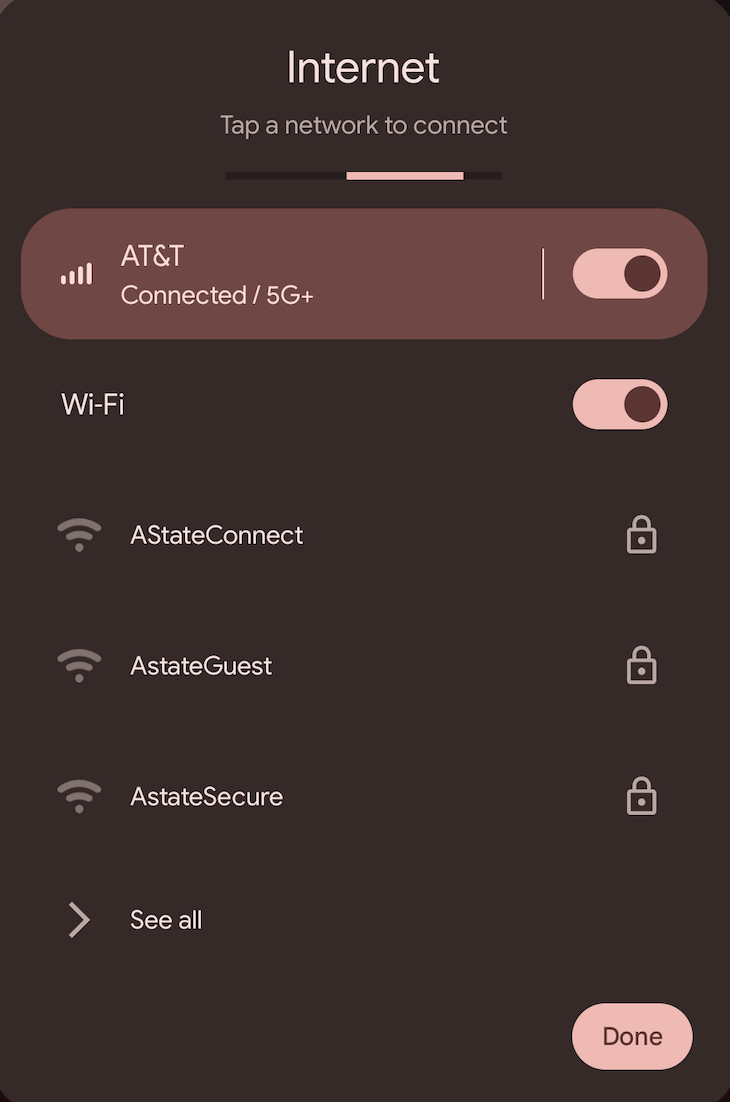
5. For the EAP Method, you will need to select PEAP.
6. For the Phase 2 Authentication, you will need to select MSCHAPV2.
7. Enter your A-State email address under Identity and your A-State password under Password.
8. Leave the Anonymous Identity field blank (it populates automatically so it needs to be cleared).
9. For Certificates, select Use System Certificates (select TLS 1.0, Request Certificate Status).
10. If prompted for the domain, enter astate.edu.
11. Change Randomized MAC Address to Device MAC.
11. Tap Connect.
Your device should now be signed into the AStateConnect network.
Connecting to Home@AState
Home@AState is the Wi-Fi network used in A-State Campus Housing. Every student living in on-campus housing should have been provided a password for this Wi-Fi network to their A-State student email.
1. Open the Settings on your Google Pixel. The icon should look like the image below.
2. Scroll and tap on Connections.
3. Tap on Wi-Fi.
4. Tap Home@AState.
5. Enter the Home@AState password provided via email.
6. Tap Connect.
Your device should be now be signed into the Home@AState network.
If you have not received your Home@AState password, you can use this GUIDE for help requesting a new password.
If you would like to reconnect to AStateConnect or Home@AState, you will need to go through the above steps to reconnect.
For further assistance, contact the ITS Help Desk at 870-972-3933 or stop by IT Support Services (itsupportservices@astate.edu). It is located on the bottom floor of the Dean B. Ellis Library, Room 149.