
iOS Devies (iPhone / iPad)
The current AStateSecure wireless network will be retired at noon on Saturday, Oct. 3, and will no longer be available after that time.
Connecting to AStateConnect
AStateConnect is the Wi-Fi network you will use while on campus. You log in with your A-State email address and password.
-
Open the Settings app on your iOS device.
5. Tap Trust on the Certificate prompt
2. Tap Wifi.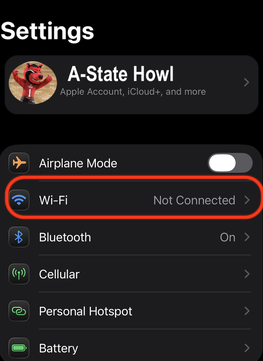
3. Tap AStateConnect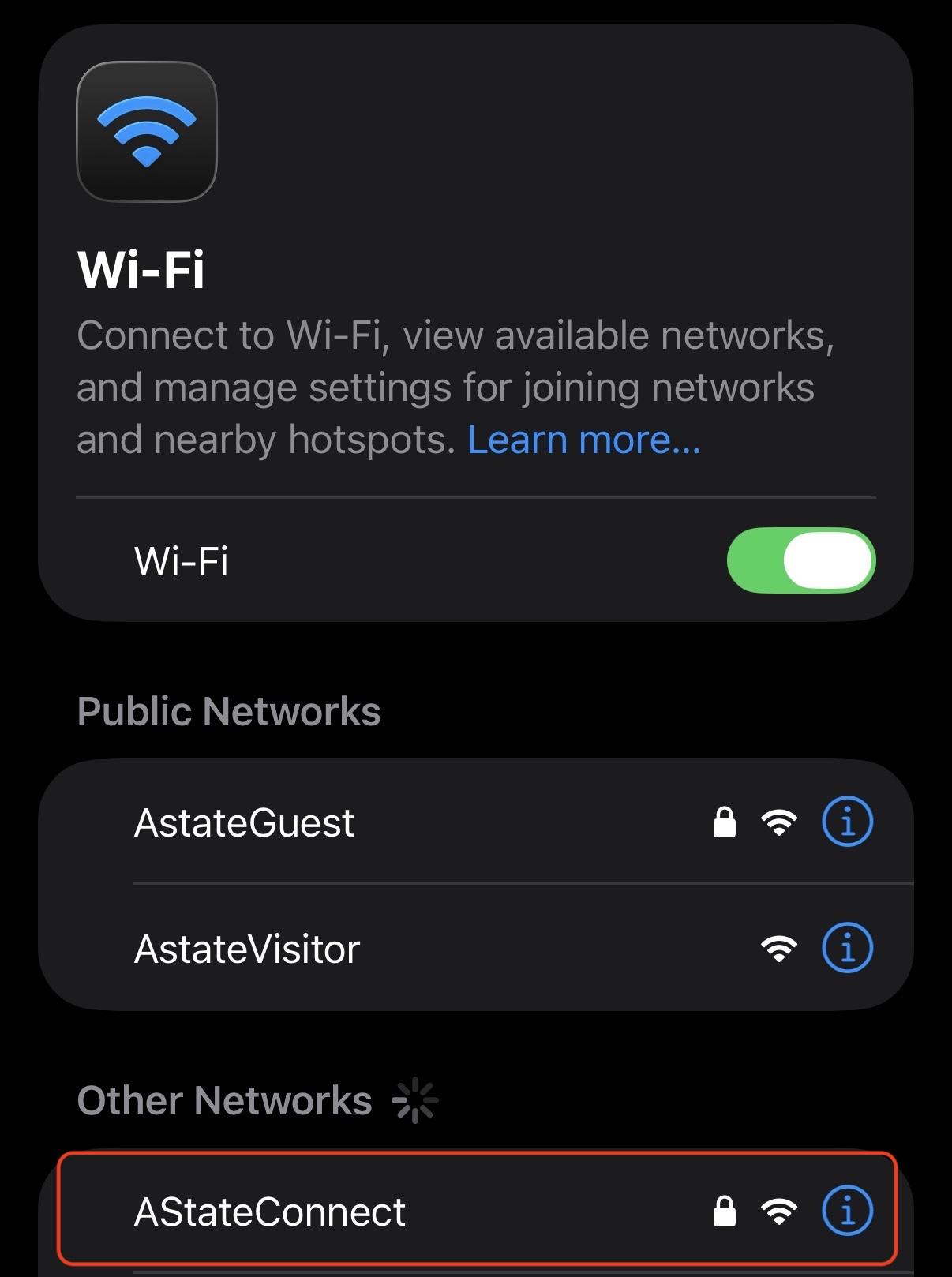
4. Sign in with your full A-State email and password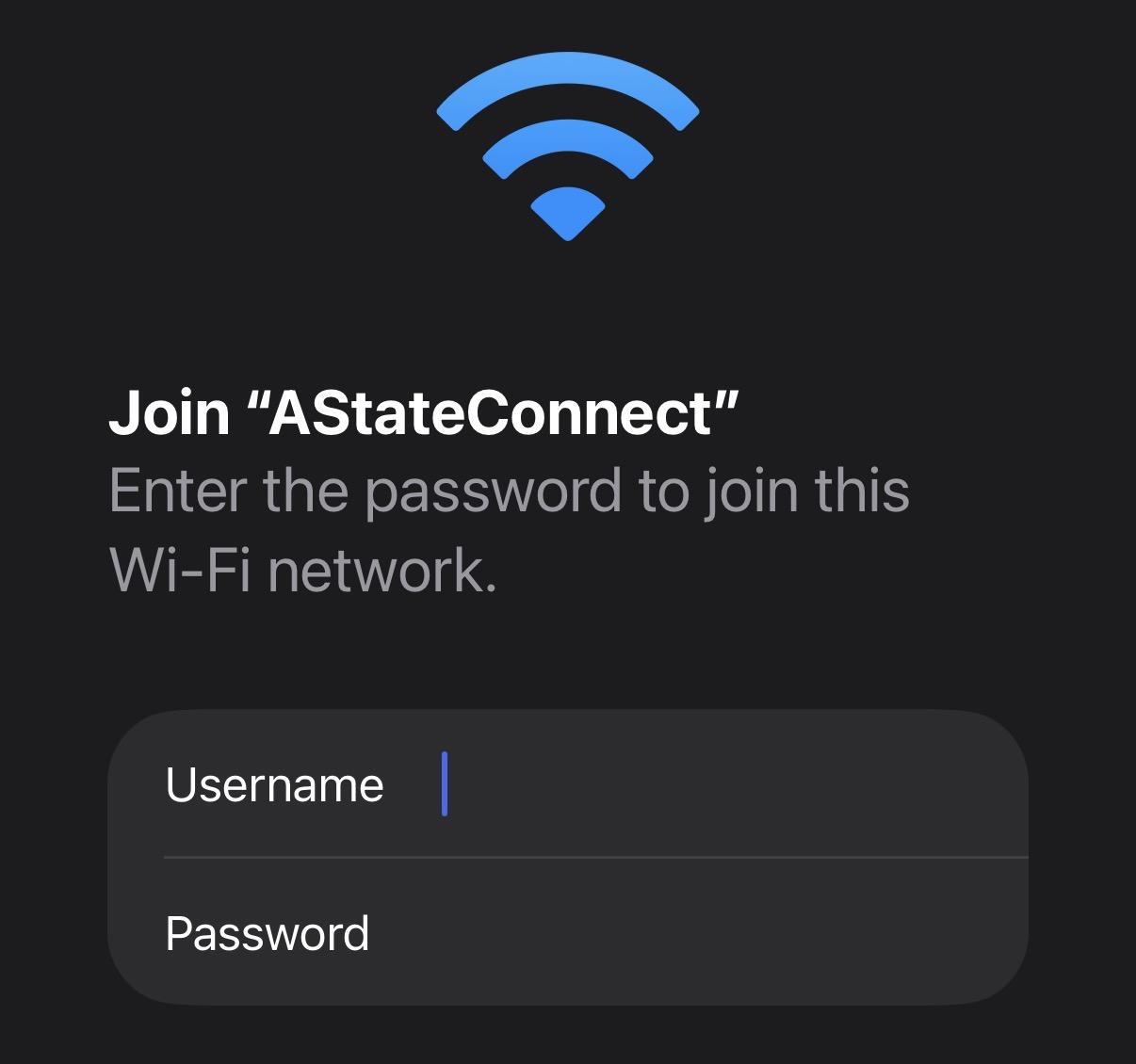
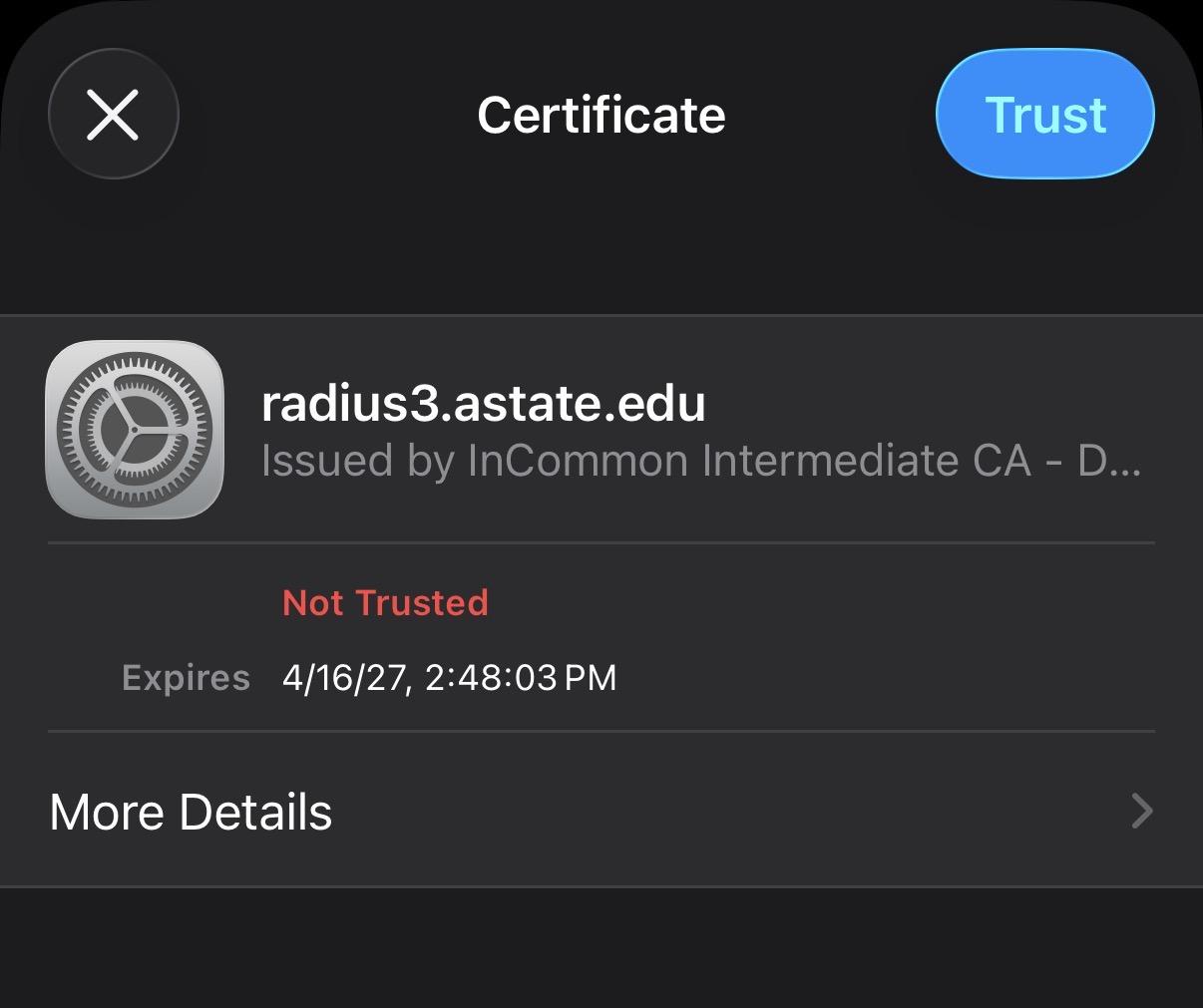
Your device should now be signed into the AStateConnect network.
Connecting to Home@AState
- Open your devices Settings app
- Tap on the Wi-Fi
2. Tap Home@AState.
3. Enter the password provided via A-State student email.
4. Click Join.
Your device should now be signed into the Home@AState network.
If you have not received your Home@AState password, you can use this GUIDE for help requesting a new password.
For further assistance, contact the ITS Help Desk at 870-972-3933 or stop by IT Support Services (itsupportservices@astate.edu). It is located on the bottom floor of the Dean B. Ellis Library, Room 149.