
How to Request VPN Access

2. Click Login and then enter your full A-State email address and password.

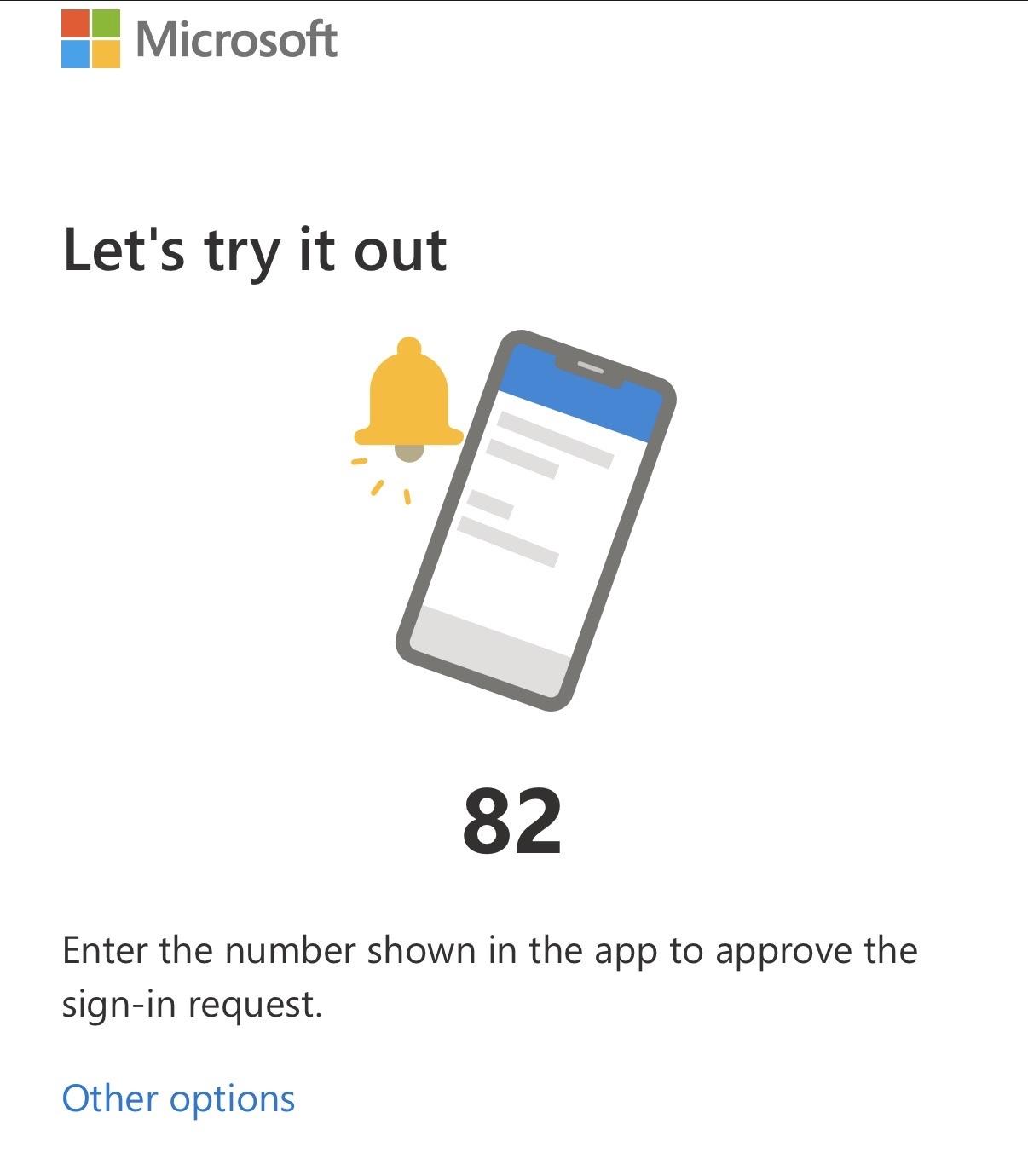
3. Authenticate using Microsoft Authenticator.
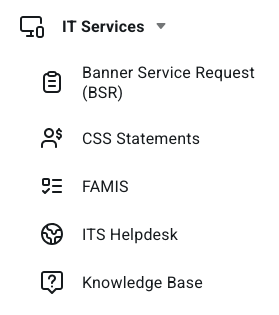
4. Select the Tool option for IT Services and then ITS Helpdesk. This will bring you to the client portal where you can submit tickets. If you are not automatically signed in, please select sign in at the top right corner of the page.
5. Select Get Started and then navigate to the Information Technology Services section. This is where you can locate the A-State VPN Access Request and start filling out the form.

6. Once the form is submitted, this will go to the employee's supervisor for approval/denial. If the suervisor does not approve within 24-48 hours, a notification will be sent to the security team to make an executive review and then approve/deny. If you have been approved, you will be emailed a link within 24-48 hours of approval that should provide you with instructions for how to download and use Global Protect.
For further assistance, contact the ITS Help Desk at 870-972-3933 or stop by IT Support Services (itsupportservices@astate.edu). It is located on the bottom floor of the Dean B. Ellis Library, Room 149.