
How to Download and Use FortiClient for iPad
GlobalProtect cannot be used on mobile devices. A-State has a secondary VPN that can be used on mobile devices. These are instructions for installing FortiClient on iPad.
1. Download FortiClient VPN from the iOS App Store onto your device.

2. Open FortiClient VPN; the icon looks like the image below.

3. FortiClient VPN will prompt you to allow Notifications; tap Allow.

4. FortiClient VPN will prompt you with a message saying that this free app doesn't come with any support; tap I accept.

5. FortiClient VPN will prompt you to allow VPN configurations; tap Allow. It may require you to enter your passcode.
6. Tap Select Connection on the next screen.

7. Tap Add Configuration on the next screen.

8. Enter the following information:
a. Name - Enter a name for the VPN.
b. Host - Enter remote.astate.edu.
c. Add Remote Gateway - Ignore this entry.
d. Port - Leave at default (443).
e. SSO - Tap to select (once selected, several options will disappear).
f. Tap Save in the top right corner (the screen should look like the image below before you tap Save).

9. Tap Done in the top right of the next screen.
10. Tap <VPN in the top left of the next screen.
11. To activate the VPN connection, you will need to tap the VPN button.
12. Enter your full A-State email address and current password and tap Login.

13. Authenticate using Microsoft Authenticator.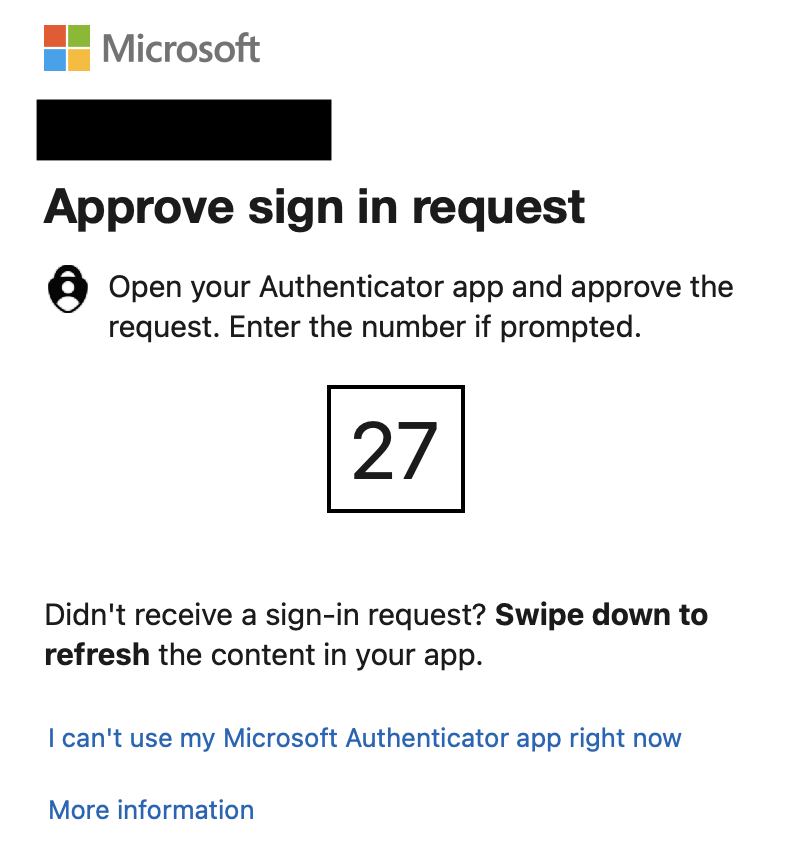
14. Once connected to the VPN, your screen should look like the image below.

15. To disconnect from the VPN, tap the VPN button.
For further assistance, contact the ITS Help Desk at 870-972-3933 or stop by the IT Support Services (itsupportservices@astate.edu). It is located on the bottom floor of the Dean B. Ellis Library, Room 149.