
MacOS (Macbooks / Mac)
The current AStateSecure wireless network will be retired at noon on Saturday, Oct. 3, and will no longer be available after that time.
Connecting to AStateConnect
AStateConnect is the Wi-Fi network you will use while on campus. You log in with your A-State email address and password.
1. Open the Settings app on your iOS device. The icon should look like the image below.

2. Tap on Wi-Fi on the left hand side of the Settings screen.
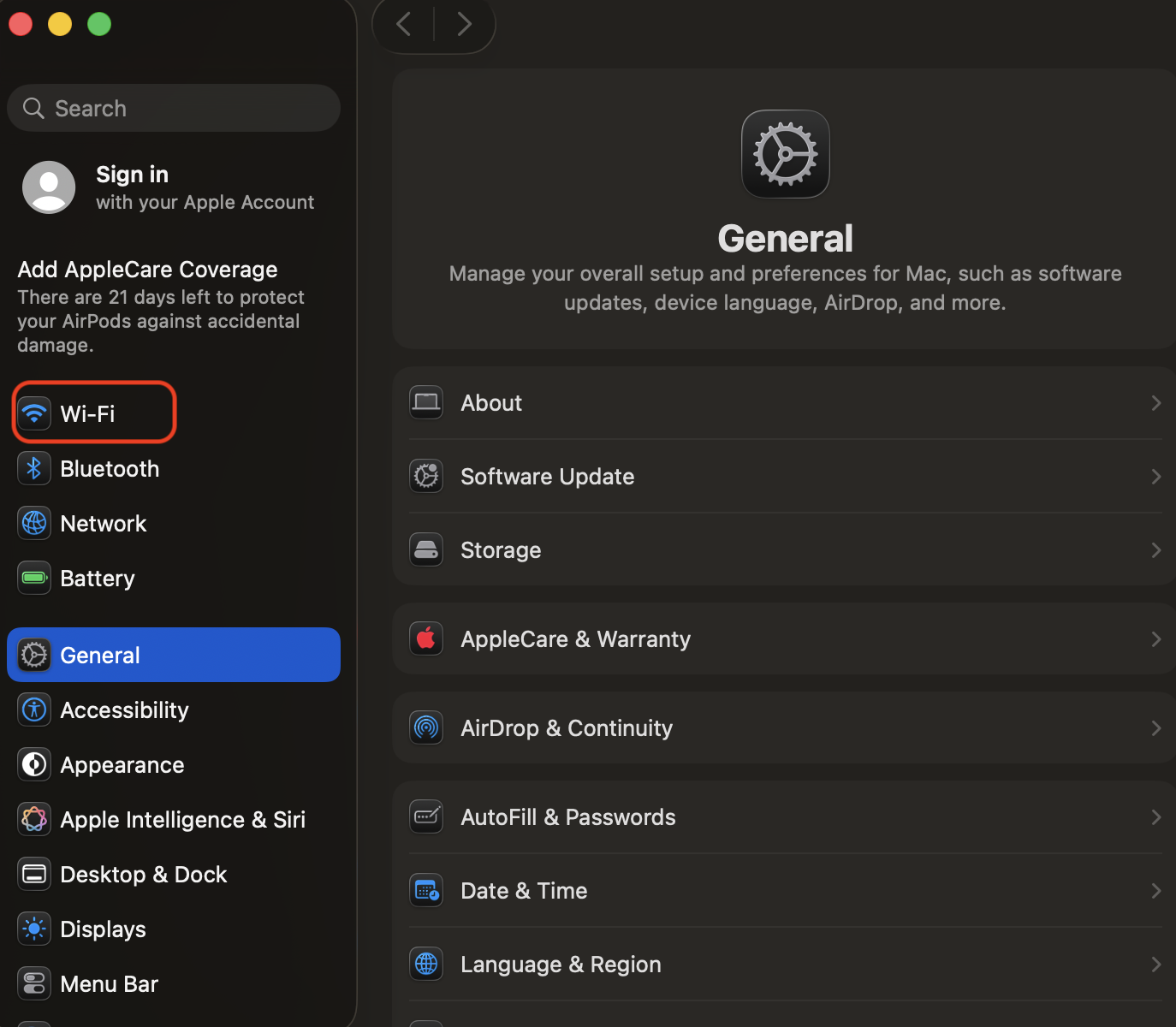
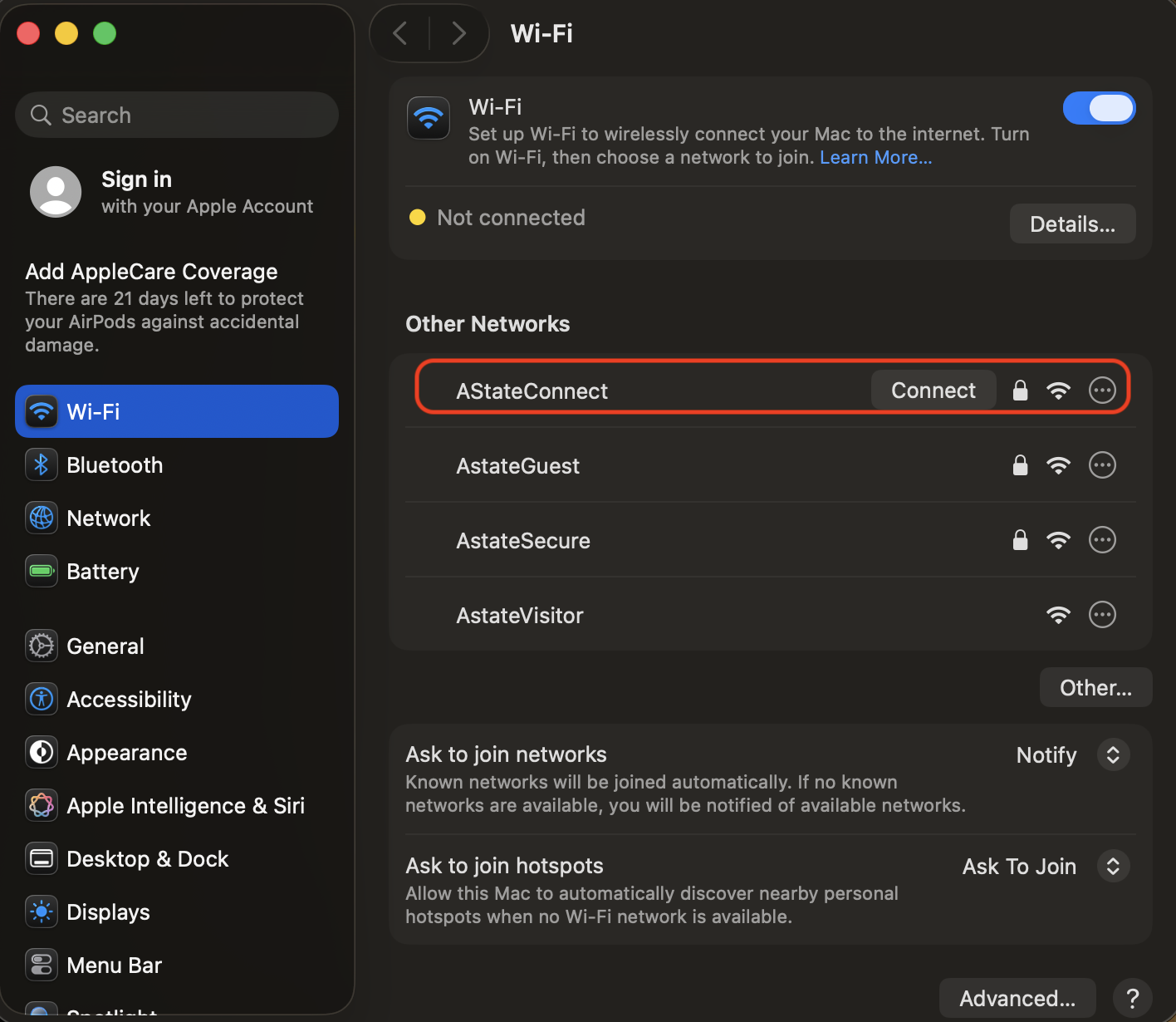
3. Tap on AStateConnect.
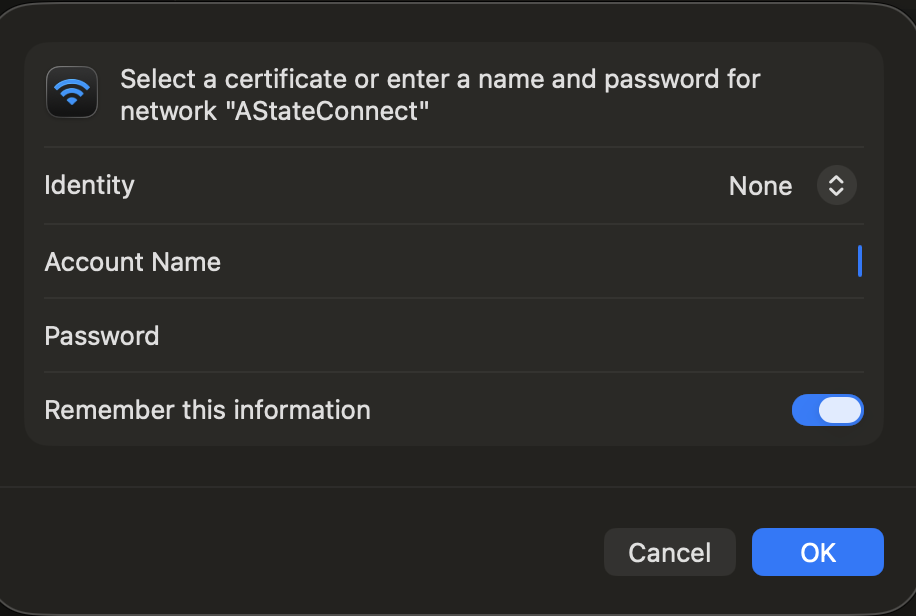
4. Enter your A-State email address and password and tap Join.
5. A screen will pop up like the image below. Tap Trust. 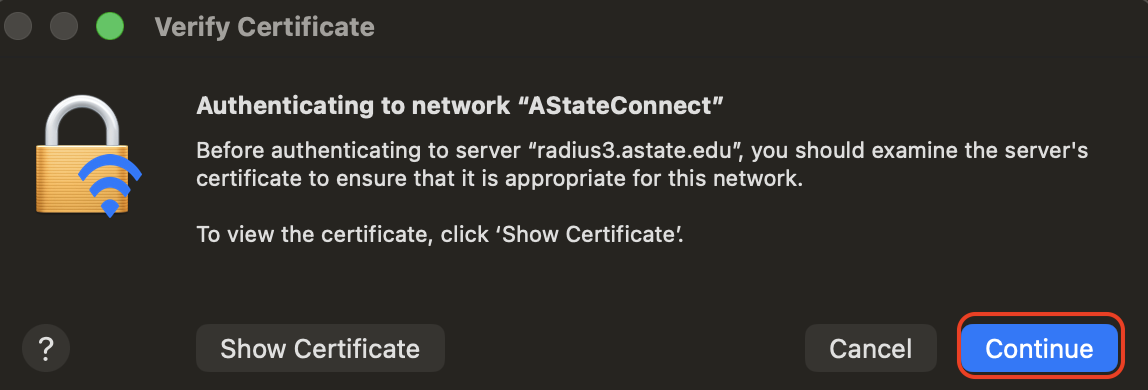
Your device should now be signed into the AStateConnect network.
Disable Private Wi-Fi Addressing
If you are exeriencing issues with the network, you might need to disable private wi-fi addressing. Steps for this can be found here.
Connecting to Home@AState
Home@AState is the Wi-Fi network used in A-State Campus Housing. Every student living in on-campus housing should have been provided a password for this Wi-Fi network to their A-State student email.
1. Open the Settings app on your iOS device. The icon should look like the image below.
2. Tap on Wi-Fi on the left hand side of the Settings screen. 
3. Tap on Home@AState.
4. Enter the Home@AState password provided via A-State student email and tap Join.
Your device should now be signed into the Home@AState network.
If you have not received your Home@AState password, you can use this GUIDE for help requesting a new password.
For further assistance, contact the ITS Help Desk at 870-972-3933 or stop by IT Support Services (itsupportservices@astate.edu). It is located on the bottom floor of the Dean B. Ellis Library, Room 149.