Skip to main content
A-State Knowledge Base
View All
Search
Shelves
Books
Log in
Info
Content
Books
eAccounts
Mark Card as Found on ...
Mark Card as Found on the app
Open you e-Accounts app
Click on the gear in the top right of the screen
Click "Card Management" under the "Security" tab
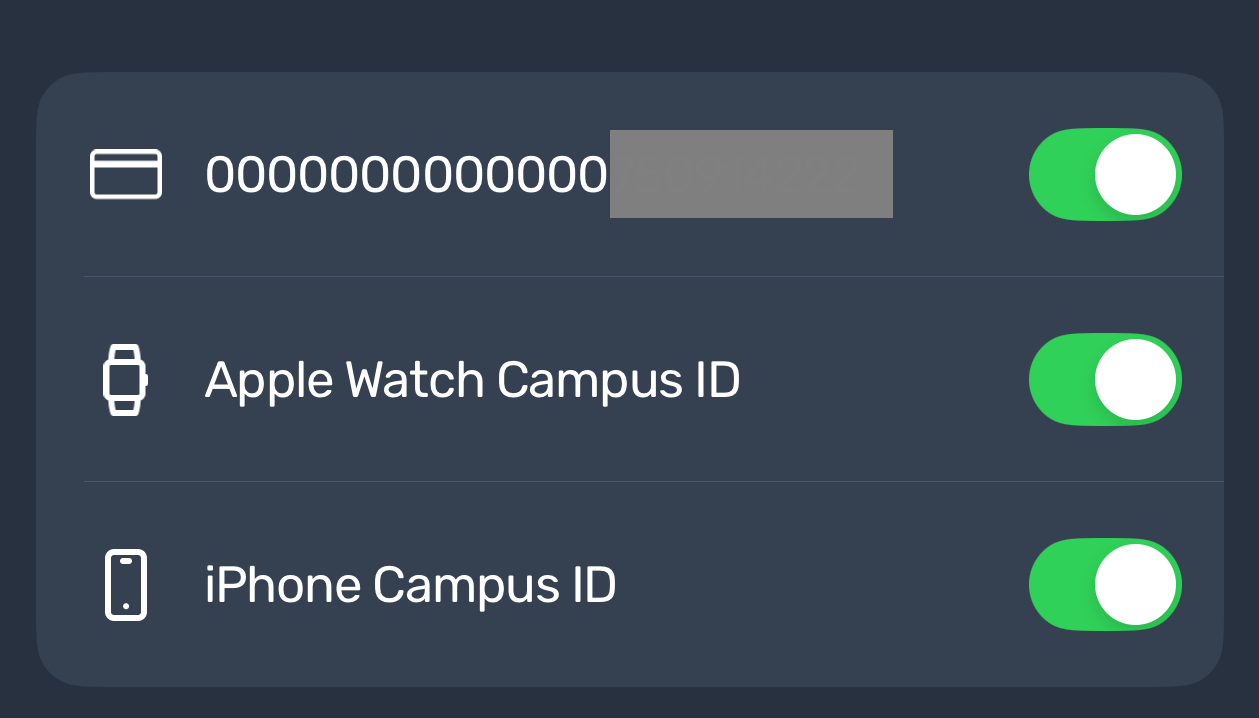
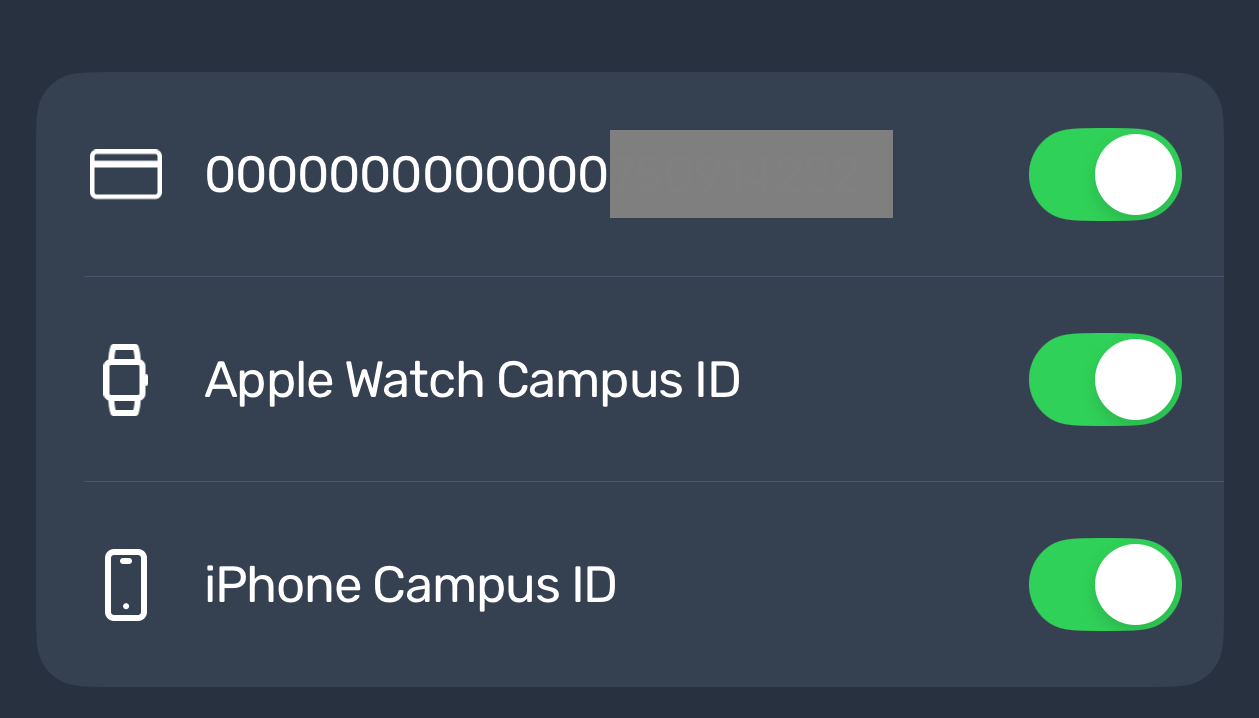
Toggle the switch to on to the right of your I.D. number
Enter section select mode
Previous
How to submit your Mobile ID Photo or Change ...
Next
Mark Card as Found on your PC
Back to top