
Downloading, Advanced Editing and Uploading of External Media
- Share a virtual meeting recorded in Zoom or Microsoft Teams.
ITS is working to have scheduled Microsoft Teams recordings automatically uploaded to Kaltura.
- Upload a video you already recorded using a smartphone, DSLR, or high-resolution camera.
- Use a professional setup like the Recording Studio at the CETL, which offers a higher-quality alternative to a webcam recording.
- Edit your video with advanced tools like Adobe Premiere Pro or After Effects to add transitions, titles, graphics, animations, or other effects.
Downloading Kaltura Videos for Editing
By default, videos uploaded to Kaltura do not allow downloading.
⚙️Enable Downloading for Your Media
Only the media owner can enable downloads.
You can allow viewers to download your media in different formats. To enable downloading of a video, follow these instructions.
-
Go to My Media
Navigate to the video you want to enable for download and click on its title or thumbnail. -
Open the Edit Menu
On the media page, click the three dots under the video player.
Select Edit from the menu to open the edit media page.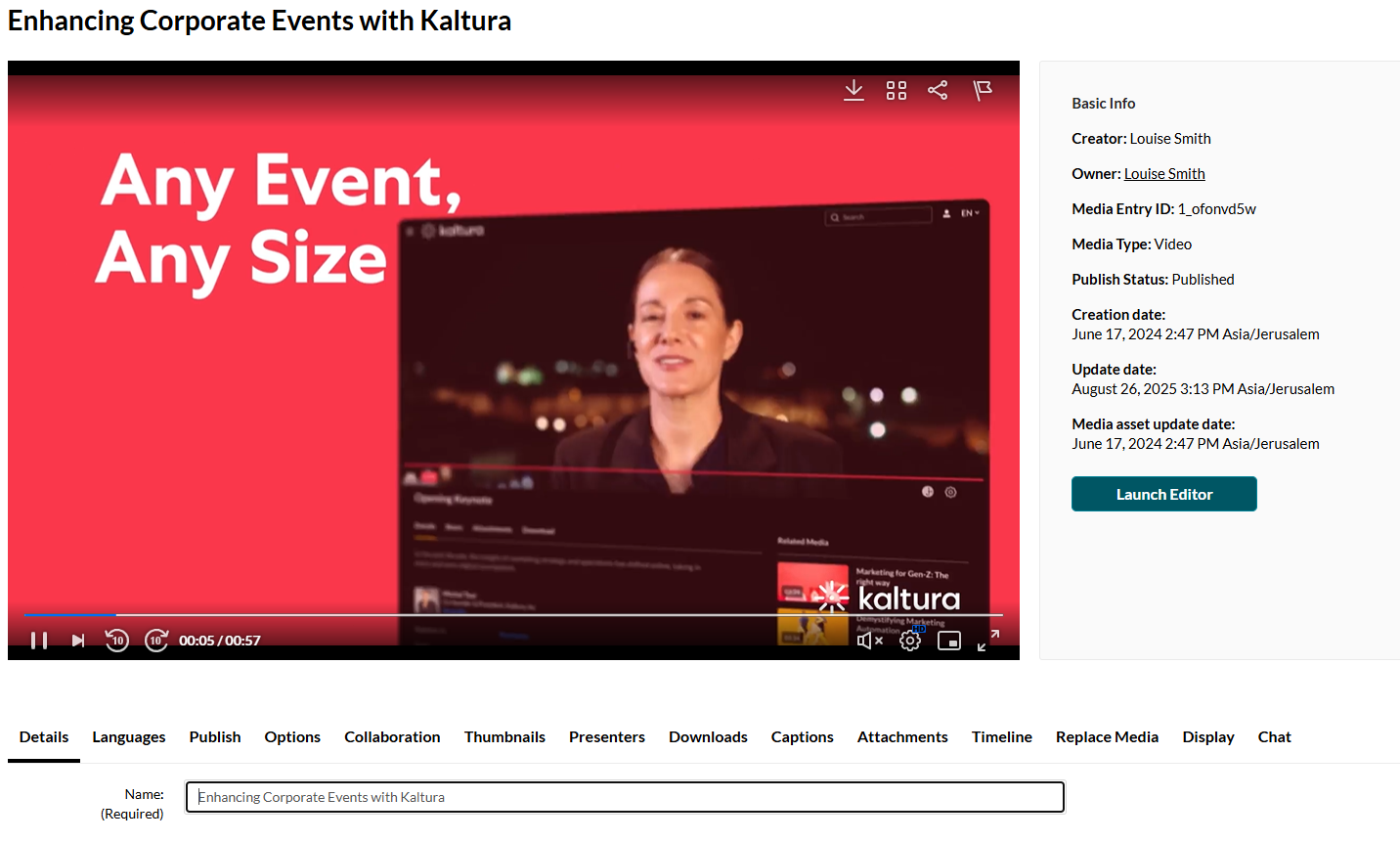
-
Enable Downloading
- Click the Downloads tab in the Edit Media page.

- Check one or more of the available formats (e.g., Source, HD, SD) that you want users to be able to download.

Available formats are determined by your system administrator.
- Click Save to apply your changes.
- Click the Downloads tab in the Edit Media page.


Download a Video
Once downloading is enabled by the media owner, viewers can download the video from the media page by following these steps.
-
Find the Video
Go to My Media or Media Gallery and click on the thumbnail of the video you want to download. -
Open the Download Menu
On the media page, click the three dots or ACTIONS menu (depending on your interface).
Select Download from the menu.This option only appears if the media owner has enabled downloads.
-
Choose a Format
A list of available formats will appear. Click the format you want to download.
-
Save the File
The video will begin downloading to your device.


Edit with Adobe Creative Cloud
Once downloaded, you can use Adobe tools for more complex editing:
- Adobe Premiere Pro: Multi-track editing, transitions, titles
- Adobe After Effects: Motion graphics, animations, effects
Refer to the following Knowledge Base Pages for a list of available editing tools and instructions on how to request an Adobe Creative Cloud account.
- Campus Technology & Support Services Index → Office Productivity & Collaboration
- Learning Technology Index
Uploading Media from Your Desktop
- Go to My Media or Media Gallery
- Click Add New → Media Upload

Drag and drop your file.

OR
- Select a file from your computer.

Zoom and Teams recordings are typically saved to your OneDrive, depending on your settings. If you're unsure where your recordings are stored, contact the ITS Help Desk for assistance.
- Enter a Title, Description, and Tags

- Click Save
-
You can click Go to Media to navigate to the media page or click Go to My Media to navigate to your My Media library.
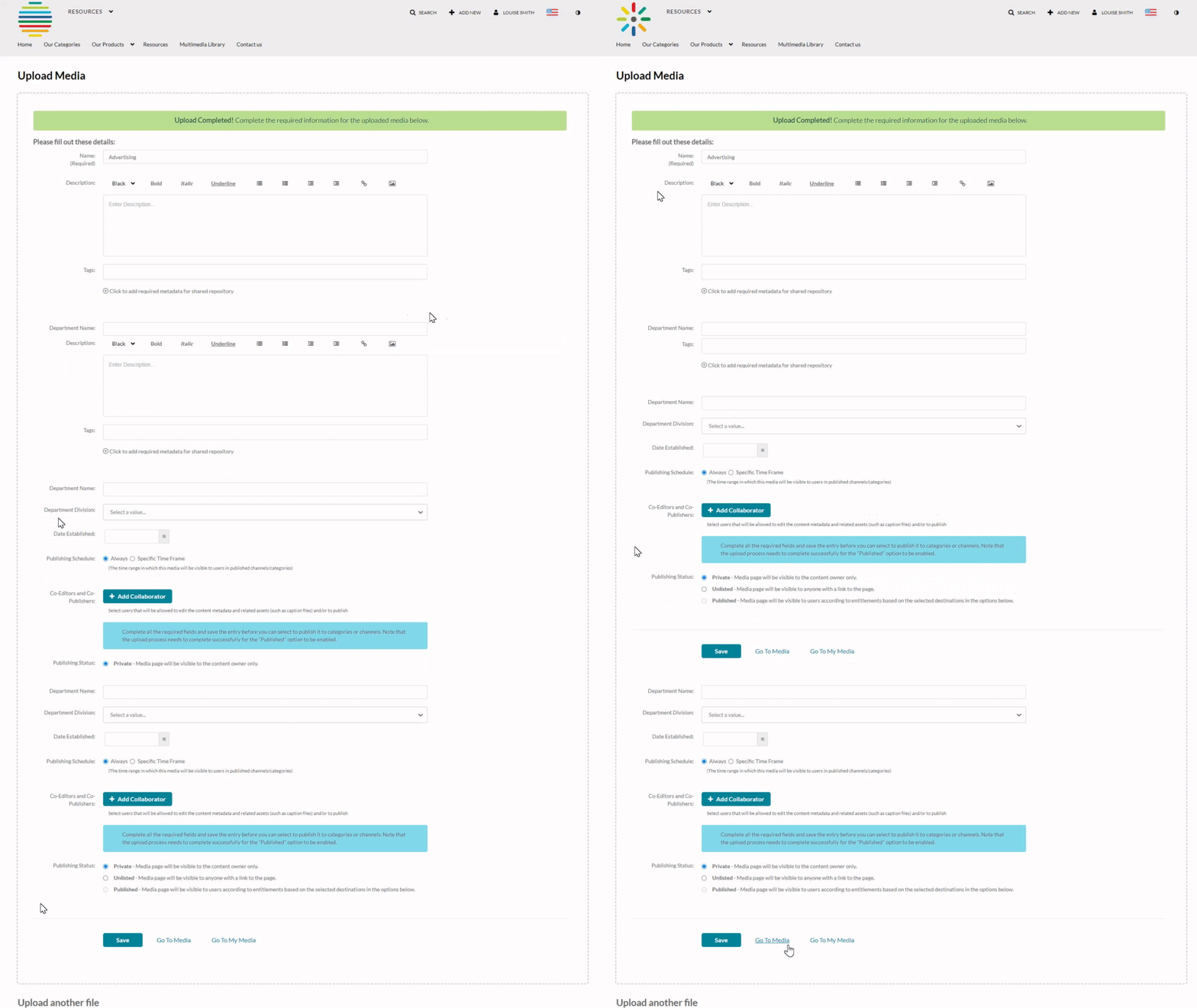
To upload another file, scroll down and click Choose another file, and repeat the steps above.


➤ See: Upload Media
Depending on the length of your video, it may take a while to upload and autogenerate the captions.
While the video is uploading, you’ll see a progress bar. Once the upload is complete, a green bar will appear at the top of the page that says Upload Completed! At that point, you don't need to remain on this page—just check your media in a few hours to review the captions.
Once uploaded, the video will appear in My Media with a gear icon to indicate that it is still processing. This includes generating alternative formats for dynamic quality adjustment across devices and network speeds, as well as creating automatic captions.
Once you see the video thumbnail in My Media, processing is complete. Your video will now appear in My Media and can be embedded in Canvas or edited further using Kaltura’s built-in tools.
If the media has not finished uploading or processing by the next day, contact the Kaltura Account Manager.